
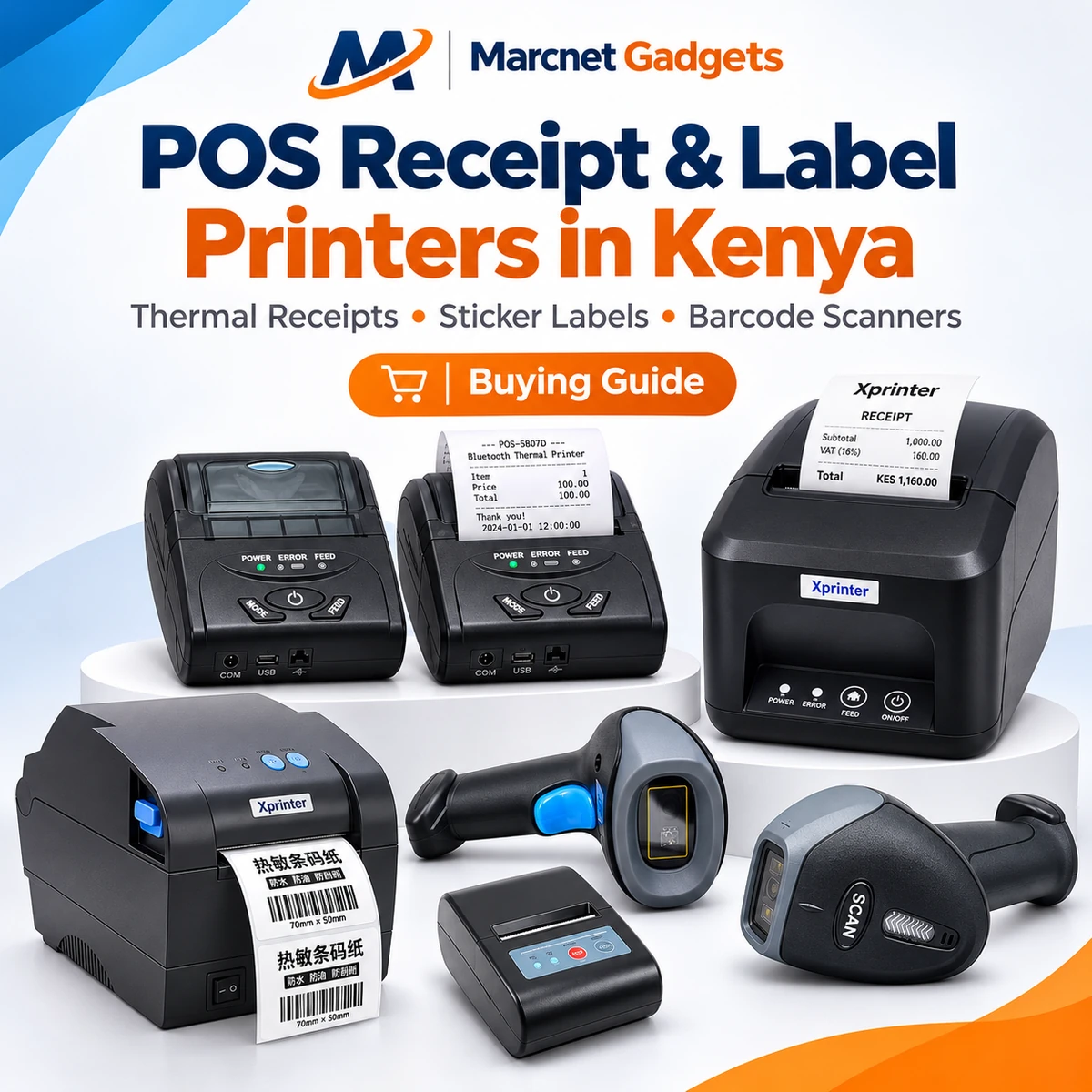
POS Receipt & Label Printers in Kenya help businesses print two different things: transaction slips for customers and adhesive stickers or barcode labels for products, shelves and parcels. Selecting the right machine starts with the output you need—not simply whether the box says 58mm or 80mm. This guide compares the actual receipt printers, the Xprinter XP-330B label printer and the barcode scanners listed at Marcnet Gadgets, with practical advice on sticker media, connectivity and POS software compatibility for businesses in Nairobi and across Kenya.
If you already know whether you need receipts or stickers, browse Receipt & Label Printers or the broader Printers & POS collection. If you are setting up a new counter or replacing a printer, use the checks below before ordering.
1. POS Receipt & Label Printers in Kenya: Start With the Output
Start with the document you need to produce. A receipt is usually a narrow, continuous slip listing the sale, individual items, totals and payment information. A barcode label is a separate adhesive label that may have fixed dimensions and requires a compatible label-printing workflow. A barcode scanner does not print anything: it reads barcodes or supported QR codes into your POS or inventory application.
A sensible buying sequence is document type → paper width → interface → device and software compatibility → power supply → operating cost. Printer brand and speed matter, but a model that cannot communicate with your particular POS software is not the right purchase, even if it has an attractive specification sheet.
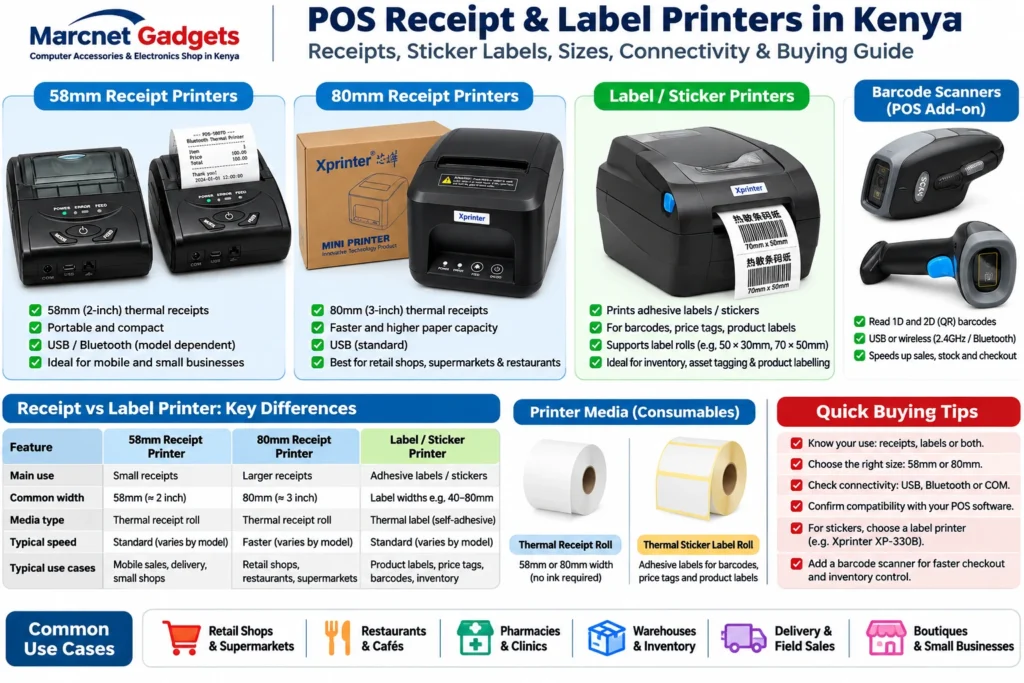
2. Receipt Printer vs Label Printer: Which One Makes Stickers?
A receipt printer normally prints on a continuous, non-adhesive thermal paper roll; customers receive an itemised transaction record. A label printer is configured for individual stickers or tags, using suitable label stock, sizes and print-software settings. A barcode scanner performs the opposite task: it reads an existing printed code into compatible business software.
| Task | Choose | What to check |
|---|---|---|
| Print a sale receipt, payment slip or order ticket | 58mm or 80mm thermal receipt printer | Continuous receipt paper; POS template; driver and interface |
| Print adhesive price stickers or product barcode labels | Thermal label printer such as Xprinter XP-330B | Thermal self-adhesive stock; label dimensions; software and calibration |
| Print stock-location or parcel identification labels | Compatible label printer | Required label width and height; barcode legibility; media durability |
| Read a product barcode or QR code | 1D/2D barcode scanner | Code formats; computer/POS input; USB or wireless support |
For a shop that needs both a printed sales receipt and a barcode sticker on every product, two separate print workflows may be the simplest choice. The same size class printed on two device names does not guarantee the media, command language or receipt template is interchangeable.
3. 58mm vs 80mm Receipt Paper: Which Width Fits Your Shop?
The familiar labels 58mm and 80mm refer to the nominal paper width class, not the number of characters or the exact printable area. Different printer mechanisms leave different margins, and an 80mm paper roll will not fit every printer without checking the roll diameter and holder. Compare the correct models and their media specifications.
| Buying factor | 58mm receipt printers | 80mm receipt printers |
|---|---|---|
| Receipt format | Narrower receipts; long descriptions may wrap | Wider receipt layout for itemised transactions |
| Typical placement | Compact counters, mobile or portable workflows | Desktop tills and busier fixed counters |
| Paper to confirm | 58mm-class thermal paper and permitted roll diameter | 80mm-class thermal paper and permitted roll diameter |
| Power | Some models have rechargeable batteries; check exact model | Typically a powered desktop setup; check exact model |
| Software setup | Check print width and driver or SDK | Check print width and driver or SDK |
| Best decision rule | Choose for mobility and compact slips | Choose when a wider, clearer receipt is needed |
The current Marcnet catalogue includes two 58mm portable receipt printers and one 80mm USB desktop receipt printer. These are three different products, not three interface variants of a single confirmed model. For thermal-paper selection, printer makers distinguish roll width from printable width and maximum roll diameter; see the HPRT technical receipt-printer buying guide for general industry context. Do not treat that external guide as a specification for a particular Marcnet unit.
4. How Direct Thermal Printing Works for Receipts and Labels
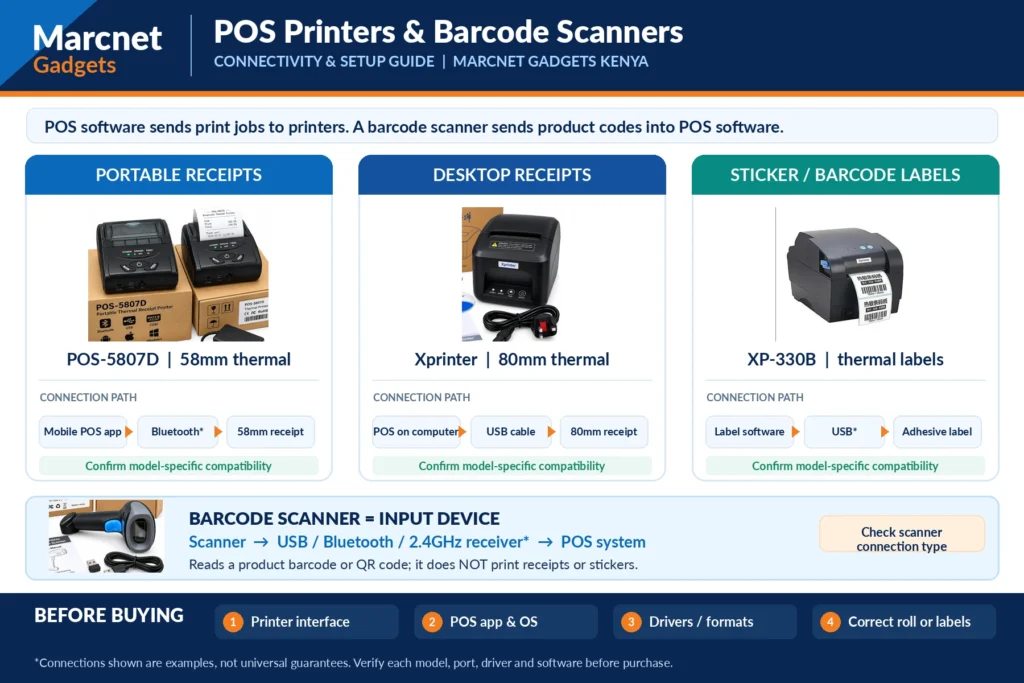
A direct thermal receipt printer uses a heated print head to mark heat-sensitive paper. It does not rely on ordinary ink or toner cartridges for routine printing. This makes it convenient for repeated checkout transactions, provided that compatible paper is available and the printer is kept clean.
Direct thermal sticker printing uses a similar heat-sensitive process, but the media is self-adhesive thermal label stock rather than an ordinary loose receipt roll. Compatible label printers can print text, black-and-white barcodes and simple graphics on suitable stickers. Ordinary thermal sticker output is not the same as colour printing or a permanent waterproof product label. Check expected exposure to heat, sunlight, moisture and abrasion before selecting adhesive stock.
Thermal receipts can darken or fade when exposed to unsuitable heat, sunlight or poor storage conditions. They are excellent for everyday printed transaction slips, but businesses that require durable records should also retain an electronic sales record, invoice or PDF rather than relying exclusively on paper. A printed receipt is an output of your POS system; the underlying sale, refund or credit history should remain in the transaction records.
5. Marcnet Gadgets Thermal Printer Range: The Four Stocked Models
At the time this guide was prepared, the live Receipt & Label Printers category displayed four printer models: two portable 58mm receipt printers, one 80mm USB receipt printer and the Xprinter XP-330B thermal printer listed for labels and barcodes. The stated functions below come from the Marcnet catalogue. Model-specific interface, driver, battery and media compatibility should still be verified against the exact unit supplied.
| Product | Listed purpose | Listed connection or technical note |
|---|---|---|
| P58E 58mm Bluetooth Thermal Receipt Printer | Portable 58mm receipt printer | Bluetooth, USB and rechargeable power listed |
| POS-5807D 58mm Portable Bluetooth Thermal Receipt Printer | Portable 58mm receipt printer | Bluetooth, USB and COM listed |
| Xprinter 80mm Thermal POS Receipt Printer | Desktop 80mm receipt printer | USB listed; do not assume LAN or Bluetooth |
| Xprinter XP-330B 80mm Thermal Label & Barcode Printer | Label and barcode printing | 203 DPI listed; confirm actual label stock and software |
Prices and availability can change, so use each live product page rather than copying a price into a long-lived article. These printer listings should be compared according to the intended work, not ordered as if every model produces the same type of output.
6. Portable 58mm Receipt Printers: P58E vs POS-5807D
P58E — 58mm Bluetooth, USB and Rechargeable
The P58E 58mm Bluetooth Thermal Receipt Printer is listed by Marcnet as a rechargeable portable 58mm model with Bluetooth and USB connectivity. Its compact category makes it relevant to business owners who need narrow receipts and would prefer not to dedicate as much counter space to a larger desktop device. A rechargeable printer still needs compatible software, sufficient battery charge and a supported connection; it is not automatically compatible with every phone or POS application.
POS-5807D — 58mm Bluetooth with USB and COM Listed
The POS-5807D 58mm Portable Bluetooth Thermal Receipt Printer is another 58mm portable option. Its listing specifically mentions USB and COM alongside Bluetooth. COM is normally a serial-interface term; the exact port, cable and driver must be checked on the unit. A POS application that supports only a particular Bluetooth profile or a particular printer command set may not communicate with a model simply because the operating system can pair with it.
Which one to choose? Compare the operating system of your till, mobile device support, available USB or serial ports, battery needs, roll size and your POS vendor’s supported-printer list. Do not claim that either model supports iOS, Android, macOS, Windows or ESC/POS unless the version and configuration have been confirmed for the actual printer.
7. Xprinter 80mm USB Receipt Printer for Desktop Checkout
The Xprinter 80mm Thermal POS Receipt Printer – USB is the stocked 80mm-class direct thermal receipt model for a fixed counter. Its public product page confirms USB connectivity, desktop use and thermal paper, and specifically warns that Ethernet, serial, Bluetooth, Wi-Fi, print speed, resolution, cutter configuration and ESC/POS support must not be assumed from similar-looking Xprinter models.
An 80mm-class receipt can provide more room for long product names, item quantities, totals, a transaction reference, store contact information and return instructions than a narrower receipt. That does not automatically mean every POS system will format an 80mm receipt correctly. Choose an 80mm print template in the software where supported, test font size and margins, and check whether your browser or application can reach the installed printer.
The Marcnet listing identifies a USB cable, power cable, driver CD and user manual in the pictured package. Always check the current box contents and driver availability before relying on any accessory or operating-system version.
8. Xprinter XP-330B: Thermal Sticker, Product Label and Barcode Printing
The Xprinter XP-330B 80mm Thermal Label & Barcode Printer is catalogued for thermal labels and barcodes, with 203 DPI specified in its listing. It is the stocked option to evaluate for adhesive product stickers, shelf-price labels, stock barcodes and compatible shipping or parcel labels. The Xprinter manufacturer XP-330B specification identifies direct thermal printing, 203 DPI and support for self-adhesive media. It also lists label and receipt printing modes at the manufacturer-model level. Marcnet’s own listing promotes the XP-330B primarily as a label/barcode device: verify the exact supplied variant, media sensors, driver, label software and any receipt mode before relying on a specific workflow.
Example label uses include product pricing, stock-keeping unit (SKU) identification, shelf tags, packaging IDs and order-picking labels. Choose a label size that fits both the product and the barcode, and test that your scanner reads a printed sample reliably. Do not infer that every size of sticker roll, every label-design application or every connection option is supported by Marcnet’s specific unit just because a different XP-330B configuration supports it. For checkout receipts, compare the separate Xprinter 80mm USB receipt printer unless you have tested the supplied XP-330B with your actual POS software.
9. How to Choose Sticker Labels: Sizes, Adhesives, Barcodes and Software
A sticker printer can only produce dependable labels when the printable media and label design match. Before buying labels for the Xprinter XP-330B, ask for the exact supported roll width, label width and height, core diameter, outer-roll diameter, media thickness and the configured sensor type. Xprinter publishes model-family media specifications, but the usable combination still needs confirmation on the actual unit.
- Product price stickers: leave room for the price, product name and any shop-required stock code; check shelf and packaging surface.
- Barcode/SKU stickers: allow adequate quiet space around the code; avoid very small barcodes that your scanner cannot read.
- Inventory and shelf labels: consider how long labels must remain legible and whether the adhesive is suitable for shelves, plastic bags or cartons.
- Dispatch and parcel labels: verify print size and durability requirements; do not assume this 80mm-class device can print larger courier formats such as 4×6 inches.
- Thermal label rolls: distinguish gap, black-mark and continuous stock; configure and calibrate the printer according to its supported sensor and manual.
A direct-thermal printer normally creates monochrome text and barcodes on heat-sensitive material. It does not automatically make full-colour logo stickers, vinyl decals or long-life outdoor labels. Those jobs may require a different printer or print service. Also confirm that the label software can retrieve your actual product name, barcode or price rather than retyping data manually for every sticker.
For a shop using a POS or inventory system, a practical trial is to print one sample label, attach it to a real item, scan it at checkout and check that the correct product and selling price appear. This tests the label design, printer, scanner and software as one working process.
10. USB vs Bluetooth vs COM, Ethernet and Wi-Fi: Connectivity Explained
The interface printed on the product title or packaging is only the start of a compatibility check. For example, a USB printer usually needs an available physical USB port, the appropriate cable and software or drivers. A Bluetooth printer needs device pairing plus an application capable of printing over its supported Bluetooth method. COM/serial setups can require the correct port settings and cable type.
For the XP-330B sticker printer, the manufacturer lists standard USB and optional configurations, but optional Bluetooth does not mean the Marcnet unit includes it. Confirm its actual ports or a verified product specification before advertising Bluetooth, LAN or Wi-Fi for sticker-printing operations.
| Connection | Typical setup | Check before buying |
|---|---|---|
| USB | Direct cable between printer and supported computer or POS terminal | Connector, driver, operating system and software |
| Bluetooth | Wireless link to a supported host | Bluetooth profile, pairing and application support |
| COM / serial | Legacy or serial-capable POS equipment | Physical port type, cable and baud/serial settings |
| Ethernet / LAN | Printer connected to a local network | Only select a verified LAN-equipped model |
| Wi-Fi | Wireless network-connected printer | Only select a verified Wi-Fi-equipped model |
Important: The current Marcnet Xprinter 80mm desktop product is listed as USB. This article explains LAN and Wi-Fi for general buyer education; it does not claim those features are fitted to any of the six listed products. In a browser-based POS, “I can open the POS website” does not prove the browser can print silently or directly to a local thermal device. The operating system’s printer configuration, printing service, driver or supported POS integration may still be needed.
11. POS Software, Drivers and ESC/POS Compatibility
Many thermal receipt-printer systems use the ESC/POS family of print commands, but its availability varies by model, firmware and interface. A printer might be USB-connected and print from Windows yet not support your POS application’s preferred receipt-printing method. Conversely, some applications print through the operating system’s normal print dialog rather than sending raw commands.
Before buying, ask your POS software provider which printer models, commands, operating systems and connection modes have been tested. For browser-based checkout systems, confirm whether the receipt can be printed to the installed device, what happens when printing fails and whether reprints are logged. If the platform prints A4 invoices or PDFs rather than small thermal slips, also verify whether it has a proper 58mm or 80mm receipt layout.
- Confirm the exact printer model, not only the brand or paper width.
- Confirm the host device and operating system version.
- Confirm the physical or wireless interface and required driver or print service.
- Confirm the receipt template width, currency formatting and character encoding.
- Test a sale, partial payment, return or refund and a legitimate reprint before deploying at a live counter.
12. Which Receipt or Sticker Printer Fits Your Business in Kenya?
For a small shop or compact counter, a 58mm portable model such as the P58E or POS-5807D may be worth comparing where the narrow slip format is acceptable and the POS supports the connection. For a retail shop, supermarket, restaurant or pharmacy with itemised sales, a wider 80mm receipt format may be easier to read, making the Xprinter USB desktop receipt printer a useful candidate where the USB connection and software match.
For a warehouse or product-labelling workflow, the XP-330B label printer is the relevant choice for thermal barcode and adhesive sticker workflows, once the required stock and software are verified. For a business that also needs fast item lookup at checkout, a separate 1D/2D barcode scanner may help, provided the inventory or POS application supports the scanner’s input method. Do not assume a barcode scanner connects directly to a receipt printer; in a normal workflow both communicate with the host POS system.
| Your business need | Primary equipment | Typical output |
|---|---|---|
| Mobile sales counter or delivery collection | Compatible portable 58mm receipt printer | Narrow sales slip |
| Retail till with many item lines | Compatible 80mm receipt printer | Wider sales receipt |
| Product pricing and shelf stock identification | Compatible XP-330B label printer | Adhesive thermal price or barcode stickers |
| Fast stock entry and checkout scanning | Compatible 1D/2D scanner | Barcode/QR data entered into POS |
13. Barcode Scanners and Other POS Equipment at Marcnet
The Marcnet Barcode Scanners category includes two products alongside the four printer listings in its Printers & POS collection. These devices are for reading codes rather than printing. They can support sales entry, inventory lookup and stocktaking when the relevant software has matching barcode records.
Bluetooth Wireless and USB 2D/1D QR Scanner
The 2D 1D QR Barcode Scanner – Bluetooth Wireless & USB Wired Rechargeable is listed with Bluetooth wireless and USB wired options. Verify the supported code symbologies and how its scan output enters your intended application.
YP-W100 2D Wireless Barcode Scanner
The YP-W100 2D Wireless Barcode Scanner – 2.4GHz, USB & QR Reader is listed with 2.4GHz wireless, USB and QR reading. Do not confuse its 2.4GHz radio link with Wi-Fi connectivity unless separately verified. It is a scanning accessory, not a Bluetooth printer or an internet router.
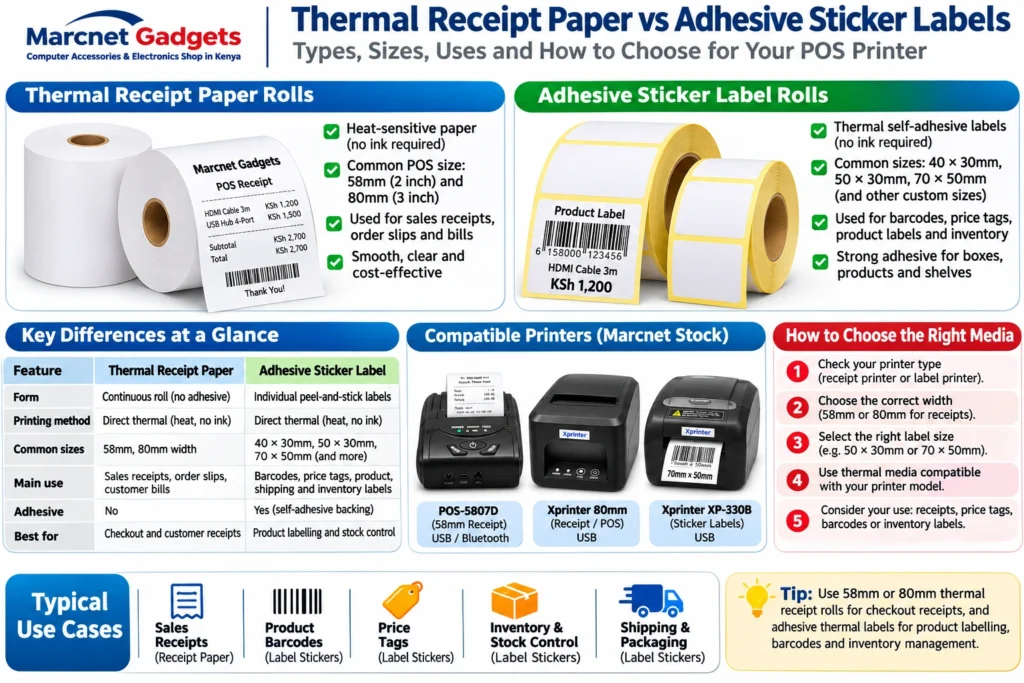
14. Receipt Paper Rolls vs Adhesive Sticker Label Media
Buying the right paper is as important as buying the printer. Check the required paper width, maximum roll diameter, core if applicable and whether the printer expects continuous thermal paper or label stock. An 80mm printer often uses a wider printable area than a 58mm model, but the printing margins and receipt template still depend on the mechanism and software.
Store thermal paper away from excessive heat, moisture and direct sun, and keep paper dust and adhesive residue away from the print head. If an 80mm receipt appears cut off at the edge, check the software receipt-width setting rather than immediately assuming the printer is defective. If a label printer is skipping labels, verify its sensor and label calibration according to the correct manual.
| Feature | Receipt paper roll | Sticker/label roll |
|---|---|---|
| Surface | Continuous thermal paper | Heat-sensitive label face with adhesive backing |
| Output | One long receipt separated or torn | Individual labels with defined sizes or media marks |
| Key setting | Receipt width, margins, font scaling | Label width/height, gap or mark and printer calibration |
| Usage | Cashier transaction and customer receipt | Product code, shelf price, inventory or parcel identification |
15. Basic Setup and First Test: Receipt and Label Printers
- 1 — Identify: Read the exact model, interface and power specification on the printer or manual.
- 2 — Connect: Use the correct supplied power source and supported USB, Bluetooth or serial connection.
- 3 — Load media: Fit the right thermal roll or label stock in the required direction, within the maximum diameter.
- 4 — Install: Set up the correct driver, print service, SDK or POS integration where required.
- 5 — Test: Print a self-test where supported, then a real POS test receipt with product names, totals and store details.
- 6 — Audit: Confirm separate transactions, returns, partial payments and reprints are handled correctly by the POS, not merged into misleading receipt lines.
A test print from the printer itself proves the printer mechanism works; it does not by itself prove your POS integration works. Test from the actual cashier screen, computer or mobile device that will be used during trading.
For stickers, add a second end-to-end test: print a small batch, confirm that each label aligns without drifting, apply one to a sample product and scan its barcode through the intended checkout or stock-control application. The complete print-and-scan workflow matters more than a printer-only self-test.
16. Common Receipt and Sticker Printing Problems
- Blank paper: Check that the roll is thermal paper and is loaded in the correct direction; test with the exact model’s instructions.
- Paper feeds but text is clipped: Review software print width, font scale, margins and selected paper size.
- Printer pairs but does not print: Verify that the application supports the printer’s actual Bluetooth profile and command/driver method.
- USB printer not detected: Check data cable, port, driver and whether a different printer interface was assumed.
- Label print drifts: Confirm label size, gap/mark setting and sensor calibration rather than using a receipt roll setting.
- Receipt omits returns or payments: Review POS report and receipt-template logic. Hardware alone cannot correct missing accounting or audit data.
Do not buy a model purely because a listing advertises a high print speed or ESC/POS compatibility on a similar-looking printer. The Marcnet 80mm Xprinter page explicitly cautions that such parameters must be verified for its exact unit.
17. FAQs About POS Receipt & Label Printers in Kenya
Is 58mm or 80mm better for a POS receipt?
Choose 58mm for a narrow, compact receipt where your software supports the format; choose 80mm where a wider itemised receipt improves readability. Verify the exact paper roll and printer specifications before ordering.
Do thermal receipt printers need ink?
Direct thermal receipt printers use compatible heat-sensitive paper, so they do not need ordinary ink or toner cartridges for routine receipt printing.
Can I connect a Bluetooth receipt printer to any Android phone or iPhone?
Not automatically. Pairing, Bluetooth profile, app support and operating-system compatibility depend on the exact printer and POS application. Confirm these before purchase.
Does a USB receipt printer work with an online POS website?
Only when the host computer and the web POS printing workflow can access it through the appropriate print path. Browser access to the POS and a connected USB cable are not sufficient proof of compatibility.
Can the XP-330B print both sticker labels and receipts?
Xprinter’s published XP-330B model specification identifies both label and receipt printing modes, including self-adhesive paper. However, verify the exact Marcnet-supplied configuration, media and software before treating it as a replacement for a dedicated checkout receipt printer.
Do all Marcnet receipt printers have Bluetooth and Wi-Fi?
No. Connectivity varies. The P58E and POS-5807D are listed with Bluetooth; the stocked Xprinter 80mm receipt printer is listed with USB. Wi-Fi or LAN must not be assumed.
What should a proper retail receipt contain?
Depending on your business and system, useful details include a receipt identifier, transaction time, item descriptions, quantities, prices, totals, payment details and business contact information. Applicable tax and fiscal documentation requirements are separate from the hardware specification and should be checked for your business.
What if I need to scan barcodes as well as print receipts?
Browse the Barcode Scanners range for a supported 1D/2D or QR reader. It connects to the POS workflow separately from the receipt printer; both must be compatible with the software.
Which Marcnet printer can make adhesive price stickers or product barcode labels?
Start with the Xprinter XP-330B thermal label and barcode printer. It is the label-focused printer in the current Marcnet collection. Confirm the size and type of adhesive thermal labels, print software and interface on the actual supplied unit.
Can an ordinary 58mm thermal receipt printer print peel-off sticker labels?
Do not assume so. A receipt printer designed for continuous paper may not accept adhesive label stock or have the correct media sensing, calibration and software to index individual stickers. Choose a verified label-printing workflow.
Are thermal stickers waterproof, coloured or permanent?
Not automatically. Direct-thermal output is generally monochrome and sensitive to heat and light; adhesive strength and moisture resistance depend on the exact label stock. Confirm the intended environment or choose another print method for durable outdoor or full-colour labels.
18. Shop POS Receipt Printers, Sticker Label Printers and Barcode Scanners in Kenya
Start with the Receipt & Label Printers in Kenya collection for the four listed printer models, or browse the Barcode Scanners range for stock and checkout scanning. The parent Printers & POS category brings both types together. Marcnet Gadgets serves customers in Nairobi and across Kenya, with delivery arrangements confirmed through the store’s ordering process.
Before ordering, send the intended POS software name, computer or mobile operating system, preferred receipt width or sticker dimensions, required interface and connection type to Marcnet Gadgets. This helps avoid purchasing a perfectly functional printer that cannot work with your particular setup.
Leave a Reply