
Marcnet Gadgets

Category: Buying Guides

  • Wireless & USB Microphones in Kenya: Lavalier Mics, Podcast Audio, Ring Lights & Video Lighting Guide

    Wireless & USB Microphones in Kenya: Lavalier Mics, Podcast Audio, Ring Lights & Video Lighting Guide

    Wireless & USB Microphones in Kenya are easier to choose when you start with the device that will record the sound, the number of speakers, and the lighting available at your filming location. A phone interview, a desktop podcast, a church presentation and a product-video shoot do not all need the same microphone or light. This guide compares Marcnet Gadgets’ live wireless and wired lavaliers, USB condenser microphones, podcast microphone kits, sound cards, ring lights and LED video lights, with direct links to the exact stocked models.

    The live Microphones & Lights branch currently shows 32 products across seven specialist categories. We cover the options by the job they perform, not by assuming every USB-C phone, camera, laptop or livestream app accepts every audio accessory.

    1. Quick Answer: What Microphone and Light Should You Buy?

    For a presenter walking and talking into a smartphone, start with a wireless lavalier system whose supplied receiver matches that specific phone. For a stationary desk recording, a USB microphone is often the simpler starting point. For two presenters, look for a genuine two-transmitter package; for larger groups, check whether the receiver really supports the number of simultaneous channels you need. For lighting a face close to a phone, compare a ring light and its stand. For flexible direction and positioning, compare a dedicated LED video light.

    Recording jobStarting categoryCritical check
    Phone interview, mobile contentWireless MicrophonesReceiver plug, phone audio support, number of speakers
    Budget wired interviewLavalier MicrophonesUSB-C, Lightning, 3.5mm wiring and cable reach
    Desktop voice-over, meeting, streamingUSB MicrophonesComputer port, software input selection and monitoring
    Podcast with mixed audio sourcesPodcast Microphones and Sound CardsMic sockets, outputs, monitoring and cables
    Beauty, teaching, face-to-camera videoRing LightsSize, stand, power supply, holder quantity
    Products, interviews, varied lighting positionsLED Video LightsPlacement, stand, battery and lighting controls

    2. Wireless & USB Microphones in Kenya: Which Type Should You Buy?

    A wireless lavalier usually places a small microphone/transmitter on the presenter and sends sound to a matched receiver at the recording device. It improves freedom of movement but adds pairing, charging, interference and receiver compatibility to the setup. A wired lavalier uses a direct cable; it avoids the wireless link but its connector and cable length must fit the situation. A USB condenser microphone is more suited to a controlled desk setup, where the user can face the microphone consistently and select it in recording software.

    Wireless does not automatically mean Bluetooth; a dedicated receiver can be required. Similarly, a microphone marketed as “noise reduction” does not eliminate all traffic, wind, echo or background conversation. Placement and testing remain important.
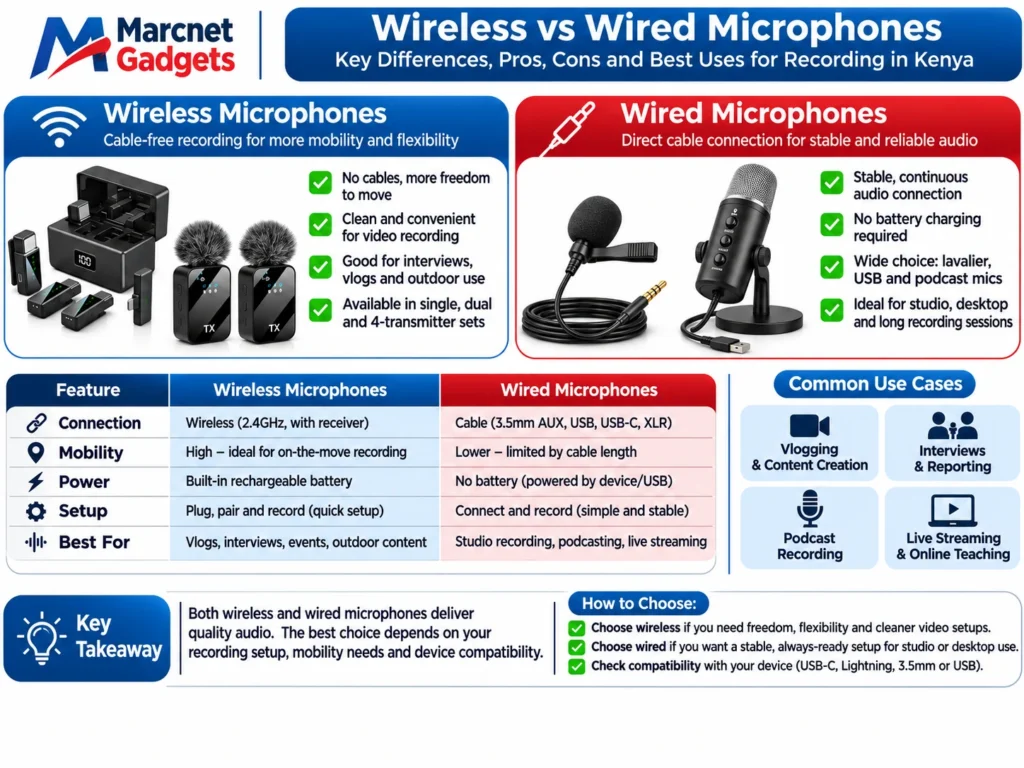
    Wireless & USB Microphones in Kenya featuring wireless lavalier microphone kits, USB podcast microphones, sound cards and LED video lighting.
    Compare wireless and wired microphones for interviews, vlogging, podcasting and livestreaming — Marcnet Gadgets Kenya.

    3. Phone Microphone Connections: USB-C, Lightning and 3.5mm AUX

    USB-C: Match the receiver or microphone to the recording device’s supported USB digital-audio input. A USB-C-shaped port alone does not guarantee that every microphone will be recognised. Lightning: Check the actual iPhone or iPad port and app compatibility; newer and older Apple devices can use different connectors. 3.5mm AUX: Check whether the jack is a microphone input, headset combo input or line input, and whether the pinout is TRS or TRRS. A passive plug adapter cannot always convert an incompatible signal type.

    If the phone reports that no external microphone is detected, try the supplied receiver without an extension, check permissions, reconnect it, and record a short test. Avoid buying solely from the connector printed on the box; compare the exact phone model and the accessory package.

    For additional guidance on microphone plug compatibility, read RØDE’s explanation of TS, TRS and TRRS connectors. It explains why microphones and recording devices with similar-looking 3.5mm sockets may require different cables.
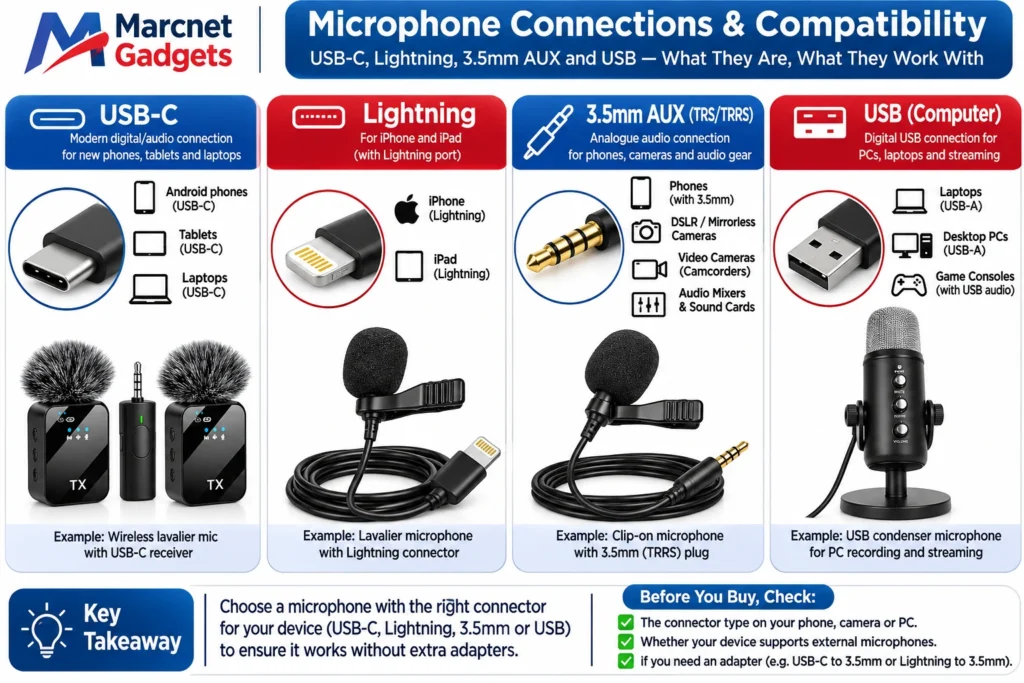
    Microphone connections and compatibility in Kenya comparing USB-C, Lightning, 3.5mm AUX and USB microphones for phones, cameras and computers.
    Compare USB-C, Lightning, 3.5mm AUX and USB microphone connections before choosing the right recording equipment — Marcnet Gadgets Kenya.

    4. Single, Dual and Four-Transmitter Wireless Microphone Sets

    One transmitter can work for a single presenter. Two transmitters suit a host and guest or two presenters. A product described as a 1-to-4 system may be appropriate where multiple people must be captured, but verify the supported simultaneous channels, receiver, recording-device input and how tracks are combined. A four-person configuration is not automatically four separate audio tracks in the destination application.

    For instance, the dual-channel UHF lavalier system lists two transmitters and a receiver for compatible UHF setups, while the Intelligent 1-to-4 Type-C system is aimed at a different multi-speaker arrangement. The operating frequency, power and included accessories must be taken from each model rather than generalised across wireless microphones.

    5. Eight Wireless Microphone Models at Marcnet Gadgets

    Marcnet’s Wireless Microphones category currently lists eight products. The core buying differences are receiver connector, transmitter count, charging-case package, mounting style and output required by your phone, camera, PA system or computer. Product titles can describe several variants; confirm the exact option supplied when ordering.

    Stocked Marcnet modelPractical buying check
    Dual Channel UHF Wireless Lavalier Microphone System – 2 TransmittersTwo transmitters; UHF system; receiver/output compatibility must be checked.
    F11-2 3-in-1 Dual Wireless Lavalier Microphone – Type-C, Lightning & 3.5mm AUXThree connection options described; confirm exact supplied receiver and device fit.
    Intelligent 1-to-4 Type-C Wireless Lavalier Microphone with AI Noise ReductionOne-to-four Type-C system by product name; check receiver and individual input support.
    K11 Wireless Lavalier Lapel Microphone for iPhone & USB-C – Single/DualSingle/dual variants; verify variant and connector supplied.
    K32 Dual Wireless Lavalier Microphone with Magnetic Clip & Charging Case – Type-C/LightningDual microphone with magnetic clip and charging case; verify phone connector.
    K35 3.5mm AUX Wireless Lavalier Microphone – Single/Dual3.5mm receiver; confirm TRS/TRRS and recording-input compatibility.
    K50 2.4G Dual Wireless Lavalier Microphone with Charging Case – USB-C, Lightning & 3.5mm2.4G dual microphone and charging case; confirm supplied receiver options.
    N6 Pro AI Wireless Lavalier Microphone with Magnetic Clip – Type-CType-C receiver, magnetic clip; AI marketing does not guarantee complete noise removal.

    For mobile video, the F11-2 3-in-1 dual lavalier covers Type-C, Lightning and 3.5mm in its listing, but you should still verify the supplied receiver combination. The K32 dual microphone lists a magnetic clip and charging case; the K50 dual 2.4G microphone also lists a charging case. For a more conventional receiver feeding compatible audio equipment, compare the dual-channel UHF set.

    6. Four Wired Lavalier Microphones for Phones, Cameras and Computers

    A wired lapel microphone can be a practical option for sit-down presentations, teaching or a phone kept close to its subject. Place the capsule near the upper chest, secure the cable against clothing rub and test before recording. Connector appearance must not be used as the only compatibility evidence.

    Stocked Marcnet modelPractical buying check
    3.5mm AUX Lavalier Lapel Microphone for Phones & ComputersWired 3.5mm lapel microphone; phone/computer mic input needs matching.
    3.5mm Lavalier Lapel Microphone for Camera & Wireless TransmitterCamera/transmitter application; exact input wiring must match.
    GL-120 Lightning Lavalier Microphone for iPhone & iPadLightning connector; supported iPhone/iPad model must be checked.
    USB Type-C Lavalier Lapel Microphone for Phones & ComputersUSB-C connector; USB-C port does not guarantee microphone compatibility.

    The 3.5mm AUX wired lavalier and 3.5mm camera/transmitter lavalier should not be assumed interchangeable: microphone-input wiring can differ between cameras, transmitters and phones. The GL-120 Lightning model and USB Type-C model target different device connections.

    7. USB Microphones for Podcasting, Voice-Overs and Computer Recording

    USB microphones simplify the first connection for compatible desktop or laptop setups because the microphone sends audio over USB, rather than requiring the buyer to assemble a separate analogue recording chain. The recording application must still use the correct input. A quiet room, stable desk mount and sensible microphone distance often matter more to speech quality than unverified promotional sound-quality numbers.

    Stocked Marcnet modelPractical buying check
    Large Diaphragm USB & XLR Condenser Microphone with Echo, Mute & StandUSB and XLR listed; confirm included cable and input needs.
    RGB Large Diaphragm USB Condenser Microphone with Echo, Mute & StandRGB lighting and USB microphone; lighting is not an audio feature.
    USB Computer Condenser Microphone with Echo, Mute & Tripod StandUSB mic with echo, mute, tripod named in listing.
    USB Computer Condenser Studio Microphone with Tripod & Volume ControlUSB microphone; physical volume control and tripod listed.
    USB Condenser Microphone with Echo, Mute & StandUSB mic, echo/mute/stand per product listing.

    Marcnet lists an USB and XLR condenser microphone for buyers comparing two interface paths. The RGB USB microphone adds decorative lighting, whereas the USB studio microphone with volume control emphasises local level control. Choose on connections and recording workflow rather than appearance alone.

    8. USB vs XLR: Do You Need an Audio Interface or Sound Card?

    USB microphone path: Compatible USB microphone → computer or supported recording device → chosen recording application. XLR microphone path: Compatible XLR microphone → suitable audio interface or mixer with the correct mic input and power requirements → recording device. XLR microphones are not normally plugged into a laptop USB port without the correct interface.

    Check whether the selected microphone requires phantom power, whether the chosen interface supplies it and whether the cable is included; do not assume that every microphone labelled “condenser” has the same power arrangement. Consumer sound cards with microphone sockets also vary from dedicated audio interfaces in connector type and signal level.

    9. Podcast Microphone Kits: V8 vs V8S Bundles

    A bundled podcast kit can reduce the number of separate accessories to source, but buyers should inspect the microphone, mount, sound card, connection cables and recording device before paying. Marcnet’s podcast category lists the V8 microphone podcast kit and V8S microphone podcast kit. Both listings reference an arm stand; exact included components and supported recording connections should be checked for the chosen package.

    Stocked Marcnet modelPractical buying check
    Professional Condenser Microphone Podcast Kit with V8 Sound Card & Arm StandKit with V8 card and arm stand; exact accessories per selected listing.
    Professional Podcast Microphone Kit with V8S Sound Card & Arm StandKit with V8S card and arm stand; check connections and accessories.

    When the goal is spoken-word recording, spend time on microphone placement, pop control, room reflections and monitoring. A bundled effect button cannot replace intelligible recording. Multi-person recording may need additional compatible microphones and separate inputs.

    10. Sound Cards for Livestreaming: V8, V8S and M9

    Sound cards can combine microphone audio, monitoring, phone/computer feeds and selected effects in a creator setup. However, model names alone do not establish universal support for a particular app or computer. Compare actual input and output sockets before connecting powered devices or using adapters.

    Stocked Marcnet modelPractical buying check
    M9 Podcast Recording Sound Card with 3 Mic Ports & BluetoothThree mic ports, USB/OTG PC recording, Bluetooth accompaniment; confirm inputs.
    V8 Live Podcast Recording Sound Card with Bluetooth & Dual Mic InputBluetooth and dual mic input per listing; connection compatibility must be checked.
    V8S Podcast Recording Sound Card with Bluetooth & Dual Mic InputBluetooth and dual mic input per listing; do not assume V8/V8S identical.

    Marcnet’s M9 sound card explicitly lists three microphone ports, USB/OTG PC connections and Bluetooth for compatible accompaniment input; Bluetooth accompaniment does not necessarily transmit the finished mix wirelessly to the recording phone. The V8 and V8S listings describe Bluetooth and dual microphone inputs, but port layout and controls must be checked on the exact unit.

    11. Practical Audio Connection Workflows

    Phone interview

    Confirm a supported phone input → connect the matching lavalier receiver or wired microphone → enable microphone permission if needed → select external audio where available → record a 20-second test while both speakers move as they will during filming.

    Desktop voice-over or online meeting

    Connect the USB microphone → choose it in the operating system and application → test input level without clipping → check monitoring separately to avoid speaker feedback → make a short recording before the real session.

    Podcast with a sound card

    Connect a compatible microphone to its assigned sound-card input → connect the card to a supported phone or computer input → confirm software recognition and monitoring → set levels for every speaker → record a dry test before adding effects or music.

    12. Ring Light vs LED Video Light: What Is the Difference?

    A ring light can position a camera or phone near the centre of an illuminated circle, often useful for face-to-camera videos, demonstrations and short-form content. A rectangular LED video light may offer a different way to direct light onto a subject or product when mounted on its compatible stand. Neither type is universally “better”: subject size, distance, room light, placement and power determine the useful result.

    Do not treat a ring-light diameter as brightness, or an LED model number as a measured light-output specification. For both, ask about mounting hardware, battery or mains power requirements, practical controls and the working area you want illuminated.
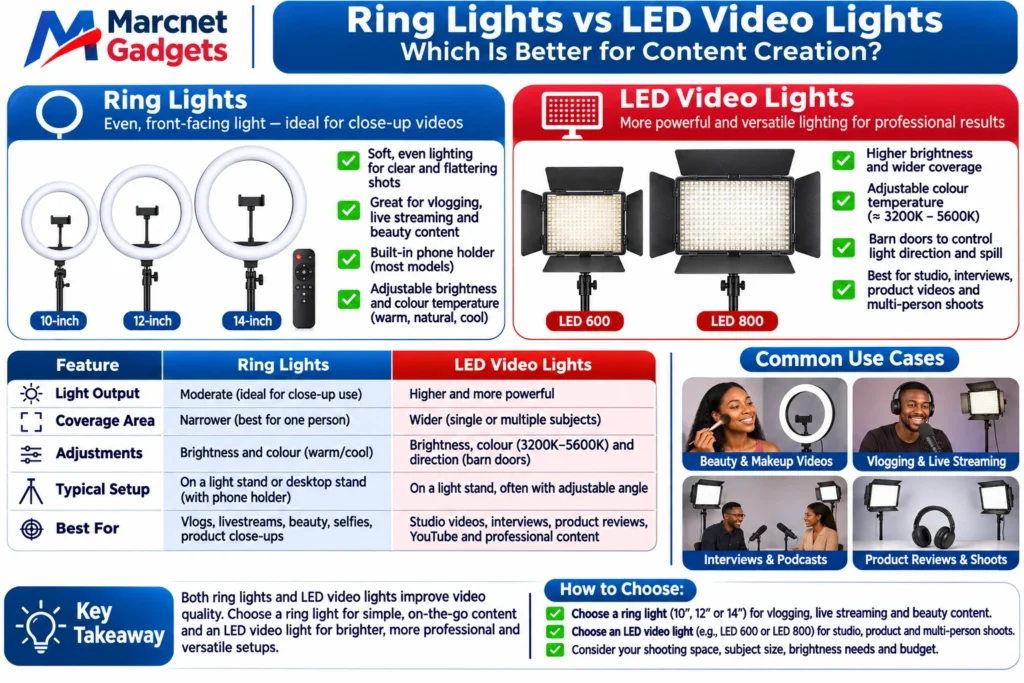
    Ring lights vs LED video lights in Kenya comparing 10-inch, 12-inch and 14-inch ring lights with LED 600 and LED 800 video lighting panels.
    Compare ring lights and LED video lights for vlogging, livestreaming, podcasting, product photography and content creation — Marcnet Gadgets Kenya.

    13. Seven Ring Lights: 10-Inch, 12-Inch, 14-Inch and 18-Inch

    Marcnet lists standard and RGB ring lights in several sizes. A larger nominal diameter can allow a larger illuminated opening, but it does not guarantee a certain lux value or that it will be brighter than every smaller unit. A stable stand, a secure phone holder and a usable power source matter in daily filming.

    Stocked Marcnet modelPractical buying check
    10-Inch RGB Ring Light with 2.2m Tripod Stand & Phone HolderRGB, 2.2m tripod, phone holder listed.
    10-Inch Ring Light with 2.1m Tripod Stand & Phone Holder10-inch light; 2.1m tripod and phone holder listed.
    12-Inch RGB Ring Light with 2.2m Tripod Stand & Phone HolderRGB light, 2.2m tripod and phone holder listed.
    12-Inch Ring Light with 2.1m Tripod Stand & Phone Holder12-inch light; 2.1m tripod and phone holder listed.
    14-Inch RL-14 Ring Light with 3 Phone Holders, Remote, Bag & 2.2m Tripod3 holders, remote, bag and 2.2m tripod named.
    18-Inch RL-18 Ring Light with 3 Phone Holders, Remote, Bag & 2.2m Tripod3 holders, remote, bag and 2.2m tripod named.
    RGB 18 inch & 3 mode ring light with phone holder and 2.2M tripod stand forProduct title truncated on category; verify 3-mode specification on exact listing.

    The 10-inch RGB model and 12-inch RGB model offer RGB-labelled alternatives; confirm what their actual lighting modes deliver. The RL-14 and RL-18 list three phone holders, a remote and a bag with a 2.2m tripod, which may matter for creator setups involving more than one phone. Compare what is in the particular retail package before ordering.

    14. Three Dedicated Video Lights: LED-416, LED 600 and LED 800

    For product photography, demonstration tables, interviews and controlled shooting positions, LED video lights may be a practical alternative to a ring light. Marcnet’s LED Video Lights category includes three stocked models; compare the supplied stand, battery configuration, adjustment controls and size against your setup.

    Stocked Marcnet modelPractical buying check
    Pro LED 600 Video Light with Stand & 2 Rechargeable BatteriesStand and two batteries named; brightness/output not confirmed.
    Pro LED 800 Video Light with Stand, 2 Batteries & RemoteStand, two batteries and remote named; brightness not confirmed.
    Pro LED-416 Video Light with Battery & 2.2m StandBattery and 2.2m stand named; brightness not confirmed.

    The LED 600 lists a stand and two rechargeable batteries, while LED 800 lists two batteries, stand and remote. The LED-416 lists a battery and 2.2m stand. These names do not on their own establish colour temperature, luminous output, battery runtime or suitability for every camera setting.

    15. Lighting Position, Stands, Power and Background

    Start with the subject rather than the lamp. For a presenter, raise a light to an appropriate angle that does not cause harsh shadows or excessive glare. For small products, try lighting from a side or slightly above while checking reflections on shiny surfaces. Use the tripod on a stable, level surface and secure all cables away from walkways.

    When filming indoors, avoid mixing incompatible colour tones from different lights unless that is intentional. When filming outdoors or away from a socket, check whether the specific light supports the available battery arrangement and whether charging and replacements are practical. Do not assume a bundled remote, phone holder or carrying bag is present unless the exact product says so.

    16. Recommended Setups for Creators and Businesses in Kenya

    Use caseAudio starting pointLighting starting pointWhat to verify
    TikTok/Reels product explainerphone-compatible wireless lavalierring lightPhone connector, stand and framing
    Two-person interviewF11-2 dual microphone or another verified dual receiverLED video lightTwo working audio channels, camera input and placement
    Desktop voice-overUSB condenser microphoneOptional desk-facing ring lightComputer input, quiet room, headphones
    Church or teaching eventdual UHF systemVenue-dependent lightingCompatible PA input, frequencies, mic placement
    Podcast with guestspodcast kit and compatible sound cardSoft, controllable lightNumber of inputs, monitoring, cables
    Small product photographyOften no external microphone for still photosLED panel lightReflections, colour, background, power

    These are starting points for purchasing decisions, not guarantees of compatibility or professional broadcast results. For a camera-into-computer workflow, also consider video input and capture requirements separately from microphone selection.

    17. Common Problems and Troubleshooting Checks

    External mic not detected

    Recheck the device’s actual input and the supplied receiver; disconnect adapters; grant microphone permissions; restart or reconnect where appropriate; test in the default voice-recorder application.

    Voice is too quiet, clipped or distorted

    Check microphone placement, recording-device input level, sound-card gain, clothing contact and any limiter/processing settings. Move the microphone away from rubbing fabric or wind and retest.

    Wireless drops out or crackles

    Charge transmitter and receiver, reduce obstacles, keep antennas clear where applicable and test in the intended environment. Wireless range varies; do not rely on an unverified maximum-distance claim.

    Light is harsh, unstable or not powering on

    Reposition the light, stabilise the stand, verify battery charge or power adapter, and check that the chosen holder safely supports the phone. Do not force incompatible batteries or adapters.

    18. Pre-Purchase Compatibility Checklist

    • Write down the exact phone, camera, computer or mixer model.
    • Identify the input: USB-C digital audio, Lightning, 3.5mm TRS/TRRS, XLR, USB or compatible receiver socket.
    • Count the speakers and decide whether they must be recorded simultaneously.
    • Confirm the included transmitters, receiver, cable and charging equipment.
    • Check whether the mic, sound card and app support the desired recording path.
    • Choose a light based on subject distance, available power and stand height.
    • Confirm the exact ring-light or LED-light accessories in the selected package.
    • Check the current product page for price and availability before checkout.

    19. Frequently Asked Questions About Microphones and Video Lighting

    Which wireless microphone works with my iPhone?

    Check whether your exact iPhone uses Lightning or USB-C, then match it to the supplied receiver and the recording app. Model names alone cannot guarantee compatibility.

    Will any USB-C microphone work with an Android phone?

    Not necessarily. The phone must support the relevant USB audio connection, and the receiver or microphone must be compatible with the phone and app.

    Is a 3.5mm lavalier the same as a 3.5mm headphone cable?

    No. Matching diameter does not guarantee the required microphone wiring, pinout or signal type.

    Are wireless lavalier microphones always Bluetooth?

    No. Many use a dedicated wireless transmitter-and-receiver link, including 2.4GHz and UHF systems.

    Is a dual microphone better for two people?

    A verified two-transmitter receiver system is usually more practical for two separate speakers. Check simultaneous-channel support and how audio is delivered to the recorder.

    Can a USB microphone connect directly to a phone?

    Only when the phone, microphone, cable/adapter and recording software support that USB audio arrangement.

    Do I need an interface for an XLR microphone?

    You need a compatible input path, commonly an audio interface or mixer, and must confirm power and cable requirements.

    What is the difference between V8 and V8S sound cards?

    They are separate stocked products. Compare the exact ports, controls, compatibility and accessories rather than assuming identical features.

    Is the M9 Bluetooth connection a wireless microphone receiver?

    The stocked M9 product describes Bluetooth for accompaniment. Confirm the microphone input and recording output separately; do not infer that Bluetooth carries the finished recording.

    Is an 18-inch ring light always brighter than a 10-inch one?

    No. Diameter alone does not establish measured brightness; inspect model-specific output, working distance and controls.

    Which LED panel should I use for product photography?

    Compare the intended subject size and distance with each stocked LED-416, LED 600 or LED 800 product, along with stand and power needs.

    Do ring lights and video lights include batteries and tripods?

    Included accessories vary. Check the exact model listing; a tripod, remote, battery or holder should never be assumed from a category alone.

    20. Shop Wireless Microphones, USB Microphones and Video Lighting in Kenya

    Browse the full Marcnet Microphones & Lights catalogue or go directly to Wireless Microphones, Lavalier Microphones, USB Microphones, Podcast Microphones, Sound Cards, Ring Lights and LED Video Lights. Product pages show current options and purchasing information; check the exact model and connector before placing an order.

    Marcnet Gadgets serves customers in Nairobi and across Kenya through its normal ordering and delivery arrangements. When recording-device compatibility or package contents are uncertain, contact the store with your exact device model and the intended microphone or light before buying.
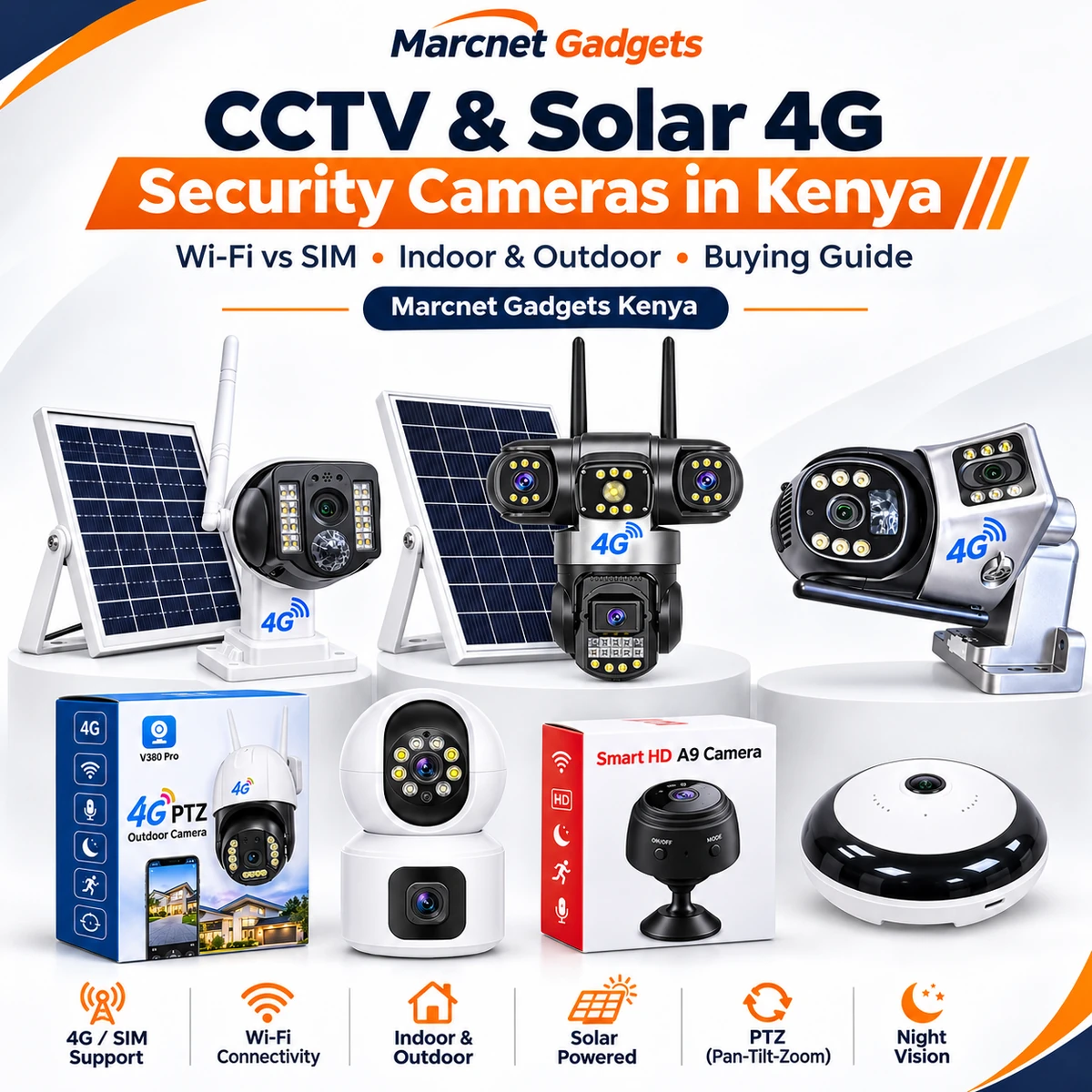
  • CCTV & Solar 4G Security Cameras in Kenya: Wi-Fi vs SIM, Power, Storage & Buying Guide

    CCTV & Solar 4G Security Cameras in Kenya: Wi-Fi vs SIM, Power, Storage & Buying Guide

    Solar 4G Security Cameras in Kenya offer a practical option for monitoring sites where a suitable mobile-data connection is available, while Wi-Fi cameras can fit homes and offices with an existing wireless network. The right choice is not always the camera with the most lenses or the largest number printed on its packaging. Start with the intended location, available electricity, network signal, recording needs and mounting conditions.

    This CCTV & solar camera buying guide covers the 14 security-camera products currently listed by Marcnet Gadgets, across Indoor Cameras, Outdoor Powered Cameras and Outdoor Solar Cameras. It explains the distinctions that matter before ordering without transferring claims from one model to another. A solar camera refers to a power arrangement; a 4G camera refers to a cellular-network connection. One camera can have both, but a solar Wi-Fi camera does not automatically accept a SIM.

    1. CCTV & Solar 4G Security Cameras in Kenya: Quick Buying Decision

    Your installation situationStart withWhyEssential check
    House or office with reliable Wi-Fi and powerIndoor Wi-Fi cameraUses the existing local networkCompatible Wi-Fi band, app, power and mounting
    Outdoor position with mains power but no convenient Wi-FiOutdoor powered 4G modelUses a compatible mobile-data serviceSIM bands, 4G signal, weather rating and power adapter
    Gate, farm or construction area without mains electricitySolar 4G cameraCombines solar charging with mobile connectivityActual battery, solar panel, SIM service and event-recording mode
    Outdoor position with Wi-Fi but difficult mains wiringSolar Wi-Fi cameraSolar charging without needing cellular dataWi-Fi signal at installation point and daily solar exposure
    Wide indoor room or entranceFisheye, panoramic or PTZ designDifferent viewing approaches for different spacesActual field of view, lens count and control functions

    The order of decisions matters: first network, second power, third monitoring coverage, then image quality and recording features. A camera that cannot connect or stay charged will not become suitable simply because it has additional lenses.

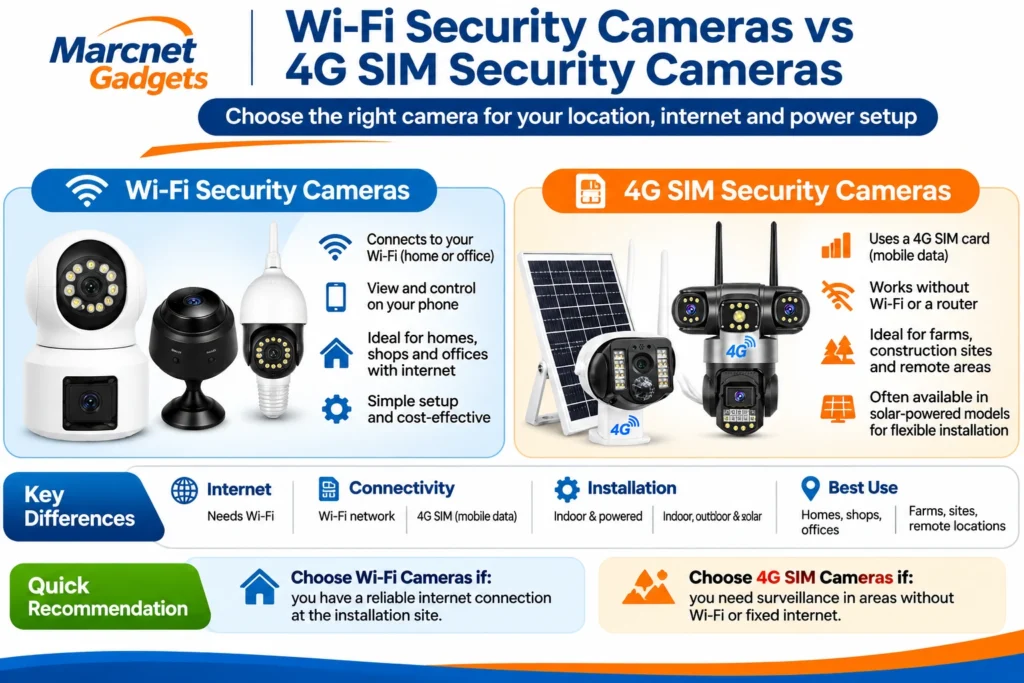
    2. Wi-Fi Cameras vs 4G SIM Security Cameras

    A Wi-Fi camera connects to a compatible local wireless network. Depending on the precise camera and app, remote smartphone access may be available once the network has internet access. Wi-Fi does not mean the camera works without electricity; a powered Wi-Fi unit still needs its specified power source. Where the camera is too far from the router, test connectivity at the exact installation position rather than assuming the phone’s signal bars predict performance.

    A 4G SIM camera uses supported mobile-network service and a suitable data plan. This can be useful where no broadband Wi-Fi exists, such as a detached store, site cabin, rural entrance or remote property. It still requires power; 4G is a communication method, not a battery specification. Confirm the SIM size, network bands, carrier compatibility, data availability and any activation requirements with the exact product before mounting. Some cameras use a specific application or provisioning method.

    In Marcnet’s current solar category, the dual-lens Wi-Fi solar model and the Wi-Fi solar PTZ model are explicitly different products from the single-, dual- and triple-lens 4G solar alternatives. To understand how SIM-based internet and Wi-Fi networks differ more generally, see the earlier MiFi vs 4G Router in Kenya guide.

    Wi-Fi security cameras vs 4G SIM security cameras in Kenya, featuring V380 Pro indoor Wi-Fi cameras and outdoor solar 4G surveillance cameras.
    Compare Wi-Fi and 4G SIM security cameras for homes, shops, farms and remote locations — Marcnet Gadgets Kenya.

    3. Solar Power vs Outdoor Mains Power

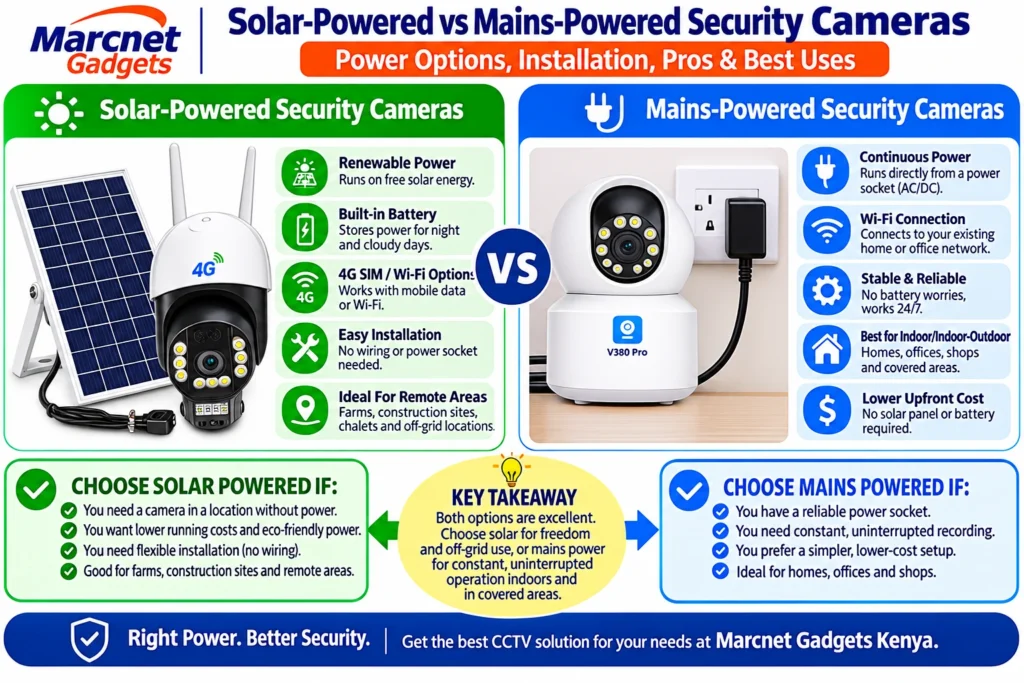
    A solar security-camera kit generally depends on a panel, charging circuitry and a rechargeable battery or energy storage within the compatible camera system. Solar charging does not prove 24-hour continuous recording or unlimited battery operation. Shading, panel orientation, dust, cloud cover, motion events and the actual power consumption can all affect the available runtime.

    For an outdoor powered camera, electricity remains a separate installation requirement. A 4G-powered model may still need a fixed power adapter even though it sends its video over a mobile network. Plan safe cable routing, appropriate weather protection for plugs and a mounting position that preserves the specified protection of the exact unit.

    For a solar site, inspect sunlight exposure over the day, not just at midday. If a panel is mounted beneath a roof overhang or behind trees, the camera may depend heavily on stored battery power. The general solar-placement principles in Reolink’s solar-panel support guidance are helpful, but are not an endorsement or specification of Marcnet’s V380 models.

    Solar-powered vs mains-powered security cameras in Kenya comparing V380 Pro solar CCTV cameras with electrically powered indoor security cameras.
    Compare solar-powered and mains-powered security cameras for homes, businesses, farms and remote locations — Marcnet Gadgets Kenya.

    4. Indoor Security Cameras: Seven Marcnet Models

    Marcnet currently lists seven indoor camera products. They address different indoor installation styles rather than one universal application. Compare the following real catalogue choices:

    For an indoor environment, check whether the camera’s intended field of view covers the entrance or room rather than relying only on “360°” in the product name. Also verify mounting, noise, status LEDs and the practicality of servicing or resetting the device after installation.

    5. Outdoor Powered 4G CCTV Cameras

    The Outdoor Powered Cameras category currently contains two V380 Pro 4G PTZ products:

    These models are appropriate to compare where power is available but fixed broadband is absent or inconvenient. 4G does not make a camera solar-powered. If a gate or perimeter position needs a permanent wired power source, plan installation and maintenance accordingly. Do not infer IP66/IP67, waterproof connectors, NVR interoperability or uninterrupted cloud recording merely from the word “outdoor”.

    6. Outdoor Solar CCTV Cameras: Five Marcnet Models

    The Outdoor Solar Cameras category contains five products, including both Wi-Fi and 4G connection types. Read the network label carefully:

    Use the first three as the 4G solar group and the latter two as the Wi-Fi solar group. Ask Marcnet to confirm the actual solar-panel wattage, supplied battery specification, weather rating, charging connector, memory-card limit and recording modes before committing to a remote installation.

    7. Single Lens vs Dual Lens vs Triple Lens: What Changes?

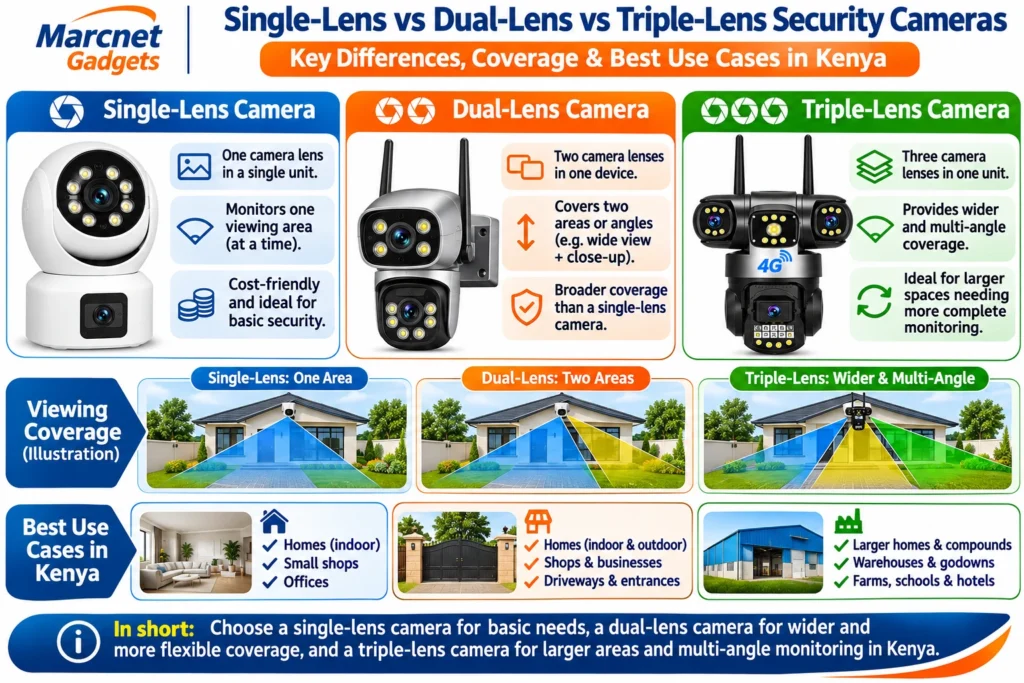
    A single-lens camera has one optical view; it may still offer PTZ movement depending on the model. A dual-lens product incorporates two lenses, but the benefit depends on how the manufacturer configures them: separate views, complementary fixed/PTZ views or another arrangement. A triple-lens product increases the number of optical elements, but that does not tell you the resolution of each lens, the number of independent streams or the recording format.

    Ask three questions: what does each lens actually show, can the camera record the views you require, and does the companion app expose the needed controls? For Marcnet’s current range, compare the single-lens 4G solar camera, dual-lens 4G solar camera and triple-lens 4G solar camera by their verified model specifications rather than assigning invented camera angles or battery figures.

    Single-lens vs dual-lens vs triple-lens security cameras in Kenya, comparing V380 Pro CCTV camera configurations and viewing coverage.
    Compare single-, dual- and triple-lens security cameras for homes, shops, offices, farms and larger properties — Marcnet Gadgets Kenya.

    8. PTZ vs Panoramic/Fisheye vs Fixed-View Cameras

    PTZ refers to pan, tilt and zoom functions, although the type and extent of zoom vary by camera. The availability of an app-based movement control does not establish optical zoom. A panoramic or fisheye design instead uses a wide view and may offer software dewarping or different visual modes if supported. A fixed-view camera has a relatively stable mounting direction.

    For a warehouse aisle or gate, you may value an adjustable PTZ view; for an indoor central position, a panoramic design might better suit the room. If you need to monitor two areas simultaneously, verify whether the exact multi-lens model provides two usable views at the same time. Avoid treating the marketing term “360°” as a guarantee of complete, obstruction-free coverage.

    9. Resolution, Night Vision and Motion Alerts

    Compare real recorded clarity rather than only a headline such as HD, 1080P, 4MP or 2K. The A9 Mini Wi-Fi camera has a clearly stated 1920 × 1080 specification, and the V380 Pro 4MP Dual Lens 4G SIM camera includes 4MP in its catalogue name. Neither value should be copied across other V380 products without evidence.

    Night vision is also model-specific. Check whether it uses infrared, white LEDs, automatic switching or other functions, and ask for sample results from the exact stock where necessary. Motion alerts depend on detection settings, app notifications and network connectivity; they do not automatically mean human or vehicle classification. A fast internet connection also does not compensate for poor lighting or an obstructed view.

    10. Storage: Memory Cards, Cloud Accounts and Recording Modes

    Before buying, find out where video is saved. Some camera setups may use local memory cards, supported cloud services or an external recording system. You must confirm which method the exact model supports, the maximum supported storage capacity and whether any paid service is needed. Do not assume that a camera includes a memory card or free cloud storage just because an app is mentioned.

    Ask whether recording is continuous, event-triggered or manually initiated. Solar/battery cameras in particular may prioritize event recording for energy efficiency. For a shop requiring an uninterrupted evidence trail, confirm support for the required recording mode and power budget before installation. Check the storage-retention setting and the procedure for downloading footage when an incident occurs.

    11. SIM Compatibility, Mobile Data and Remote Viewing

    For 4G models, test the intended network at the actual site. A mobile handset may show coverage in one part of a compound while a mounted camera under a metal roof receives a weaker signal. Verify local operator compatibility, 4G bands, SIM size, APN or activation steps and the relevant data package for the supplied device. Data consumption depends on resolution, compression, viewing frequency, notifications and recording/upload behaviour; no fixed monthly allowance is guaranteed by this buying guide.

    Wi-Fi models need a compatible wireless network and whatever internet access their remote-viewing method requires. If several cameras will be installed in a building, plan wireless coverage first. A compatible repeater or access point may improve an existing Wi-Fi network, but it does not turn a Wi-Fi-only camera into a cellular device. Review our network and signal guide for the related connectivity distinctions.

    12. Camera App Setup and Mobile Access

    Most stocked options in this range carry the V380 Pro name. Product names are useful clues, but the correct app version, account setup and supported mobile operating systems should be confirmed using the manual or QR code supplied with the exact device. Do not install an unrelated app merely because two cameras look similar. Also do not transfer V380-related app claims to the A9 mini camera without checking its documentation.

    Perform a complete setup test before drilling the final mounting holes: power on the camera, connect it to the intended network, complete the authorised account pairing, view a live image, test motion or PTZ functions where supported, check local/cloud storage and confirm that the feed can be accessed as intended. Keep the reset and device ownership-transfer instructions with your installation records.

    13. Planning Solar Camera Installation in Kenya

    A solar installation succeeds when power, coverage and maintenance are planned together. The panel needs suitable unobstructed sunlight, and the camera needs a secure mounting point with the required field of view. Evaluate shade from trees, building projections and future vegetation growth. Check roof exposure and how the cable from the panel enters or connects to the camera without compromising sealing or strain relief.

    Take local weather into account: dust and rain can affect panel cleanliness, and a battery used heavily for frequent motion events may need more charging opportunity. Before purchase, verify the actual panel and battery characteristics of the selected V380 unit. General advice about solar camera technology does not certify a particular camera’s runtime, so avoid promising a fixed number of days without sun.

    14. Outdoor Weather Protection, Mounting and Power Safety

    For any outdoor camera, confirm the stated IP rating and whether it applies to the camera housing, power adapter and any external connectors separately. Mounting a unit with a weather-oriented product title does not mean an exposed plug or open reset-port cover can safely sit in rain. Plan access for cleaning, firmware updates and eventual battery servicing.

    For powered units, use appropriate qualified installation where mains wiring or difficult exterior routing is involved. Avoid insecure extensions and exposed joints. Keep camera placement lawful and respectful of neighbouring properties and private spaces. If operating cameras for a workplace or public-facing business, establish who may view footage, how long it is retained and how incidents are handled under applicable requirements.

    15. Secure Your Cameras and Protect Video Access

    A security camera should not create a new security weakness. Change default credentials, protect any cloud/app account with a strong unique password, enable multi-factor authentication where available and keep firmware and companion applications updated. Review remote-sharing permissions before giving staff or contractors access. These are general good practices described by the US FTC’s camera-security guide and the UK NCSC’s smart-camera guidance.

    Secure the router and local Wi-Fi if the device uses Wi-Fi. Limit who can retrieve recordings and avoid exposing sensitive living or work areas unnecessarily. Because camera apps and updates vary by model, ask which support and update options are available for the actual device supplied by Marcnet.

    16. Choosing Cameras for Homes, Shops, Farms and Construction Sites

    Home or apartment: A compact indoor Wi-Fi camera can be convenient where power and a compatible wireless network exist. Consider the A9 mini camera or a relevant V380 indoor variant after confirming app and storage needs.

    Shop, office or stockroom: Identify the doors and stock areas that require monitoring. Wi-Fi PTZ, panoramic or indoor 4G SIM options serve different network conditions. If evidence retention is essential, confirm the recording method before deployment.

    Farm, remote gate or construction site: Start with the actual coverage and solar conditions. Compare the three listed 4G solar choices, then check panel, battery and SIM details. A powered 4G outdoor alternative can be relevant when reliable power is already provided.

    Restaurant or reception area: Think about sight lines, lighting and staff/customer privacy. A panoramic or bulb-style camera may have a different perspective than a wall-mounted PTZ device. If several views are required, confirm whether a multi-lens unit delivers them in the way needed.

    17. Marcnet Camera Model Comparison — All 14 Products

    The following is a catalogue identity matrix, not a claim that every product has identical functions. Features are limited to model titles or separately retrieved details.

    ModelCategoryNetworkListed distinguishing feature
    A9 Mini Wi-Fi 1080P HD Security Camera with Night VisionIndoorWi-Ficompact; title specifies 1080P and night vision
    V380 Pro 360° Fisheye Panoramic WiFi Indoor Security Camera – Two-Way AudioIndoorWi-Fipanoramic/fisheye; title specifies two-way audio
    V380 Pro 360° Panoramic Bulb Wi-Fi Camera with Two-Way AudioIndoorWi-Fibulb design; title specifies two-way audio
    V380 Pro 4MP Dual Lens 4G SIM PTZ Security CameraIndoor4G SIMtitle specifies 4MP, dual-lens and PTZ
    V380 Pro Dual Lens Bulb Wi-Fi PTZ Security Camera – Two-Way AudioIndoorWi-Fidual lens; bulb PTZ; two-way audio listed
    V380 Pro Dual Lens Wi-Fi PTZ Baby Monitor Security CameraIndoorWi-Fidual lens; PTZ; marketed for baby-monitor applications
    V380 Pro PTZ Bulb Wi-Fi Security Camera with Two-Way AudioIndoorWi-Fibulb PTZ; two-way audio listed
    V380 Pro 4G Outdoor Waterproof PTZ Security Camera with Two-Way AudioOutdoor powered4G SIMoutdoor powered; PTZ; two-way audio listed
    V380 Pro Dual Lens 4G Outdoor PTZ Security Camera with Two-Way AudioOutdoor powered4G SIMoutdoor powered; dual lens; PTZ; two-way audio listed
    V380 Pro Dual Lens 4G Solar PTZ Security Camera with Two-Way AudioOutdoor solar4G SIMsolar; dual lens; PTZ; two-way audio listed
    V380 Pro Dual Lens Wi-Fi Solar PTZ Security Camera with Two-Way AudioOutdoor solarWi-Fisolar; dual lens; PTZ; two-way audio listed
    V380 Pro Single Lens 4G Solar PTZ Security Camera with Two-Way AudioOutdoor solar4G SIMsolar; single lens; PTZ; two-way audio listed
    V380 Pro Solar PTZ Outdoor Wi-Fi CameraOutdoor solarWi-Fisolar; outdoor; PTZ listed
    V380 Pro Triple Lens 4G Solar PTZ Security Camera with Two-Way AudioOutdoor solar4G SIMsolar; triple lens; PTZ; two-way audio listed

    Treat the category grouping as the store’s current allocation, not a substitute for installation specifications. Particularly for the 4G camera in the Indoor Cameras collection, choose by its connection type rather than its category label alone.

    18. Common Setup Problems and Practical Troubleshooting

    SymptomCheck firstWhy it matters
    Wi-Fi camera will not connectCorrect Wi-Fi network, supported band, password and powerNetwork incompatibility or a weak signal can stop pairing
    4G camera stays offlineSIM activation, plan, local signal, supported bands and APN requirementsThe camera needs an active compatible mobile connection
    Solar camera loses powerPanel sunlight, cable connection, battery condition and eventsSolar charging and power use must remain balanced
    Remote view works intermittentlyMobile data or Wi-Fi quality, app account and device powerBoth the camera and viewing device require suitable access
    No recordings foundCard/service support, capacity, recording mode and time settingsRemote live view alone does not prove stored footage exists
    PTZ or alerts do not work as expectedModel capability and authorised app settingsFeatures advertised on other models may not apply

    If the exact unit’s configuration is uncertain, stop short of repeated resets. Retain any model label, instructions and serial identifiers for support. Never share passwords or access codes publicly when requesting help.

    19. Frequently Asked Questions About CCTV and Solar 4G Cameras

    Is a solar camera automatically a 4G SIM camera?

    No. Solar refers to charging/power, not the internet connection. Marcnet lists both Wi-Fi solar and 4G solar cameras. Choose the correct product and verify its network requirements.

    Can a 4G camera work where there is no Wi-Fi?

    A supported 4G model can communicate over a compatible mobile-data service without local Wi-Fi. It still needs electricity or its specified battery/solar power arrangement.

    Does a 4G camera need a monthly data bundle?

    It needs a suitable active data service for the functions that use mobile networking. Exact consumption and any recurring charges depend on the camera, its settings and the service provider.

    Does a solar camera record continuously for 24 hours?

    Not necessarily. Continuous or event-based recording must be verified on the exact model, together with battery capacity, solar charging and storage support.

    Is a dual-lens or triple-lens camera always better than a single lens?

    No. Compare the actual views and resolution per lens, software controls, storage and site needs rather than treating lens count alone as a quality score.

    Which Marcnet camera is a compact indoor Wi-Fi option?

    The A9 Mini Wi-Fi 1080P HD Security Camera is a listed compact indoor choice, with 1920 × 1080 video, night vision and motion detection described on its own product page.

    Are outdoor cameras automatically waterproof?

    No. Confirm the supplied unit’s actual ingress-protection rating and protect power connections according to the installation instructions.

    What is the difference between PTZ and a panoramic camera?

    PTZ describes controlled movement or zoom functions on supported models. A panoramic/fisheye design offers a wide-angle view. Their practical coverage and controls depend on the exact hardware.

    Do all V380 cameras have the same storage and mobile app features?

    Do not assume so. Confirm the app, storage types, memory-card size, cloud account requirements and firmware for the exact camera supplied.

    Can I install a Wi-Fi solar camera at a remote gate without a router?

    Only if the camera has a compatible Wi-Fi network available at the gate. Solar power does not replace network connectivity. A genuine 4G solar model may be more appropriate if supported mobile coverage exists.

    What should I ask Marcnet before ordering a solar CCTV camera?

    Share the proposed installation location, available mobile signal or Wi-Fi, power availability, preferred number of views and storage needs. Ask for confirmation of the exact model’s SIM compatibility, solar-panel and battery specification, waterproofing, included accessories and remote-viewing setup.

    20. Final Checklist: Shop CCTV and Solar Security Cameras in Kenya

    Before checkout, confirm these practical points:

    1. Network: Wi-Fi or 4G SIM; test availability at the final mounting point.
    2. Power: mains, rechargeable battery and/or solar; confirm what is supplied.
    3. Coverage: indoor, powered outdoor or solar outdoor; check actual viewing angle and lens roles.
    4. Recording: supported memory card, recording schedule and any cloud subscription.
    5. Software: correct app, account access and supported phone operating system.
    6. Weather and installation: specific ingress rating, mount, adapters and cable protection.
    7. Support: current product availability, exact accessories, compatibility and delivery arrangements.

    Browse all Security & Surveillance Cameras, or choose the relevant section: Indoor Cameras, Outdoor Powered Cameras or Outdoor Solar Cameras. Marcnet Gadgets serves customers in Nairobi and across Kenya, subject to the current store delivery arrangements. For an installation needing a SIM, specific lens configuration or battery specification, contact Marcnet with the exact product name before ordering.

  • POS Receipt & Label Printers in Kenya: Thermal Receipts, Sticker Labels, Sizes, Connectivity & Buying Guide

    POS Receipt & Label Printers in Kenya: Thermal Receipts, Sticker Labels, Sizes, Connectivity & Buying Guide

    POS Receipt & Label Printers in Kenya help businesses print two different things: transaction slips for customers and adhesive stickers or barcode labels for products, shelves and parcels. Selecting the right machine starts with the output you need—not simply whether the box says 58mm or 80mm. This guide compares the actual receipt printers, the Xprinter XP-330B label printer and the barcode scanners listed at Marcnet Gadgets, with practical advice on sticker media, connectivity and POS software compatibility for businesses in Nairobi and across Kenya.

    If you already know whether you need receipts or stickers, browse Receipt & Label Printers or the broader Printers & POS collection. If you are setting up a new counter or replacing a printer, use the checks below before ordering.

    1. POS Receipt & Label Printers in Kenya: Start With the Output

    Start with the document you need to produce. A receipt is usually a narrow, continuous slip listing the sale, individual items, totals and payment information. A barcode label is a separate adhesive label that may have fixed dimensions and requires a compatible label-printing workflow. A barcode scanner does not print anything: it reads barcodes or supported QR codes into your POS or inventory application.

    A sensible buying sequence is document type → paper width → interface → device and software compatibility → power supply → operating cost. Printer brand and speed matter, but a model that cannot communicate with your particular POS software is not the right purchase, even if it has an attractive specification sheet.

    2. Receipt Printer vs Label Printer: Which One Makes Stickers?

    A receipt printer normally prints on a continuous, non-adhesive thermal paper roll; customers receive an itemised transaction record. A label printer is configured for individual stickers or tags, using suitable label stock, sizes and print-software settings. A barcode scanner performs the opposite task: it reads an existing printed code into compatible business software.

    TaskChooseWhat to check
    Print a sale receipt, payment slip or order ticket58mm or 80mm thermal receipt printerContinuous receipt paper; POS template; driver and interface
    Print adhesive price stickers or product barcode labelsThermal label printer such as Xprinter XP-330BThermal self-adhesive stock; label dimensions; software and calibration
    Print stock-location or parcel identification labelsCompatible label printerRequired label width and height; barcode legibility; media durability
    Read a product barcode or QR code1D/2D barcode scannerCode formats; computer/POS input; USB or wireless support

    For a shop that needs both a printed sales receipt and a barcode sticker on every product, two separate print workflows may be the simplest choice. The same size class printed on two device names does not guarantee the media, command language or receipt template is interchangeable.

    3. 58mm vs 80mm Receipt Paper: Which Width Fits Your Shop?

    The familiar labels 58mm and 80mm refer to the nominal paper width class, not the number of characters or the exact printable area. Different printer mechanisms leave different margins, and an 80mm paper roll will not fit every printer without checking the roll diameter and holder. Compare the correct models and their media specifications.

    Buying factor58mm receipt printers80mm receipt printers
    Receipt formatNarrower receipts; long descriptions may wrapWider receipt layout for itemised transactions
    Typical placementCompact counters, mobile or portable workflowsDesktop tills and busier fixed counters
    Paper to confirm58mm-class thermal paper and permitted roll diameter80mm-class thermal paper and permitted roll diameter
    PowerSome models have rechargeable batteries; check exact modelTypically a powered desktop setup; check exact model
    Software setupCheck print width and driver or SDKCheck print width and driver or SDK
    Best decision ruleChoose for mobility and compact slipsChoose when a wider, clearer receipt is needed

    The current Marcnet catalogue includes two 58mm portable receipt printers and one 80mm USB desktop receipt printer. These are three different products, not three interface variants of a single confirmed model. For thermal-paper selection, printer makers distinguish roll width from printable width and maximum roll diameter; see the HPRT technical receipt-printer buying guide for general industry context. Do not treat that external guide as a specification for a particular Marcnet unit.

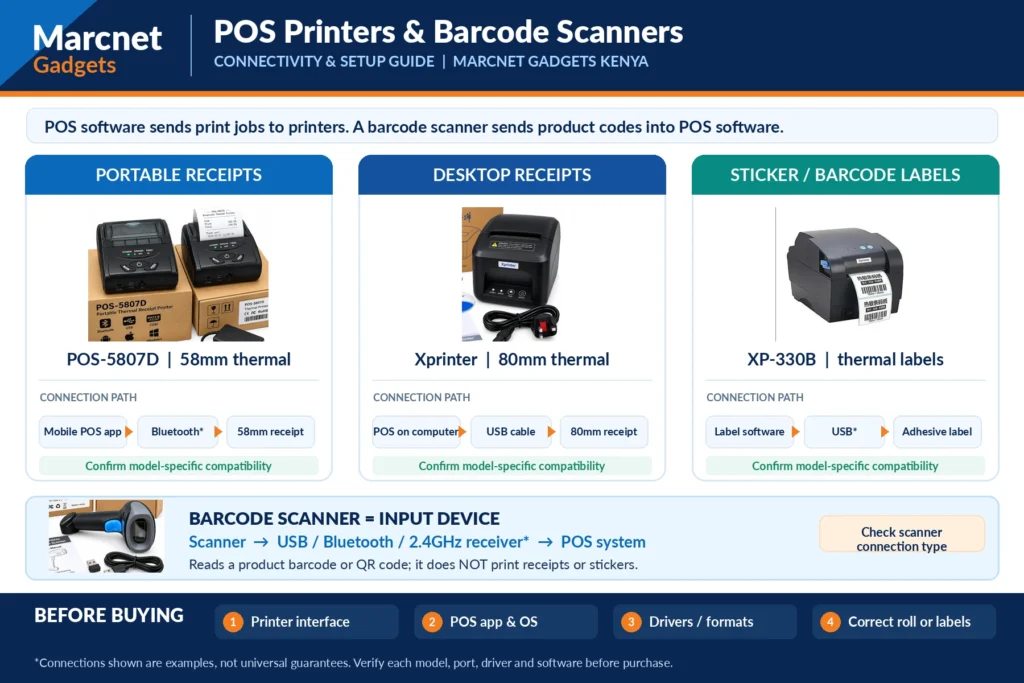
    POS receipt printer and barcode scanner connection guide showing POS-5807D Bluetooth receipt printer, Xprinter 80mm USB printer, XP-330B sticker label printer and barcode scanner.
    How to connect compatible thermal receipt printers, sticker label printers and barcode scanners to POS systems using USB, Bluetooth or model-specific wireless connections — Marcnet Gadgets Kenya.

    4. How Direct Thermal Printing Works for Receipts and Labels

    A direct thermal receipt printer uses a heated print head to mark heat-sensitive paper. It does not rely on ordinary ink or toner cartridges for routine printing. This makes it convenient for repeated checkout transactions, provided that compatible paper is available and the printer is kept clean.

    Direct thermal sticker printing uses a similar heat-sensitive process, but the media is self-adhesive thermal label stock rather than an ordinary loose receipt roll. Compatible label printers can print text, black-and-white barcodes and simple graphics on suitable stickers. Ordinary thermal sticker output is not the same as colour printing or a permanent waterproof product label. Check expected exposure to heat, sunlight, moisture and abrasion before selecting adhesive stock.

    Thermal receipts can darken or fade when exposed to unsuitable heat, sunlight or poor storage conditions. They are excellent for everyday printed transaction slips, but businesses that require durable records should also retain an electronic sales record, invoice or PDF rather than relying exclusively on paper. A printed receipt is an output of your POS system; the underlying sale, refund or credit history should remain in the transaction records.

    5. Marcnet Gadgets Thermal Printer Range: The Four Stocked Models

    At the time this guide was prepared, the live Receipt & Label Printers category displayed four printer models: two portable 58mm receipt printers, one 80mm USB receipt printer and the Xprinter XP-330B thermal printer listed for labels and barcodes. The stated functions below come from the Marcnet catalogue. Model-specific interface, driver, battery and media compatibility should still be verified against the exact unit supplied.

    ProductListed purposeListed connection or technical note
    P58E 58mm Bluetooth Thermal Receipt PrinterPortable 58mm receipt printerBluetooth, USB and rechargeable power listed
    POS-5807D 58mm Portable Bluetooth Thermal Receipt PrinterPortable 58mm receipt printerBluetooth, USB and COM listed
    Xprinter 80mm Thermal POS Receipt PrinterDesktop 80mm receipt printerUSB listed; do not assume LAN or Bluetooth
    Xprinter XP-330B 80mm Thermal Label & Barcode PrinterLabel and barcode printing203 DPI listed; confirm actual label stock and software

    Prices and availability can change, so use each live product page rather than copying a price into a long-lived article. These printer listings should be compared according to the intended work, not ordered as if every model produces the same type of output.

    6. Portable 58mm Receipt Printers: P58E vs POS-5807D

    P58E — 58mm Bluetooth, USB and Rechargeable

    The P58E 58mm Bluetooth Thermal Receipt Printer is listed by Marcnet as a rechargeable portable 58mm model with Bluetooth and USB connectivity. Its compact category makes it relevant to business owners who need narrow receipts and would prefer not to dedicate as much counter space to a larger desktop device. A rechargeable printer still needs compatible software, sufficient battery charge and a supported connection; it is not automatically compatible with every phone or POS application.

    POS-5807D — 58mm Bluetooth with USB and COM Listed

    The POS-5807D 58mm Portable Bluetooth Thermal Receipt Printer is another 58mm portable option. Its listing specifically mentions USB and COM alongside Bluetooth. COM is normally a serial-interface term; the exact port, cable and driver must be checked on the unit. A POS application that supports only a particular Bluetooth profile or a particular printer command set may not communicate with a model simply because the operating system can pair with it.

    Which one to choose? Compare the operating system of your till, mobile device support, available USB or serial ports, battery needs, roll size and your POS vendor’s supported-printer list. Do not claim that either model supports iOS, Android, macOS, Windows or ESC/POS unless the version and configuration have been confirmed for the actual printer.

    7. Xprinter 80mm USB Receipt Printer for Desktop Checkout

    The Xprinter 80mm Thermal POS Receipt Printer – USB is the stocked 80mm-class direct thermal receipt model for a fixed counter. Its public product page confirms USB connectivity, desktop use and thermal paper, and specifically warns that Ethernet, serial, Bluetooth, Wi-Fi, print speed, resolution, cutter configuration and ESC/POS support must not be assumed from similar-looking Xprinter models.

    An 80mm-class receipt can provide more room for long product names, item quantities, totals, a transaction reference, store contact information and return instructions than a narrower receipt. That does not automatically mean every POS system will format an 80mm receipt correctly. Choose an 80mm print template in the software where supported, test font size and margins, and check whether your browser or application can reach the installed printer.

    The Marcnet listing identifies a USB cable, power cable, driver CD and user manual in the pictured package. Always check the current box contents and driver availability before relying on any accessory or operating-system version.

    8. Xprinter XP-330B: Thermal Sticker, Product Label and Barcode Printing

    The Xprinter XP-330B 80mm Thermal Label & Barcode Printer is catalogued for thermal labels and barcodes, with 203 DPI specified in its listing. It is the stocked option to evaluate for adhesive product stickers, shelf-price labels, stock barcodes and compatible shipping or parcel labels. The Xprinter manufacturer XP-330B specification identifies direct thermal printing, 203 DPI and support for self-adhesive media. It also lists label and receipt printing modes at the manufacturer-model level. Marcnet’s own listing promotes the XP-330B primarily as a label/barcode device: verify the exact supplied variant, media sensors, driver, label software and any receipt mode before relying on a specific workflow.

    Example label uses include product pricing, stock-keeping unit (SKU) identification, shelf tags, packaging IDs and order-picking labels. Choose a label size that fits both the product and the barcode, and test that your scanner reads a printed sample reliably. Do not infer that every size of sticker roll, every label-design application or every connection option is supported by Marcnet’s specific unit just because a different XP-330B configuration supports it. For checkout receipts, compare the separate Xprinter 80mm USB receipt printer unless you have tested the supplied XP-330B with your actual POS software.

    9. How to Choose Sticker Labels: Sizes, Adhesives, Barcodes and Software

    A sticker printer can only produce dependable labels when the printable media and label design match. Before buying labels for the Xprinter XP-330B, ask for the exact supported roll width, label width and height, core diameter, outer-roll diameter, media thickness and the configured sensor type. Xprinter publishes model-family media specifications, but the usable combination still needs confirmation on the actual unit.

    • Product price stickers: leave room for the price, product name and any shop-required stock code; check shelf and packaging surface.
    • Barcode/SKU stickers: allow adequate quiet space around the code; avoid very small barcodes that your scanner cannot read.
    • Inventory and shelf labels: consider how long labels must remain legible and whether the adhesive is suitable for shelves, plastic bags or cartons.
    • Dispatch and parcel labels: verify print size and durability requirements; do not assume this 80mm-class device can print larger courier formats such as 4×6 inches.
    • Thermal label rolls: distinguish gap, black-mark and continuous stock; configure and calibrate the printer according to its supported sensor and manual.

    A direct-thermal printer normally creates monochrome text and barcodes on heat-sensitive material. It does not automatically make full-colour logo stickers, vinyl decals or long-life outdoor labels. Those jobs may require a different printer or print service. Also confirm that the label software can retrieve your actual product name, barcode or price rather than retyping data manually for every sticker.

    For a shop using a POS or inventory system, a practical trial is to print one sample label, attach it to a real item, scan it at checkout and check that the correct product and selling price appear. This tests the label design, printer, scanner and software as one working process.

    10. USB vs Bluetooth vs COM, Ethernet and Wi-Fi: Connectivity Explained

    The interface printed on the product title or packaging is only the start of a compatibility check. For example, a USB printer usually needs an available physical USB port, the appropriate cable and software or drivers. A Bluetooth printer needs device pairing plus an application capable of printing over its supported Bluetooth method. COM/serial setups can require the correct port settings and cable type.

    For the XP-330B sticker printer, the manufacturer lists standard USB and optional configurations, but optional Bluetooth does not mean the Marcnet unit includes it. Confirm its actual ports or a verified product specification before advertising Bluetooth, LAN or Wi-Fi for sticker-printing operations.

    ConnectionTypical setupCheck before buying
    USBDirect cable between printer and supported computer or POS terminalConnector, driver, operating system and software
    BluetoothWireless link to a supported hostBluetooth profile, pairing and application support
    COM / serialLegacy or serial-capable POS equipmentPhysical port type, cable and baud/serial settings
    Ethernet / LANPrinter connected to a local networkOnly select a verified LAN-equipped model
    Wi-FiWireless network-connected printerOnly select a verified Wi-Fi-equipped model

    Important: The current Marcnet Xprinter 80mm desktop product is listed as USB. This article explains LAN and Wi-Fi for general buyer education; it does not claim those features are fitted to any of the six listed products. In a browser-based POS, “I can open the POS website” does not prove the browser can print silently or directly to a local thermal device. The operating system’s printer configuration, printing service, driver or supported POS integration may still be needed.

    11. POS Software, Drivers and ESC/POS Compatibility

    Many thermal receipt-printer systems use the ESC/POS family of print commands, but its availability varies by model, firmware and interface. A printer might be USB-connected and print from Windows yet not support your POS application’s preferred receipt-printing method. Conversely, some applications print through the operating system’s normal print dialog rather than sending raw commands.

    Before buying, ask your POS software provider which printer models, commands, operating systems and connection modes have been tested. For browser-based checkout systems, confirm whether the receipt can be printed to the installed device, what happens when printing fails and whether reprints are logged. If the platform prints A4 invoices or PDFs rather than small thermal slips, also verify whether it has a proper 58mm or 80mm receipt layout.

    • Confirm the exact printer model, not only the brand or paper width.
    • Confirm the host device and operating system version.
    • Confirm the physical or wireless interface and required driver or print service.
    • Confirm the receipt template width, currency formatting and character encoding.
    • Test a sale, partial payment, return or refund and a legitimate reprint before deploying at a live counter.

    12. Which Receipt or Sticker Printer Fits Your Business in Kenya?

    For a small shop or compact counter, a 58mm portable model such as the P58E or POS-5807D may be worth comparing where the narrow slip format is acceptable and the POS supports the connection. For a retail shop, supermarket, restaurant or pharmacy with itemised sales, a wider 80mm receipt format may be easier to read, making the Xprinter USB desktop receipt printer a useful candidate where the USB connection and software match.

    For a warehouse or product-labelling workflow, the XP-330B label printer is the relevant choice for thermal barcode and adhesive sticker workflows, once the required stock and software are verified. For a business that also needs fast item lookup at checkout, a separate 1D/2D barcode scanner may help, provided the inventory or POS application supports the scanner’s input method. Do not assume a barcode scanner connects directly to a receipt printer; in a normal workflow both communicate with the host POS system.

    Your business needPrimary equipmentTypical output
    Mobile sales counter or delivery collectionCompatible portable 58mm receipt printerNarrow sales slip
    Retail till with many item linesCompatible 80mm receipt printerWider sales receipt
    Product pricing and shelf stock identificationCompatible XP-330B label printerAdhesive thermal price or barcode stickers
    Fast stock entry and checkout scanningCompatible 1D/2D scannerBarcode/QR data entered into POS
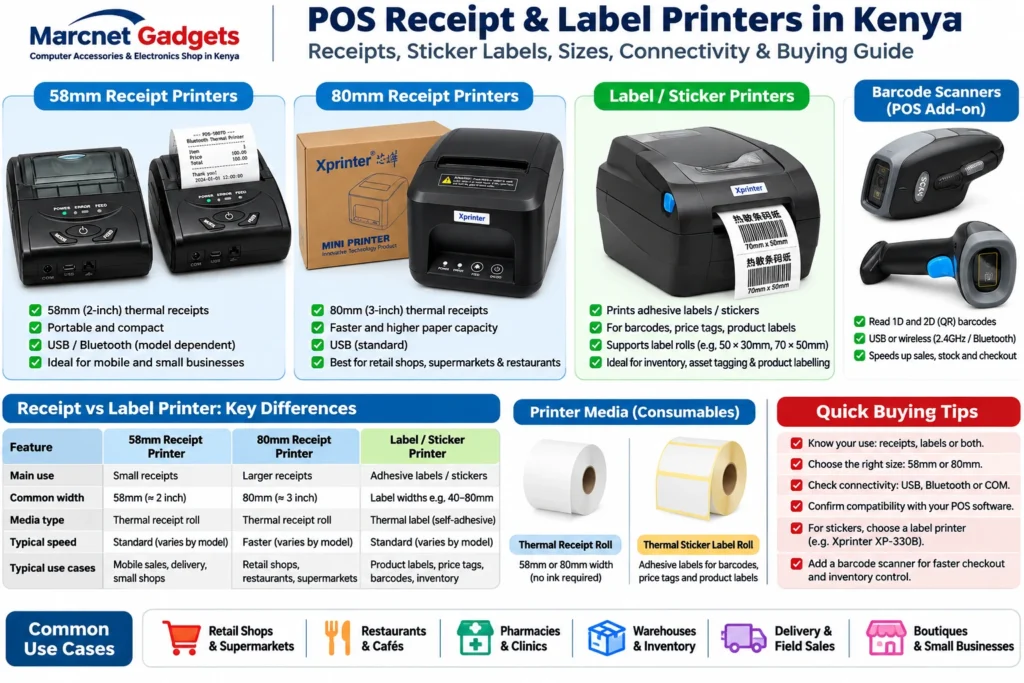
    Comparison of 58mm and 80mm thermal receipt printers, Xprinter sticker label printer and barcode scanners for Kenyan businesses.
    Compare 58mm and 80mm POS receipt printers with thermal sticker label printers for receipts, barcodes, price tags and inventory management — Marcnet Gadgets Kenya.

    13. Barcode Scanners and Other POS Equipment at Marcnet

    The Marcnet Barcode Scanners category includes two products alongside the four printer listings in its Printers & POS collection. These devices are for reading codes rather than printing. They can support sales entry, inventory lookup and stocktaking when the relevant software has matching barcode records.

    Bluetooth Wireless and USB 2D/1D QR Scanner

    The 2D 1D QR Barcode Scanner – Bluetooth Wireless & USB Wired Rechargeable is listed with Bluetooth wireless and USB wired options. Verify the supported code symbologies and how its scan output enters your intended application.

    YP-W100 2D Wireless Barcode Scanner

    The YP-W100 2D Wireless Barcode Scanner – 2.4GHz, USB & QR Reader is listed with 2.4GHz wireless, USB and QR reading. Do not confuse its 2.4GHz radio link with Wi-Fi connectivity unless separately verified. It is a scanning accessory, not a Bluetooth printer or an internet router.

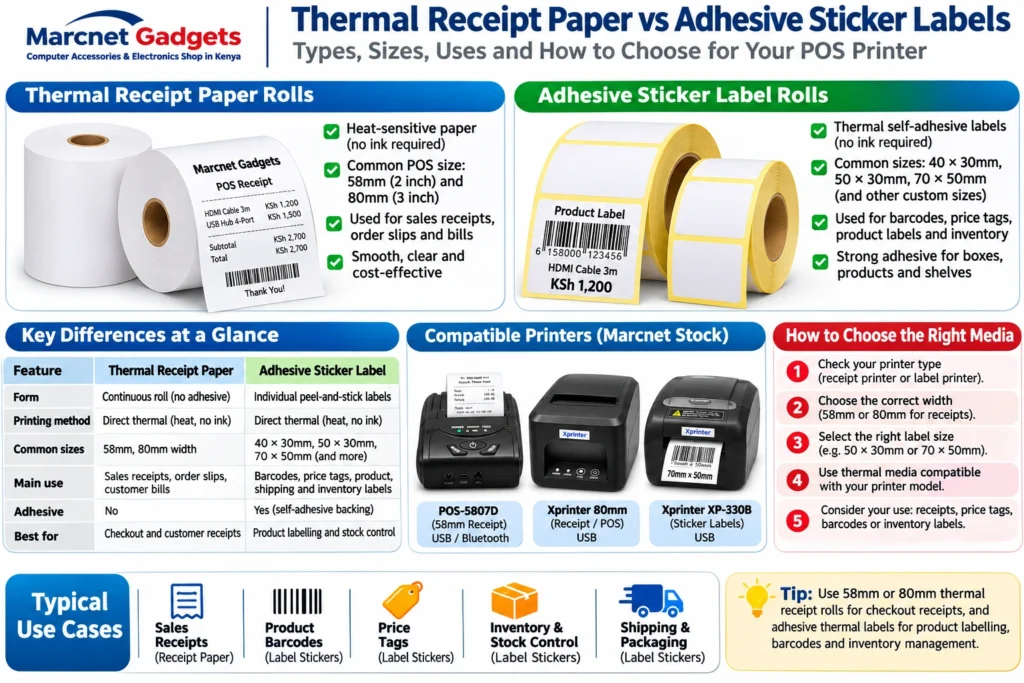
    14. Receipt Paper Rolls vs Adhesive Sticker Label Media

    Buying the right paper is as important as buying the printer. Check the required paper width, maximum roll diameter, core if applicable and whether the printer expects continuous thermal paper or label stock. An 80mm printer often uses a wider printable area than a 58mm model, but the printing margins and receipt template still depend on the mechanism and software.

    Store thermal paper away from excessive heat, moisture and direct sun, and keep paper dust and adhesive residue away from the print head. If an 80mm receipt appears cut off at the edge, check the software receipt-width setting rather than immediately assuming the printer is defective. If a label printer is skipping labels, verify its sensor and label calibration according to the correct manual.

    FeatureReceipt paper rollSticker/label roll
    SurfaceContinuous thermal paperHeat-sensitive label face with adhesive backing
    OutputOne long receipt separated or tornIndividual labels with defined sizes or media marks
    Key settingReceipt width, margins, font scalingLabel width/height, gap or mark and printer calibration
    UsageCashier transaction and customer receiptProduct code, shelf price, inventory or parcel identification
    Thermal receipt paper vs adhesive sticker labels comparison showing 58mm and 80mm receipt rolls, barcode labels and compatible Xprinter thermal printers in Kenya.
    Compare thermal receipt rolls with adhesive sticker labels for POS receipts, product barcodes, price tags and inventory management — Marcnet Gadgets Kenya.

    15. Basic Setup and First Test: Receipt and Label Printers

    • 1 — Identify: Read the exact model, interface and power specification on the printer or manual.
    • 2 — Connect: Use the correct supplied power source and supported USB, Bluetooth or serial connection.
    • 3 — Load media: Fit the right thermal roll or label stock in the required direction, within the maximum diameter.
    • 4 — Install: Set up the correct driver, print service, SDK or POS integration where required.
    • 5 — Test: Print a self-test where supported, then a real POS test receipt with product names, totals and store details.
    • 6 — Audit: Confirm separate transactions, returns, partial payments and reprints are handled correctly by the POS, not merged into misleading receipt lines.

    A test print from the printer itself proves the printer mechanism works; it does not by itself prove your POS integration works. Test from the actual cashier screen, computer or mobile device that will be used during trading.

    For stickers, add a second end-to-end test: print a small batch, confirm that each label aligns without drifting, apply one to a sample product and scan its barcode through the intended checkout or stock-control application. The complete print-and-scan workflow matters more than a printer-only self-test.

    16. Common Receipt and Sticker Printing Problems

    • Blank paper: Check that the roll is thermal paper and is loaded in the correct direction; test with the exact model’s instructions.
    • Paper feeds but text is clipped: Review software print width, font scale, margins and selected paper size.
    • Printer pairs but does not print: Verify that the application supports the printer’s actual Bluetooth profile and command/driver method.
    • USB printer not detected: Check data cable, port, driver and whether a different printer interface was assumed.
    • Label print drifts: Confirm label size, gap/mark setting and sensor calibration rather than using a receipt roll setting.
    • Receipt omits returns or payments: Review POS report and receipt-template logic. Hardware alone cannot correct missing accounting or audit data.

    Do not buy a model purely because a listing advertises a high print speed or ESC/POS compatibility on a similar-looking printer. The Marcnet 80mm Xprinter page explicitly cautions that such parameters must be verified for its exact unit.

    17. FAQs About POS Receipt & Label Printers in Kenya

    Is 58mm or 80mm better for a POS receipt?

    Choose 58mm for a narrow, compact receipt where your software supports the format; choose 80mm where a wider itemised receipt improves readability. Verify the exact paper roll and printer specifications before ordering.

    Do thermal receipt printers need ink?

    Direct thermal receipt printers use compatible heat-sensitive paper, so they do not need ordinary ink or toner cartridges for routine receipt printing.

    Can I connect a Bluetooth receipt printer to any Android phone or iPhone?

    Not automatically. Pairing, Bluetooth profile, app support and operating-system compatibility depend on the exact printer and POS application. Confirm these before purchase.

    Does a USB receipt printer work with an online POS website?

    Only when the host computer and the web POS printing workflow can access it through the appropriate print path. Browser access to the POS and a connected USB cable are not sufficient proof of compatibility.

    Can the XP-330B print both sticker labels and receipts?

    Xprinter’s published XP-330B model specification identifies both label and receipt printing modes, including self-adhesive paper. However, verify the exact Marcnet-supplied configuration, media and software before treating it as a replacement for a dedicated checkout receipt printer.

    Do all Marcnet receipt printers have Bluetooth and Wi-Fi?

    No. Connectivity varies. The P58E and POS-5807D are listed with Bluetooth; the stocked Xprinter 80mm receipt printer is listed with USB. Wi-Fi or LAN must not be assumed.

    What should a proper retail receipt contain?

    Depending on your business and system, useful details include a receipt identifier, transaction time, item descriptions, quantities, prices, totals, payment details and business contact information. Applicable tax and fiscal documentation requirements are separate from the hardware specification and should be checked for your business.

    What if I need to scan barcodes as well as print receipts?

    Browse the Barcode Scanners range for a supported 1D/2D or QR reader. It connects to the POS workflow separately from the receipt printer; both must be compatible with the software.

    Which Marcnet printer can make adhesive price stickers or product barcode labels?

    Start with the Xprinter XP-330B thermal label and barcode printer. It is the label-focused printer in the current Marcnet collection. Confirm the size and type of adhesive thermal labels, print software and interface on the actual supplied unit.

    Can an ordinary 58mm thermal receipt printer print peel-off sticker labels?

    Do not assume so. A receipt printer designed for continuous paper may not accept adhesive label stock or have the correct media sensing, calibration and software to index individual stickers. Choose a verified label-printing workflow.

    Are thermal stickers waterproof, coloured or permanent?

    Not automatically. Direct-thermal output is generally monochrome and sensitive to heat and light; adhesive strength and moisture resistance depend on the exact label stock. Confirm the intended environment or choose another print method for durable outdoor or full-colour labels.

    18. Shop POS Receipt Printers, Sticker Label Printers and Barcode Scanners in Kenya

    Start with the Receipt & Label Printers in Kenya collection for the four listed printer models, or browse the Barcode Scanners range for stock and checkout scanning. The parent Printers & POS category brings both types together. Marcnet Gadgets serves customers in Nairobi and across Kenya, with delivery arrangements confirmed through the store’s ordering process.

    Before ordering, send the intended POS software name, computer or mobile operating system, preferred receipt width or sticker dimensions, required interface and connection type to Marcnet Gadgets. This helps avoid purchasing a perfectly functional printer that cannot work with your particular setup.

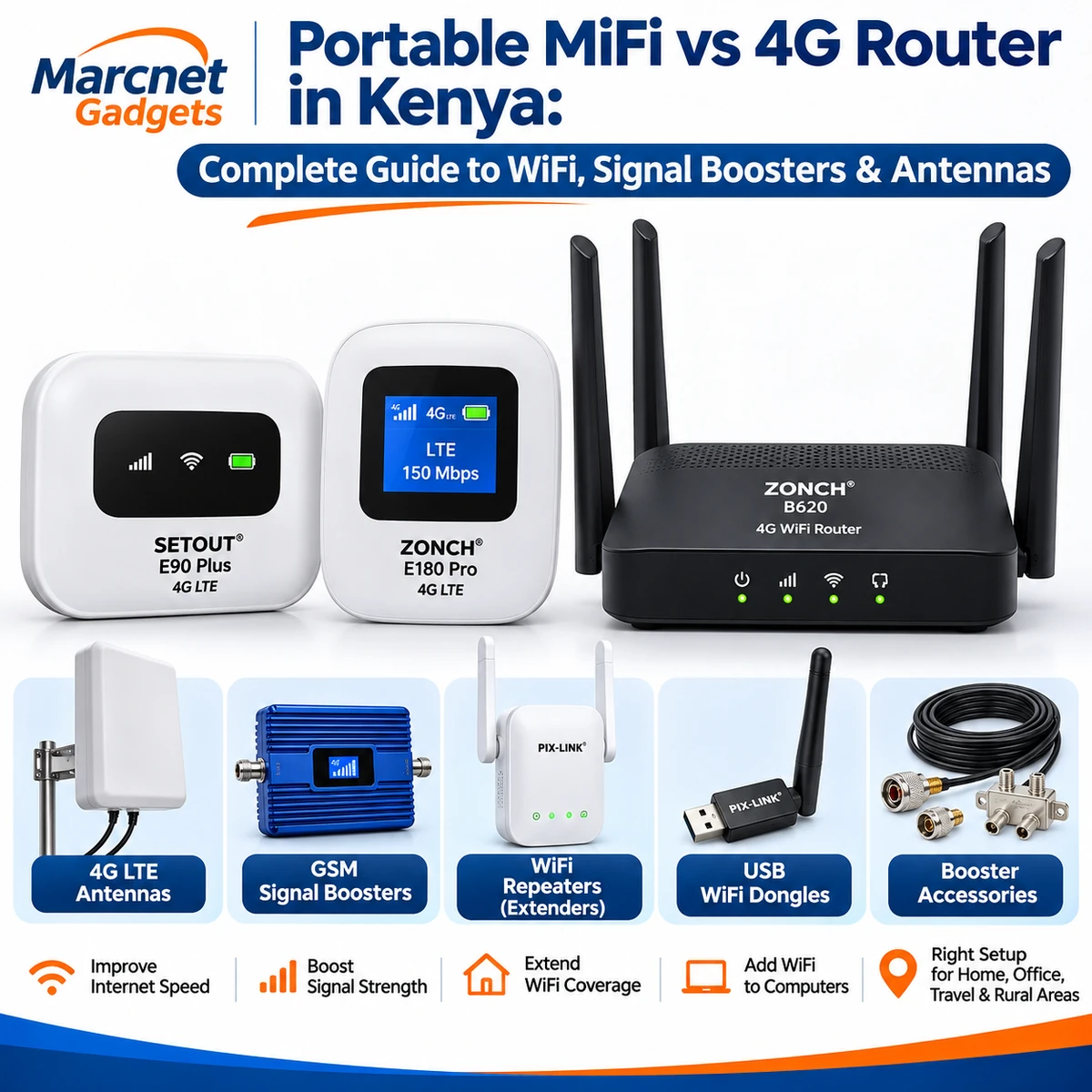
  • Portable MiFi vs 4G Router in Kenya: Complete Guide to WiFi, Signal Boosters & Antennas

    Portable MiFi vs 4G Router in Kenya: Complete Guide to WiFi, Signal Boosters & Antennas

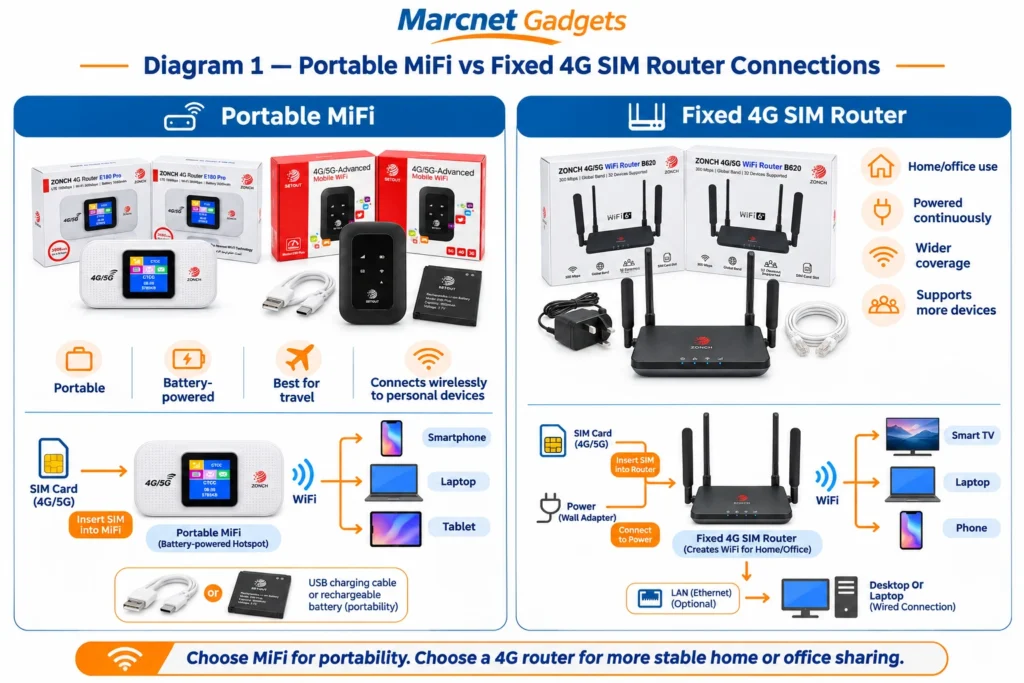
    MiFi vs 4G Router in Kenya: which option is better for travel, home internet or your business? Both can turn a compatible mobile-data connection into Wi-Fi, but they serve different needs. A rechargeable MiFi is convenient for travel, while a larger SIM router may be better for a fixed home, office or shop setup. If the real problem is weak signal, a missing computer Wi-Fi connection or poor coverage in another room, a different device may be the answer.

    This guide compares Marcnet Gadgets’ stocked MiFi and 4G router models, then explains when to consider LTE antennas, GSM signal boosters, Wi-Fi repeaters and USB wireless adapters. Start with the problem you want to solve—not the advertised Mbps number.

    1. Quick answer: MiFi, 4G router, Wi-Fi repeater or USB dongle?

    Your problemProduct to considerWhat it actually does
    Need internet while travelling or between locationsPortable MiFiShares compatible SIM-based mobile data over local Wi-Fi
    Need SIM internet in a fixed home, shop or office4G SIM routerShares a compatible mobile-data connection with several Wi-Fi devices
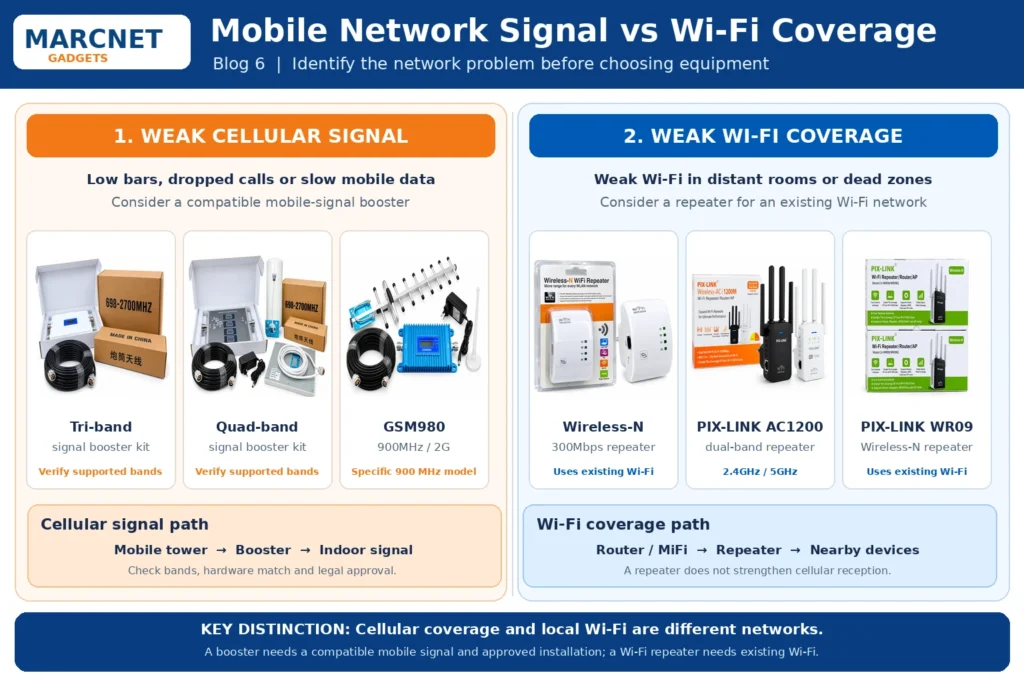
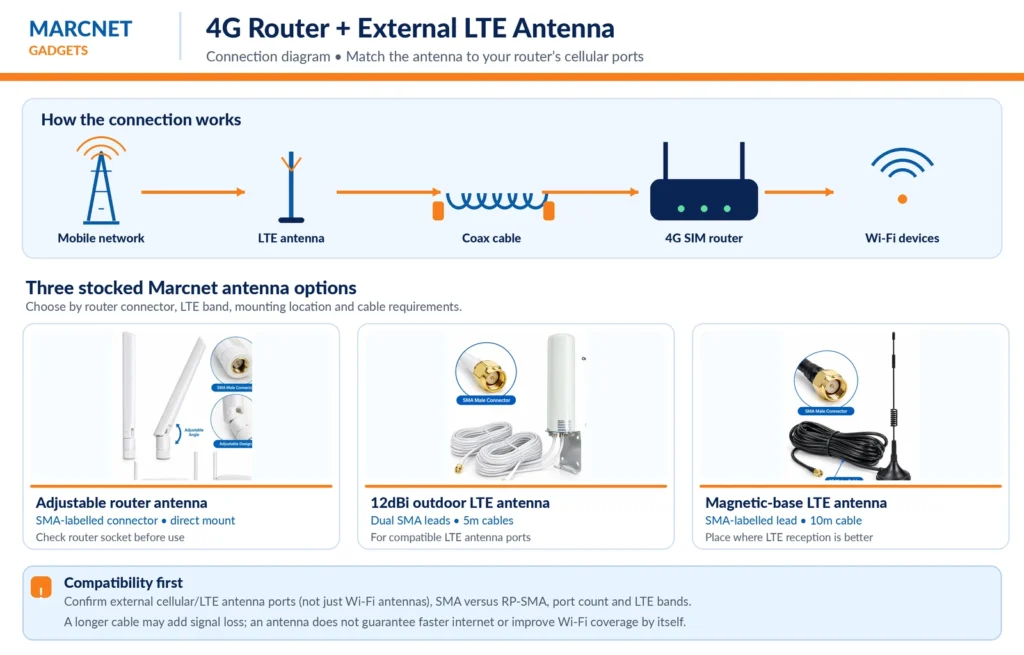
    4G reception is poor at the routerCompatible external LTE antennaMay improve the router’s cellular reception when supported
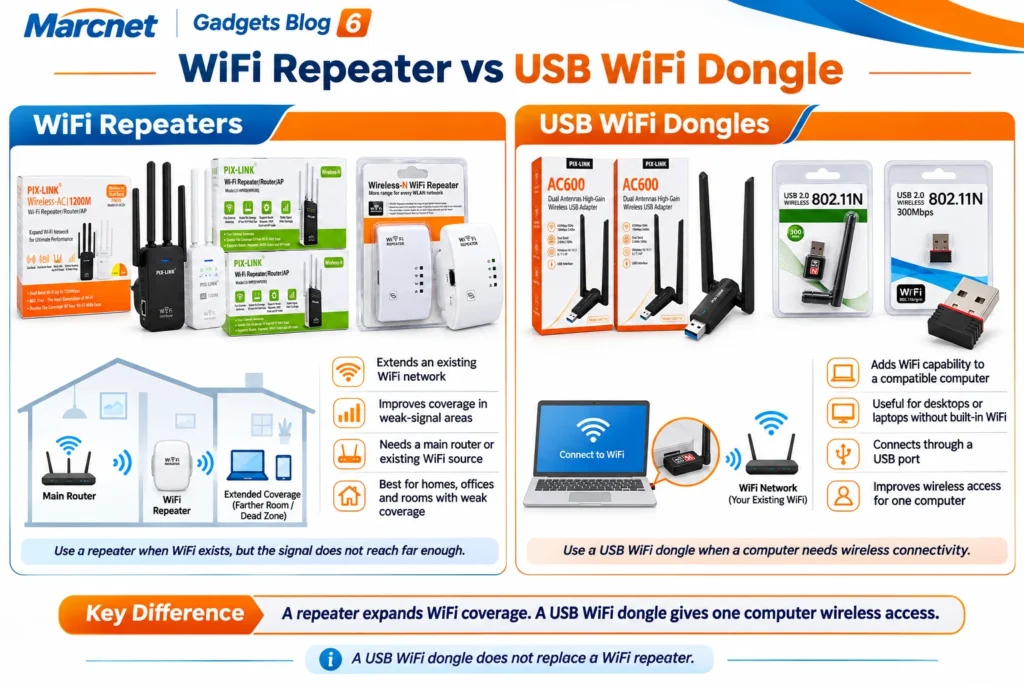
    Wi-Fi reaches the living room but not an upstairs roomWi-Fi repeater/range extenderRelays a usable existing Wi-Fi connection
    Desktop has no Wi-Fi, or laptop Wi-Fi is faultyUSB Wi-Fi adapterGives a compatible computer Wi-Fi connectivity
    Bluetooth headphones will not pair with an older computerUSB Bluetooth adapterAdds Bluetooth, not Wi-Fi
    Cellular reception drops indoors across many phonesAppropriately approved GSM/cellular booster systemA specialised, frequency-matched cellular installation—not a home Wi-Fi repeater

    Browse the complete Network & Signal Amplifiers range if you are still determining which device category is suitable.

    2. MiFi vs 4G Router in Kenya: Key Differences

    A portable MiFi combines a cellular modem with a small Wi-Fi hotspot. The stocked SETOUT E90 Plus and ZONCH E180 Pro both list rechargeable 3000mAh batteries, making them suitable to carry between locations. A compatible SIM card and usable operator signal are still needed; battery capacity does not tell you how many hours a device will run under every condition.

    A 4G SIM router is generally selected for a more permanent shared internet connection. The stocked ZONCH B620 lists a 2.4GHz Wi-Fi link rate of up to 300Mbps, four external antennas and support for up to 32 connected devices. That 300Mbps refers to its advertised Wi-Fi capability, not a guaranteed 4G download speed. Check its power and SIM requirements from the exact unit before planning a fixed installation.

    Neither type produces internet service by itself; the SIM plan, cellular network bands and local coverage determine whether it can connect. Neither should be confused with a Wi-Fi repeater, which typically extends an existing internet connection instead of accepting a cellular SIM.

    3. Compare the three stocked Marcnet MiFi and 4G router options

    DevicePublished distinguishing featuresConsider it for
    SETOUT E90 PlusRechargeable 3000mAh battery; advertised LTE speeds up to 150MbpsBudget-conscious portable access with a compatible SIM
    ZONCH E180 ProRechargeable 3000mAh battery; screen; LTE Band 28 listed for the described variantPortable use where its confirmed network bands fit the SIM
    ZONCH B6202.4GHz Wi-Fi up to an advertised 300Mbps; four antennas; up to 32 devices listedMore stationary multi-device Wi-Fi sharing

    For a student, fieldworker or frequent traveller who needs convenient battery-powered access, compare the two MiFi models first. For a shop, reception desk or household that needs several connected devices in one location, check the B620’s power arrangement and supported SIM bands. Up to 32 connected devices describes an advertised capacity, not a promise that all 32 devices will receive fast internet simultaneously.

    See all three together in Portable MiFi Devices & 4G Routers.

    Portable MiFi vs 4G SIM router connection diagram featuring ZONCH E180 Pro, SETOUT E90 Plus and ZONCH B620, showing SIM cards, WiFi connections and connected devices.
    Compare portable battery-powered MiFi hotspots with fixed 4G SIM routers for internet sharing at home, in offices and while travelling — Marcnet Gadgets Kenya.

    4. Safaricom, Airtel, Faiba and Telkom SIM compatibility

    Before buying any 4G device, identify the intended operator, the SIM or data plan and the LTE frequency bands available where the equipment will be used. A product described as “universal” is not automatically compatible with every frequency or every SIM configuration. SIM PIN settings, APN configuration and mobile-network coverage may also affect setup.

    Marcnet’s ZONCH E180 Pro listing specifically identifies LTE Band 28, relevant to its advertised Faiba JTL compatibility. That claim applies to the listed E180 Pro variant; do not assume every other MiFi has the same bands. The SETOUT E90 Plus is listed for compatible local SIM networks, with an explicit reminder that exact frequency support matters. Check the B620 specification separately before selecting a fixed router.

    Buying checklist: Ask which operator you will use, whether it provides a usable signal at the intended address, what bands are required, whether the router is SIM-unlocked, and what charger or power source it needs. An advertised maximum LTE rate is not a speed guarantee; actual performance depends on signal, capacity, congestion and data plan.

    5. Mobile signal versus Wi-Fi signal: diagnose before buying

    These are different links in the same setup:

    1. Cellular link: Network tower → 4G MiFi or SIM router. Poor cellular coverage can cause slow internet even when your laptop shows full Wi-Fi bars.
    2. Local Wi-Fi link: Router or MiFi → laptop, phone or smart TV. Weak Wi-Fi in another room can make an otherwise adequate 4G connection feel unreliable.
    3. Computer adapter: A desktop or laptop needs a working Wi-Fi adapter, even if the building has strong wireless coverage.

    Test close to the router and, where practical, compare with a device near a window or another suitable location. If performance improves significantly nearer the router but the cellular connection remains stable, a Wi-Fi network extender may help. If the router itself has poor cellular reception, an approved installation using a compatible LTE antenna may be worth evaluating instead.

    Mobile network signal vs WiFi coverage comparison showing Marcnet GSM signal boosters, GSM980 900MHz booster, Wireless-N repeaters and PIX-LINK WiFi extenders.
    Understand the difference between weak cellular reception and poor WiFi coverage, and compare compatible signal boosters and WiFi repeaters available at Marcnet Gadgets Kenya.

    6. When can a 4G LTE external antenna help?

    An external LTE antenna can potentially improve reception only when the router or modem supports the relevant external antenna connection. Match the LTE bands, connector type (such as SMA), port arrangement, cable length and location. An antenna cannot create signal where no usable cellular signal exists, and long coaxial cables introduce signal loss.

    Marcnet’s related LTE antenna options include:

    Choose an antenna only after checking the actual router’s external antenna ports and frequencies. If the device has no supported connector, consider choosing a router with the required capability rather than purchasing incompatible accessories.

    4G SIM router external LTE antenna connection diagram featuring adjustable SMA antennas, 12dBi outdoor antenna and 10m magnetic-base antenna from Marcnet Gadgets.
    How to connect compatible external LTE antennas to a 4G SIM router using the correct antenna ports and connectors — Marcnet Gadgets Kenya.

    7. GSM signal boosters: a different problem and a regulated installation

    A cellular signal booster/repeater differs from a Wi-Fi range extender. It works with licensed mobile-radio frequencies and normally needs a suitable outdoor donor signal, correctly matched antennas and cabling, suitable separation between antennas and a compliant repeater unit. A Wi-Fi repeater merely extends a Wi-Fi network.

    Marcnet lists three different booster systems:

    Kenya compliance: The Communications Authority of Kenya sets type-approval requirements for communications equipment and technical conditions for static mobile-signal repeaters. Do not assume that a listed or imported booster model is type-approved. Before purchase or installation, request the exact model’s applicable CA type-approval evidence and use a qualified installer who can verify network bands, safe operation and interference controls. See the Communications Authority of Kenya’s type approval information.

    Explore the GSM Signal Boosters collection only when the problem is genuinely cellular signal reception, rather than ordinary Wi-Fi coverage.

    8. Choosing booster antennas, splitters and RF connectors

    For a properly specified cellular booster system, the accessories matter as much as the repeater. Marcnet’s GSM Booster Accessories group includes:

    A typical correctly designed system may involve an outdoor antenna, coaxial cable, approved repeater, a suitably placed indoor antenna and compatible RF accessories. It is not appropriate to recommend mixing parts based only on their physical appearance.

    9. Wi-Fi repeaters: extending coverage in homes and offices

    If internet works near the main router but Wi-Fi fades upstairs or behind thick walls, a Wi-Fi repeater is a more relevant product than a cellular GSM booster. It must receive an existing usable Wi-Fi signal. Install it between the main router and the weak-coverage area—not at the dead spot where the original signal is already unusable.

    The three Marcnet options cover different wireless needs:

    A wired access point can be preferable where reliable Ethernet cabling is available. Extenders may improve reach but may also introduce throughput penalties, depending on placement and how the backhaul operates. Shop the network extender range and verify the existing router’s Wi-Fi bands before selecting a device.

    10. USB Wi-Fi dongles for desktop and laptop networking

    Some computers have no built-in Wi-Fi or have a failed or outdated wireless adapter. A USB Wi-Fi dongle connects the computer to a compatible existing Wi-Fi network; it does not provide independent SIM-based mobile internet.

    Marcnet has four Wi-Fi-capable choices in its broader USB adapter category:

    Wi-Fi Repeater vs USB Wi-Fi Dongle: Which One Do You Need?

    Check the computer’s USB port, Windows/Linux/macOS version as applicable, chipset driver availability and the Wi-Fi band supported by the router. “300Mbps” or “AC600” is a wireless link classification, not a guaranteed internet speed.

    Choose a Wi-Fi repeater when your router already provides Wi-Fi, but the signal is weak in another room or part of the building. Choose a USB Wi-Fi dongle when a particular desktop or laptop cannot connect to an available Wi-Fi network because it has no working or compatible wireless adapter.

    CompareWi-Fi repeaterUSB Wi-Fi dongle
    Problem addressedWeak Wi-Fi coverage across roomsMissing or faulty Wi-Fi on one computer
    Where it connectsTo an existing Wi-Fi network; positioning and setup are requiredTo a compatible computer USB port
    Who benefitsMultiple devices in a weak-coverage areaThe computer using the adapter
    Does it create internet service?NoNo

    The comparison shows why a Wi-Fi repeater is not a replacement for a USB Wi-Fi dongle. Verify existing network coverage, computer compatibility and supported Wi-Fi bands before buying.

    WiFi repeater vs USB WiFi dongle comparison diagram featuring PIX-LINK AC1200 and WR09 repeaters, AC600 dual-band adapter and 300Mbps USB WiFi dongles.
    Compare WiFi repeaters that extend existing wireless network coverage with USB WiFi dongles that connect desktop and laptop computers to WiFi — Marcnet Gadgets Kenya.

    11. Bluetooth adapters are not Wi-Fi adapters

    The category also lists a Bluetooth 5.0 USB Dongle (Bluetooth-only). It can be appropriate for compatible Bluetooth headphones, speakers, keyboards, mice and other supported peripherals—but it is not a Wi-Fi dongle and will not connect a PC to a wireless router for internet access.

    This distinction matters because both products may look like small USB sticks. When buying, identify whether you need internet over Wi-Fi, Bluetooth peripheral pairing, or a combined adapter. Browse the USB adapter category with that purpose in mind.

    12. Which device should you buy? Real-world Kenya scenarios

    ScenarioStart withBefore ordering
    Student travelling between home, college and workBattery-powered MiFiCompare battery, SIM band support and coverage
    Shop sharing a SIM connection across phones and POS equipment4G SIM routerCheck reliability, power, SIM plan and device load
    Rural house with weak outdoor LTE signalCompatible router and external LTE antennaConfirm usable donor signal and supported antenna ports
    Office with weak cellular reception indoors but better outsideProperly specified and CA-compliant booster installationVerify exact mobile bands, type approval and qualified installer
    House with Wi-Fi dead zonesWi-Fi repeater or wired access pointCheck source Wi-Fi signal, 2.4/5GHz needs and placement
    Desktop without wireless internetUSB Wi-Fi adapterMatch USB, operating system and router band
    Desktop needing wireless Bluetooth audioUSB Bluetooth adapterConfirm supported profiles and drivers

    A device that solves the correct problem often matters more than a larger antenna, a higher advertised Mbps number or a long list of wireless marketing labels.

    13. Basic setup and troubleshooting checks

    1. For MiFi/4G routers: Insert a compatible activated SIM, check PIN and APN requirements, confirm supported LTE bands and test in a location with usable network coverage.
    2. For unstable mobile internet: Compare signal and performance in more than one location. Do not assume Wi-Fi bars measure the cellular tower signal.
    3. For external LTE antennas: Check the router’s actual antenna ports before purchase; verify connector type, installation position and cable losses.
    4. For Wi-Fi repeaters: Place the extender where it still receives a usable router signal and follow its model-specific pairing/setup instructions.
    5. For USB Wi-Fi adapters: Confirm supported operating systems, install the appropriate driver if required and check the adapter appears in your computer’s network settings.
    6. For GSM boosters: Do not self-install an unverified repeater. Confirm equipment approval, compatible frequencies and a properly designed installation.

    If an installation is still unclear, send Marcnet the router model, SIM operator, problem description, intended location and photos of the relevant ports. That information is more reliable than guessing from an antenna’s appearance.

    14. Frequently asked questions

    Is MiFi better than a 4G router?

    It depends on the use. Portable MiFi devices are convenient when battery-powered mobility matters; a larger SIM router is often more appropriate for a fixed multi-device setup. Verify the exact model’s SIM bands, power and supported connections.

    Will a MiFi work with Safaricom, Airtel, Telkom or Faiba?

    Only where the specific model and variant support the required LTE bands and SIM configuration. The ZONCH E180 Pro listing identifies Band 28 support, but that does not establish compatibility for every other MiFi.

    Can I put an external antenna on any 4G MiFi?

    No. The MiFi or router must have a supported external antenna connection, and the antenna must match its bands, connectors and port configuration.

    Does a Wi-Fi repeater boost 4G network signal?

    No. It extends an existing Wi-Fi network. If the 4G connection to the router is weak, extending Wi-Fi alone will not fix the underlying cellular link.

    What is the difference between 300Mbps Wi-Fi and 150Mbps LTE?

    They are rates for different links. Wi-Fi speed describes local wireless capability; LTE download speed describes the cellular data link. Actual internet performance will usually be limited by the weakest relevant part of the connection.

    Is a GSM booster legal to use in Kenya?

    Kenyan communications equipment is subject to the Communications Authority’s type-approval rules. Check the specific booster model’s applicable approval, required bands and installation conditions before buying or using it. A store listing by itself does not confirm approval.

    Can a USB Wi-Fi dongle replace faulty laptop Wi-Fi?

    Often, yes, provided the USB adapter supports the laptop’s operating system, has suitable drivers and is compatible with the existing wireless network.

    Does a USB Bluetooth dongle provide Wi-Fi internet?

    No. A Bluetooth-only adapter is for supported Bluetooth peripherals. Choose a Wi-Fi adapter or a combined Wi-Fi/Bluetooth device if the computer needs Wi-Fi networking.

    15. Shop network and signal products in Kenya at Marcnet Gadgets

    Marcnet Gadgets provides portable MiFi and SIM routers, LTE antennas, Wi-Fi repeaters, USB Wi-Fi adapters, cellular booster kits and matching RF accessories for customers in Nairobi and across Kenya.

    For a more confident purchase, begin with the connectivity problem, exact device model, SIM/network and location. Browse the Network & Signal Amplifiers range or contact Marcnet Gadgets for product suitability and availability information. Verify prices, stock, coverage and technical compatibility at the time of ordering.

  • USB-C Cables in Kenya: Charging, Data, Display & Printer Connections

    USB-C Cables in Kenya: Charging, Data, Display & Printer Connections

    USB-C cables in Kenya do more than charge phones. Depending on the cable, adapter and device, a USB-C connection may carry power, transfer files, connect a laptop to an external screen, operate a printer or provide ports through a hub. The USB-C connector shape alone does not guarantee those functions.

    If you are deciding which cable to buy, first identify what you need to connect, then check the connector at both ends, the supported charging power, required data speed and whether your computer’s USB-C port provides video output. This guide uses real products from USB Type-C Devices & Accessories at Marcnet Gadgets to explain the differences and help buyers in Nairobi and elsewhere in Kenya avoid incompatible purchases.

    Quick answer: Which USB-C cable do you need?

    Your goalLook forCheck before purchasing
    Charge a USB-C phone or tabletUSB-C charging cableDevice port, charger type, cable rating
    Charge a laptop with a non-USB-C portUSB-C PD to a specific charging connectorLaptop connector, voltage/power, PD profiles
    Connect a USB-C laptop to HDMI TVUSB-C-to-HDMI cable or adapterVideo-capable USB-C port; 4K 30Hz vs 60Hz
    Connect USB-C to DisplayPort monitorUSB-C-to-DisplayPort cableDisplayPort Alt Mode and monitor capabilities
    Transfer files from external HDDUSB-C-to-USB 3.0 Micro-B or SATA adapterExternal enclosure socket vs bare SATA drive
    Connect USB-B printer or compatible DJ deviceUSB-C-to-USB-B data cableDevice USB-B port, software and power requirements
    Add laptop portsUSB-C hubHDMI, USB data, PD passthrough; port features
    Extend a USB-C cableRated male-to-female extension or couplerTotal cable length and supported functions

    For direct shopping, start with Type-C Charging Cables, Type-C Converters & Hubs and Type-C to HDMI Adapters. The sections below explain when each solution is appropriate.

    1. USB-C is a connector, not one universal performance specification

    USB Type-C is a small, reversible connector found on many laptops, phones, tablets, monitors and accessories. Two cables can look almost identical and behave differently: one might be designed for basic charging, another for high-speed file transfers, and another for a supported high-resolution display connection. Some support a combination of these functions.

    Three independent questions matter:

    1. Power: What USB Power Delivery (PD) level does the cable support, and can the charger negotiate the voltage and power your device needs?
    2. Data: Does the specific cable and host support the speed you need, such as USB 2.0, 5Gbps, 10Gbps or 20Gbps?
    3. Video: Does the source USB-C port support DisplayPort Alt Mode or another compatible video-output capability, and can the cable/adapter and monitor handle the desired resolution and refresh rate?

    A printed 100W marking on a cable does not make a 30W charger output 100W. Similarly, a cable labelled 8K does not create video output on a charge-only USB-C port. Think of the entire connection as one system: source device + port + cable/adapter + destination device.

    2. USB-C charging cables for phones, tablets and USB-C devices

    For an everyday USB-C device, the simplest option is a USB-C-to-USB-C cable paired with a compatible charger. Marcnet lists a USB-C to USB-C Charging Cable 2m — White for general USB-C charging applications. Check its product specifications for the intended device rather than assuming it has the same data and display capabilities as higher-specification cables.

    For an iPhone or another compatible device with a Lightning port, choose a cable with the correct device-end connector. Marcnet also lists a USB-C to Lightning Charging Cable 1.8m. This is different from a USB-C-to-USB-C cable; check your phone’s actual socket before ordering.

    Practical buying check: Know whether your charger has a USB-C output or the older USB-A output. A cable with a USB-C plug at the power-source end will not plug directly into USB-A without a compatible adapter.

    3. USB-C PD laptop charging: HP, Lenovo, Surface and DC barrel connectors

    Many laptops use dedicated DC or magnetic charging ports rather than USB-C for direct charging. A suitable USB-C PD-to-laptop conversion cable can be useful when you already own a compatible USB-C PD charger or power bank. However, matching the tip is only the first step; voltage, available wattage and charger negotiation still matter.

    Laptop connectionMarcnet productImportant check
    HP round blue-tipHP USB-C PD to Blue Tip Laptop Charging Cable 100WCorrect HP blue-tip style; adequate PD source; 100W is a cable marking
    Lenovo rectangular Slim TipUSB-C PD to Lenovo Slim Tip 65W Charging Cable 1.5m11.0×4.5mm Slim Tip; suitable PD source; up to 65W only in compatible setup
    Microsoft Surface ConnectUSB-C to Surface Pro 5 Charging CableCompatible Surface model, Surface Connect connector and PD charging profile
    DC barrel 5.5×2.5mmUSB-C PD to DC 5.5×2.5mm Laptop Charging Cable — 100WExact barrel size, required voltage, polarity and adequate PD charger

    The HP blue-tip cable should not be confused with other HP large round-pin types. Likewise, a Lenovo Slim Tip is not interchangeable with a DC barrel jack merely because both are laptop charging connectors.

    For barrel-connected equipment, do not guess from connector appearance. A physically fitting DC plug may still be electrically unsuitable. Compare the original adapter’s output details and the laptop or device model; ask Marcnet to check compatibility when these details are uncertain.

    USB-C PD laptop charging connection diagram showing HP Blue Tip, Lenovo Slim Tip, Microsoft Surface, MagSafe 1, 2 and 3, and DC charging cables.
    USB-C Power Delivery laptop charging connections for HP, Lenovo, Surface and MacBook devices using compatible charging cables — Marcnet Gadgets Kenya.

    4. MacBook charging: MagSafe 1 vs MagSafe 2 vs MagSafe 3

    Apple MacBook charging connectors have changed between generations. These three magnetic connector types should be treated as distinct products, not interchangeable versions of one cable.

    ConnectorMarcnet optionWhat to match
    MagSafe 1 L-TipUSB-C to MagSafe 1 L-Tip Cable 1.8mOlder compatible MacBook with original L-shaped MagSafe port
    MagSafe 2 T-TipUSB-C to MagSafe 2 T-Tip Cable 1.8mCompatible MacBook with the flatter MagSafe 2 interface
    MagSafe 3USB-C to MagSafe 3 Charging Cable 1.8mCompatible newer MacBook equipped with MagSafe 3

    All three listed cables are 1.8m. A suitable USB-C PD power source is still required, and compatibility depends on the MacBook model and its charging needs. Confirm your original connector and laptop model before selecting a replacement cable.

    Buying tip: A USB-C plug at the charger end does not make the laptop-end MagSafe connectors interchangeable. If in doubt, compare the original connector with Marcnet’s product photos before checkout.

    5. USB-C data transfer: portable HDDs, SATA drives and old USB-A ports

    If your objective is moving photos, videos, backups or work files, choose based on the storage device’s actual connector.

    Portable external HDD with USB 3.0 Micro-B

    A portable external hard drive may use a wide USB 3.0 Micro-B socket. Marcnet lists a USB-C to Micro-B USB 3.0 HDD Cable — 5Gbps for connecting compatible external drives directly to a USB-C computer. Its listed transfer capability is up to 5Gbps; real-world speed depends on the drive, host port and other equipment. The wide USB 3.0 Micro-B connector is not the same as a narrow legacy Micro-USB connector.

    Bare 2.5-inch SATA HDD or SSD

    A drive removed from a laptop often has a SATA connector rather than USB 3.0 Micro-B. For that use, Marcnet offers a USB-C to SATA Adapter for 2.5-inch HDD & SSD with a listed USB transfer rate up to 5Gbps. This is for compatible 2.5-inch SATA HDD/SSD devices; do not assume a desktop 3.5-inch hard drive can run from the same adapter without its required external power.

    USB-A computer with a USB-C accessory

    For a desktop or laptop with an ordinary USB-A host port, the USB 3.0 Type-A Male to USB-C Female Adapter provides a compact USB data connection rated up to 5Gbps with compatible devices. It does not create native USB-C DisplayPort Alt Mode or full USB-C PD support from a basic USB-A port.

    Rule of thumb: Micro-B connects to an already enclosed external drive, SATA attaches directly to a compatible internal drive, and USB-A-to-USB-C adapts the computer’s port shape for supported USB connections.

    USB-C storage connection diagram comparing USB-C to Micro-B USB 3.0 cables for external hard drives and USB-C to SATA adapters for 2.5-inch HDDs and SSDs.
    USB-C to Micro-B versus USB-C to SATA connections for external hard drive enclosures and internal SATA drives — Marcnet Gadgets Kenya.

    6. USB-C extension cables and female-to-female couplers

    A short cable may not reach a desk-mounted display, storage device or docking area. Marcnet lists a USB-C Male to Female Extension Cable 1.5m — 10Gbps, 100W with stated 10Gbps data and 100W PD support for compatible setups. The catalogue also includes a USB-C Female to Female 40Gbps Coupler for appropriate USB-C cabling configurations.

    Extension adds another physical connection and more cable length. Do not assume an extension or coupler preserves every capability simply because an advertised maximum speed is high. For demanding display, high-speed data or higher-power use, the host, joined cables, connectors and peripheral must all support the intended function; long or poorly matched combinations can reduce reliability.

    See the Type-C Male to Female Extension Cables and Type-C Connectors categories for the current range.

    7. USB-C to HDMI and DisplayPort: 4K 30Hz vs 4K 60Hz

    A USB-C-to-HDMI cable or adapter can connect a compatible laptop to a TV, projector or HDMI monitor. A USB-C-to-DisplayPort cable serves displays with DisplayPort input. But a USB-C port used for charging/data only may not output video at all.

    Marcnet currently has these distinctly specified options:

    Display connectionProductListed maximum
    USB-C to HDMI, 2mUSB-C to HDMI Cable 2m — 4K 30HzUp to 4K 30Hz
    USB-C to HDMI, 2mUSB-C to HDMI Cable 2m — 4K 60HzUp to 4K 60Hz
    USB-C to HDMI femaleUSB-C to HDMI Female Adapter — 4K 60HzUp to 4K 60Hz with suitable HDMI cable
    USB-C to DisplayPort, 1.8mUSB-C to DisplayPort Cable 1.8m — 4K 60HzUp to 4K 60Hz

    What is the difference? At 4K, 60Hz refreshes the picture twice as often as 30Hz. A compatible 4K 60Hz setup can feel smoother for mouse movement, scrolling and motion on a monitor. For static presentations or basic signage, 4K 30Hz may be sufficient where supported.

    To achieve the stated maximum, every relevant component must be compatible: the USB-C source port, cable/adapter, available display mode and screen. Check DisplayPort Alt Mode or another supported video-output feature in your laptop specifications. Not every USB-C or USB-A port supports video.

    Choose based on the screen: HDMI is common on TVs and projectors; DisplayPort is common on desktop monitors. For a cable with a direct HDMI or DP plug, ensure it matches the display input. For a female HDMI adapter, you will also need a suitable separate HDMI cable.

    USB-C to HDMI and DisplayPort connection diagram comparing 4K 30Hz and 4K 60Hz cables for compatible laptops, monitors, TVs and projectors.
    Compare Marcnet Gadgets USB-C to HDMI 4K 30Hz, HDMI 4K 60Hz and DisplayPort 4K 60Hz connections. A compatible video-capable USB-C port is required.

    8. USB-C to USB-C display cables: charging, data and video in one cable

    Some USB-C-to-USB-C products are sold with stated support for data, Power Delivery and high-resolution video. Two Marcnet examples are the USB-C to USB-C 1m Display Cable — 20Gbps, 8K, 100W and USB-C to USB-C 3m Display Cable — 20Gbps, 8K@60Hz, 100W.

    These are specialised display/data cables, distinct from an ordinary USB-C to USB-C Charging Cable 2m — White. Their stated 20Gbps, 8K and 100W capabilities should be understood as maximum product specifications requiring suitable devices and negotiated operating modes—not features automatically available on every USB-C port. In particular, an 8K-labelled cable does not make a 1080p-only laptop or monitor operate at 8K.

    See Type-C to Type-C Display Cables for these specialised options. Before buying, check whether your display actually accepts USB-C video input and whether your source can send compatible video.

    9. USB-C hubs: combining HDMI, USB devices and charging

    If your laptop has one useful USB-C port but you need a monitor, flash drive and power source, a multiport hub can reduce the number of separate adapters required.

    Marcnet’s USB-C 3-in-1 Hub — HDMI, USB 3.0 & PD provides three functions in a compact hub:

    • HDMI display output: stated up to 4K at 30Hz, not 4K at 60Hz.
    • USB 3.0 Type-A: stated up to 5Gbps data for compatible peripherals.
    • USB-C PD input: product-listed pass-through charging support up to 100W with compatible equipment.

    A hub cannot add native video output to a host that does not support the requisite USB-C video mode. Power delivery to the laptop may be lower than the PD adapter input rating after hub requirements, so check the complete arrangement.

    For more choices, browse Type-C Converters & Hubs. Select a hub by the ports you actually need instead of choosing by the largest number of connectors.

    10. Connecting a USB-C computer to USB-B printers and compatible DJ equipment

    Many desktop printers, scanners and some DJ controllers or digital turntables have a near-square USB Type-B socket for computer data. A computer with USB-C can connect to a compatible USB-B device using a dedicated USB-C-to-USB-B data cable, rather than a USB-C-to-USB-C charging cable.

    Marcnet lists the USB-C to USB-B Printer Cable 1.8m for compatible printers and other USB-B peripherals. The listing specifies USB 2.0 High-Speed data transfer up to 480Mbps when supported by the connected devices. This is not a USB 3.0 5Gbps connection; higher USB data rates do not inherently improve digital audio quality.

    Printer connection: USB-C computer → USB-C-to-USB-B cable → printer’s USB-B port. Install supported printer software or drivers when required. A network-only printer without USB-B cannot use this connection.

    DJ connection: USB-C computer running compatible DJ software → USB-C-to-USB-B cable → DJ controller, mixer or digital turntable with a USB-B computer connection. Depending on the equipment, this link may carry MIDI control or digital audio data; check the manufacturer’s USB implementation, drivers, host compatibility and separate power requirements. The cable does not convert an analog-only turntable into a USB device.

    USB-C to USB-B cable connection diagram for compatible printers, scanners, DJ controllers and digital turntables.
    Connect USB-C computers to compatible USB-B printers, scanners and DJ equipment using a USB data cable — Marcnet Gadgets Kenya.

    11. USB-C audio adapters: direction and function matter

    A customer may need to connect a USB-C audio accessory to a Lightning-equipped device. Marcnet stocks a Lightning Male to USB-C Female Audio Adapter for compatible digital audio applications. It is explicitly listed as an audio-focused adapter. Do not assume it supports charging, general-purpose data, microphones or calling features unless compatibility has been established for the exact equipment.

    Adapter direction matters: Lightning male to USB-C female is not the same as USB-C male to Lightning female. Always match which side is the source device and which side is the accessory.

    12. Before ordering: five checks that prevent USB-C mistakes

    1. Photograph both ports. Check the computer/device port and the accessory connector, including DC pin size or the exact MagSafe generation where relevant.
    2. Identify the job. Charging, video, data transfer, printer/DJ USB data and audio use different capabilities—even when the same USB-C shell appears.
    3. Check power requirements. Compare the original power adapter’s voltage and wattage with the intended USB-C PD charger and conversion cable. Do not substitute an unverified PD-to-DC cable.
    4. Confirm the display signal. For HDMI or DisplayPort, check whether the USB-C source supports compatible video output and whether 30Hz or 60Hz matters for your display.
    5. Match the exact product. Read the Marcnet listing for that product’s cable length, port direction, maximum transfer rate and compatibility notes; avoid transferring a specification from another similarly named item.

    If unsure, send Marcnet the laptop/phone/printer model, the two ports you want connected, and the outcome you need (for example, “4K 60Hz external monitor” or “charge Lenovo Slim Tip laptop from USB-C PD”).

    13. Frequently asked questions about USB-C cables

    Can every USB-C cable charge a laptop?

    No. Laptop charging depends on the charger’s negotiated power profile, cable capability and laptop requirements. For non-USB-C laptop charging ports, the correct adapter tip and voltage/power compatibility are also essential.

    Does every USB-C port support HDMI or DisplayPort video?

    No. Verify video-output support (commonly DisplayPort Alt Mode) in the source computer or phone specifications, along with the specific cable or adapter and screen.

    Is a 4K 60Hz USB-C to HDMI cable better than a 4K 30Hz model?

    For a compatible 4K screen used for regular computer work and movement, 60Hz generally provides smoother motion. It will work at that refresh rate only when the source, adapter/cable and display all support it.

    What is the difference between USB-C to SATA and USB-C to Micro-B HDD cables?

    USB-C to SATA connects a compatible bare 2.5-inch SATA HDD or SSD. USB-C to USB 3.0 Micro-B connects to a compatible external drive or enclosure with a wide USB 3.0 Micro-B socket.

    Can I use a USB-C to USB-B cable with a printer or DJ controller?

    Yes, when the printer or DJ controller has a suitable USB-B computer port, the computer provides a compatible USB-C host connection, and the operating system, driver and application support the device. DJ equipment may need its own power supply, and the USB cable does not provide analog audio conversion.

    Is MagSafe 1 the same as MagSafe 2 or MagSafe 3?

    No. These are separate magnetic charging interfaces. Match the cable to the original MacBook model and charging connector.

    Will a 100W-labelled USB-C charging cable deliver 100W from any charger?

    No. Actual charging is limited by the PD charger, cable and connected device. The appropriate power profile must be supported and negotiated.

    Can a USB-A to USB-C female adapter provide USB-C video output?

    Do not assume so. Marcnet’s listed USB-A-to-USB-C adapter is intended for compatible USB data up to 5Gbps; it does not turn a basic USB-A host into a native USB-C display or full PD connection.

    Can I use a Lightning to USB-C audio adapter for charging?

    Not without explicit product support. Marcnet describes its Lightning-male-to-USB-C-female adapter as intended for compatible digital audio, and warns against assuming charging or data functionality.

    14. Shop USB-C cables and adapters at Marcnet Gadgets Kenya

    The correct product is the one that matches your device connector, purpose and confirmed technical requirements—not simply the highest number printed on a listing. For compatible solutions, browse USB Type-C Devices & Accessories, the Type-C Charging Cables range, Type-C to HDMI Adapters, Type-C Converters & Hubs, and Type-C to Type-C Display Cables.

    Marcnet Gadgets serves customers in Nairobi and other parts of Kenya. You can review product specifications on the linked pages and contact Marcnet Gadgets with your device model and connection requirements before ordering. Check the live product pages for current availability and pricing, and see the published store returns information for applicable terms.

  • HDMI Extenders Over CAT6 and Fiber Optic in Kenya: Complete Buying Guide

    HDMI Extenders Over CAT6 and Fiber Optic in Kenya: Complete Buying Guide

    Need to connect a computer, CCTV recorder, decoder or presentation system to a screen far away? An HDMI extender allows a compatible HDMI signal to travel between a transmitter (TX) near the source and a receiver (RX) near the display. Depending on the model, the long-distance link uses CAT5e/CAT6 cable or fiber-optic cable. Some models also extend USB keyboard/mouse control (KVM), audio or infrared (IR) signals.

    For shorter installations, Marcnet Gadgets offers CAT6 extender models listed at 30m, 60m, 120m and 200m. For much longer links, Marcnet also lists 20km HDMI fiber-optic extenders supporting Full HD 1080p at 60Hz. The correct choice depends on your cable run, display resolution, control requirements and cable infrastructure—not distance alone.

    Browse HDMI Extenders Over CAT6 or HDMI Fiber Optic Extenders at Marcnet Gadgets Kenya.

    What Is an HDMI Extender and How Does It Work?

    A conventional HDMI cable directly links a source, such as a PC or DVR, to a TV, monitor or projector. When the equipment is in different rooms, buildings or facilities, a suitable extender can replace the long HDMI cable run with another transmission medium.

    In a typical point-to-point CAT6 setup, the HDMI source connects to TX, a suitable CAT5e/CAT6 cable runs to RX, and the receiver connects by HDMI to the display. For fiber equipment, the connection is similar, but the long-distance link uses a fiber-optic cable compatible with the extender’s optical interfaces.

    For a comparison of different HDMI distribution functions, read our HDMI Splitter vs HDMI Switch vs HDMI Matrix guide. A splitter duplicates a signal, whereas an extender carries it over distance.

    Key distinction: a CAT6 HDMI extender’s RJ45 socket does not automatically mean that it is an ordinary Ethernet device. Do not connect a point-to-point extender through a router or conventional network switch unless that exact system supports the topology.

    HDMI Over CAT6 vs Fiber Optic: Which Should You Choose?

    FeatureHDMI extender over CAT5e/CAT6HDMI fiber-optic extender
    Long-distance linkCompatible copper network cableCompatible fiber-optic cable
    Marcnet-listed ranges30m, 60m, 120m and 200mUp to 20km
    Typical useRooms, offices, classrooms, CCTV and nearby buildingsLarge campuses, multi-building facilities and long-distance control rooms
    Video supportVaries by model; some are 1080p and one is labelled 4KBoth listed 20km models specify 1080p/60Hz
    Remote keyboard/mouseAvailable on selected KVM modelsAvailable on the 20km fiber KVM model
    Installation checksCable grade, termination, power and model topologyFiber type, optical connectors, link budget, power and topology

    A 20km rating is a maximum stated range, not a promise that every fiber cable or installation will work at that distance. Likewise, 200m CAT6 is a specific extender rating; it must not be confused with the ordinary Ethernet channel length commonly used in network design.

    Marcnet Gadgets CAT6 HDMI Extenders: Five Models Compared

    Marcnet’s CAT6 range includes basic video extenders as well as KVM systems for remote control of compatible computers or DVR/NVR equipment.

    1. 30M Non-Powered HDMI Extender Over CAT6

    The 30M Non-Powered HDMI Extender Over CAT6 is the simplest option in this selection. It uses a matched HDMI-to-RJ45 TX/RX pair and one compatible CAT5e/CAT6 cable between the units. Its primary stated use is 1080p over distances up to 30 metres, and it does not require separate external power adapters.

    The packaging also mentions 4K/2K compatibility, but 4K at the full 30m distance is not verified. Choose this model for a straightforward, compatible Full HD connection rather than an installation that specifically requires proven 4K performance at maximum distance.

    Consider it for: a projector in a small meeting room, a remote TV, or a basic CCTV monitoring display.

    2. 60M HDMI Extender Over CAT6 — Full HD 1080P

    The 60M HDMI Extender Over CAT6 — Full HD 1080P TX/RX extends compatible HDMI video over CAT5e/CAT6 cabling up to its stated 60m range. It uses separate transmitter and receiver units and powered operation; the live product description lists DC 5V/1A in the supplied documentation.

    This is a practical choice when you need a Full HD display farther from the HDMI source but do not require remote USB keyboard/mouse control.

    Consider it for: CCTV monitoring, training rooms, office displays, digital signage and projectors.

    3. 60M HDMI KVM Extender Over CAT6 with USB & Audio

    The 60M HDMI KVM Extender Over CAT6 with USB & Audio adds USB/KVM and audio functionality to the stated 60m HDMI extension. A compatible keyboard and mouse can be used at the remote receiver location while the source computer or recorder remains elsewhere.

    Its exact maximum video format, USB standard and supported audio formats are not established by the product photographs. Verify these details against the manual if they matter to your installation.

    Consider it for: control rooms, server rooms and remote CCTV recorder operation.

    4. 4K 120M KVM HDMI, Audio & USB Extender Over CAT6

    The 4K 120M KVM HDMI, Audio & USB Extender is marked 4K and 120M on the units and packaging. It provides HDMI extension with USB/KVM functionality through a powered TX/RX arrangement.

    Important: the listing does not establish a specific 4K refresh rate. Do not assume 4K at 60Hz, or even 4K at the entire 120m distance, without confirmation of the intended source mode and the product’s documentation.

    Consider it for: longer office, classroom, security and remote workstation installations needing KVM control where video-format compatibility has been checked.

    5. 200M HDMI KVM IP Extender Over CAT6 — HDMI & USB TX/RX

    The 200M HDMI KVM IP Extender Over CAT6 is marked H.264 200M KVM IP Extender. Its listing identifies an up-to-200m range, USB/KVM functionality, RJ45 transmission and powered TX/RX units.

    The H.264 marking is documented, but the listing does not confirm exact video resolution, frame rate, latency, HDCP behaviour or which network-switch arrangements are supported. For interactive use, where responsiveness is important, check the manufacturer documentation and test the planned installation before deployment.

    Consider it for: widely separated CCTV, PC or professional AV locations requiring remote operator controls.

    60m HDMI extender over CAT6 connection diagram showing HDMI source, transmitter TX, CAT6 cable, receiver RX and TV display.
    How to connect the Marcnet Gadgets 60m HDMI extender over CAT6 using a powered transmitter and receiver for Full HD video transmission.

    20KM HDMI Fiber Optic Extenders in Kenya

    When the distance is measured in kilometres rather than metres, a compatible HDMI fiber extender can transport an HDMI signal over an appropriately installed optical-fiber link. Marcnet Gadgets currently lists two 20km Full HD models.

    6. 20KM HDMI Fiber Extender Over TCP/IP — 1080P 60Hz

    The 20KM HDMI Fiber Extender Over TCP/IP 1080P 60Hz is designed to send HDMI video and audio over a compatible fiber-optic connection. Its listed maximum video format is 1920 × 1080 at 60Hz, with a stated transmission range of up to 20km.

    The product listing describes both a direct TX-to-RX fiber connection and a possible one-to-many arrangement using a compatible fiber Ethernet switch. That does not establish universal compatibility with any existing network switch, SFP module or fiber infrastructure. Confirm the actual equipment combination before designing a multi-receiver installation.

    Consider it for: campus AV links, long-distance CCTV monitoring, industrial sites, commercial premises and remote Full HD screens.

    7. 20KM HDMI KVM Fiber Extender — USB, Audio & IR

    The 20KM HDMI KVM Fiber Extender 1080P 60Hz with USB, Audio & IR combines a stated up-to-20km fiber link with 1080p/60Hz HDMI, USB/KVM, separate audio and IR extension. It is the more suitable of the two fiber models when operators also need compatible remote keyboard/mouse control.

    For either 20km model, verify the optical connector, supported fiber type, included optical hardware, the number of fiber strands required and the power arrangements before purchase. Neither model should be presented as a 4K extender.

    Consider it for: remote security/control rooms, server operations and facilities where the operator is a long distance from the equipment.

    HDMI Extender vs HDMI KVM Extender: What Is the Difference?

    A basic HDMI extender is primarily intended to carry compatible video—and often HDMI-embedded audio—to a remote display. A KVM extender is designed for situations where you must also operate the source equipment from that remote location.

    For example, a security recorder may remain inside a locked equipment room while an operator uses a monitor, keyboard and mouse at a reception or security desk. A compatible HDMI KVM kit provides the required video and USB-control path. Confirm which USB devices and functions the selected model supports; USB ports alone do not guarantee compatibility with every peripheral.

    How to Connect an HDMI Extender Over CAT6

    1. Measure the route. Measure the actual installed cable length, including wall routes, conduits and service loops—not only the straight-line distance.
    2. Check source and screen. Confirm HDMI ports, the video resolution and refresh rate, and any HDCP requirements.
    3. Choose the right model. Decide whether you need video only or HDMI plus USB/KVM and audio.
    4. Place the TX beside the source. Connect the computer, decoder or DVR/NVR HDMI output to the transmitter’s HDMI input.
    5. Connect TX to RX. Run the correct supported CAT5e/CAT6 cable and terminate it as required by the model. The 30m non-powered unit calls for a single cable and recommends T568B termination.
    6. Connect the receiver. Connect RX HDMI output to the TV, monitor or projector. On a KVM model, connect the required USB/control equipment as instructed.
    7. Connect power where needed. The 30m model is listed as non-powered; the 60m, 120m and 200m systems have model-specific powered requirements.
    8. Test before concealing cables. Verify stable picture, sound, remote controls and the intended display mode over the full installed route.

    Diagram 1 placement: HDMI Source → CAT6 Transmitter (TX) → Compatible CAT6 Cable → Receiver (RX) → HDMI Display. Show optional USB control only for KVM-equipped models.

    How to Connect a 20KM HDMI Fiber Optic Extender

    1. Identify the source HDMI device and destination display or remote control workstation.
    2. Check that the actual TX and RX are a compatible pair and that their optical connectors, fiber type and link requirements match your cable infrastructure.
    3. Install TX near the HDMI source and connect the source HDMI output.
    4. Connect the compatible fiber-optic link between TX and RX, following the manufacturer’s fiber routing and handling instructions.
    5. Place RX near the remote display, connect HDMI and, on the KVM model, the supported USB, audio or IR connections.
    6. Connect the required power supplies and test Full HD 1080p/60Hz operation with the actual source and display.
    7. For an intended one-to-many fiber distribution system, verify the exact compatible switching equipment and additional receivers before installing them.

    Diagram 2 placement: HDMI Source → 20KM Fiber TX → Compatible Fiber Optic Cable (up to stated 20km) → Fiber RX → HDMI Display. For the KVM variant, add supported USB keyboard/mouse connections at the operator end.

    20KM HDMI KVM fiber optic extender connection diagram showing transmitter TX, receiver RX, fiber optic cable, Full HD display and USB keyboard and mouse control.
    Marcnet Gadgets 20KM HDMI KVM fiber optic extender setup for Full HD 1080p video, USB control, audio and IR signal extension.

    HDMI Extender Installation Examples in Kenya

    CCTV monitoring and security: Position the DVR/NVR in a protected room and place a monitoring display at reception or in a security office. Choose a KVM version if operators need keyboard/mouse access to the compatible recorder.

    Churches and event venues: Use compatible HDMI extenders to connect presentation computers and video sources to screens or projectors positioned far from the control point. Check the required video format and latency before using the system in a live-production workflow.

    Schools and training centres: A 30m or 60m CAT6 model may suit a projector or remote display, subject to the actual cable run and equipment.

    Offices and meeting rooms: Use an extender to keep source equipment in a cabinet while displaying video in a boardroom or presentation space. For remote PC operation, compare the KVM models.

    Large campuses and industrial sites: Where an optical-fiber route is available and distances exceed typical copper extender ranges, a 20km 1080p fiber TX/RX system may be more appropriate.

    Common HDMI Extender Problems and Troubleshooting

    No picture on the remote screen

    Check that TX and RX are not reversed, all units needing external power are powered, the HDMI source is outputting a compatible signal and the screen is on the correct input. Inspect cable connections and test with a shorter known-good link where practical.

    Picture flickering or dropping out

    Check the actual cable run, cable condition, terminations and interference exposure. If the source is set to a video mode that has not been confirmed for the extender, test a verified supported mode such as 1080p on the relevant models.

    The USB keyboard or mouse does not respond

    First verify that you selected an HDMI KVM extender, not a video-only kit. Check the required source-side USB connection, receiver-side ports and permitted peripheral types in the manual.

    Audio or protected video is missing

    Confirm the source’s audio output mode and the system’s supported formats and HDCP compatibility. Do not assume every extender passes all protected-content formats or advanced audio modes.

    A fiber extender does not connect

    Verify optical connector type, cable type, required strand arrangement, optical modules, cable continuity and power. A 20km maximum range label does not resolve interface incompatibility or damaged fiber.

    Before Buying: A Six-Point Checklist

    • Distance: What is the real installed cable length?
    • Resolution: Is Full HD 1080p enough, or is a specific 4K mode essential?
    • Controls: Do you need only an image, or keyboard/mouse KVM, audio or IR too?
    • Infrastructure: Will you use CAT5e/CAT6 or a compatible optical-fiber link?
    • Topology: Is it a direct point-to-point connection or a model-approved distribution system?
    • Verification: Have you checked the source, display, accessories, power and manufacturer instructions?

    If you are unsure, share the source device, display model, measured distance, target resolution, available cable type and USB/KVM needs with Marcnet Gadgets before ordering.

    Frequently Asked Questions

    Can I use CAT6 cable instead of a long HDMI cable?

    Yes, with a compatible HDMI extender TX/RX kit. The CAT6 cable connects the extender units; it does not connect directly into an ordinary HDMI port.

    Is a 60m HDMI extender the same as a 60m KVM extender?

    No. Marcnet lists a 60m Full HD HDMI extender for video transmission and a separate 60m HDMI KVM extender that adds USB/KVM and audio features. Choose according to whether remote control is required.

    Does the Marcnet 120m HDMI KVM extender support 4K at 60Hz?

    The model is labelled 4K, but the live listing does not establish a specific 4K refresh rate. Check the exact 4K mode and maximum compatible distance before purchasing it for a 4K60 installation.

    Can I connect an HDMI extender to a normal router?

    Not automatically. Some systems use RJ45 solely for their own TX/RX signal. Use a network switch or router only when the specific extender documentation confirms that topology. The 20km fiber over TCP/IP model lists a compatible one-to-many fiber-switch option, subject to equipment matching.

    Does a 20km HDMI fiber extender transmit 4K?

    The two 20km models currently linked by Marcnet specify Full HD 1920 × 1080 at 60Hz. They should not be described as 4K models.

    What is the difference between an HDMI fiber extender and a fiber-optic HDMI cable?

    A fiber extender usually has separate TX and RX units connected by compatible fiber cabling. An active optical HDMI cable is a preassembled cable with HDMI connectors. Their connectors, installation requirements and upgrade options differ.

    Which extender is suitable for remote CCTV control?

    A compatible HDMI KVM extender is appropriate when you need to view the CCTV recorder’s output and operate it remotely with supported controls. The required distance, video mode and USB interface determine which model to choose.

    Shop HDMI Extenders at Marcnet Gadgets Kenya

    Explore the full HDMI Extenders Over CAT6 selection for 30m–200m listed ranges, or compare HDMI Fiber Optic Extenders for long-distance Full HD links up to the stated 20km rating.

    Need compatibility advice? Contact Marcnet Gadgets with the source, destination screen, planned cable length and connection requirements so the correct TX/RX arrangement can be checked before purchase. Marcnet serves customers in Nairobi and across Kenya.

  • Camera HDMI Cables, Capture Cards & Video Switchers: Kenya Buying Guide

    Camera HDMI Cables, Capture Cards & Video Switchers: Kenya Buying Guide

    Connecting a camera to a monitor, laptop or professional livestreaming system requires more than choosing an HDMI cable. The camera connector, cable type, capture equipment and video-switching requirements must all be compatible.

    Whether you are recording interviews, livestreaming a church service, producing an event, teaching online or connecting a camera to an external display, selecting the correct equipment can help you avoid connection problems and unnecessary purchases.

    At Marcnet Gadgets Kenya, customers can explore camera HDMI cables, Mini HDMI and Micro HDMI adapters, USB video capture cards and professional HDMI video switchers.

    This guide explains how the equipment works, how different devices connect and what to consider before buying.

    The main questions are:

    • Does your camera have full-size HDMI, Mini HDMI or Micro HDMI?
    • Do you want to view the camera on a screen or capture video on a computer?
    • Do you need to connect one camera or switch between several cameras?
    • What resolution, frame rate and monitoring features does your setup require?

    1. Understanding Camera HDMI Connectors

    Not all cameras have the same HDMI connector.

    Some cameras provide a full-size HDMI output, while others use smaller Mini HDMI or Micro HDMI ports to save space.

    The three connector types commonly encountered are:

    HDMI connectorTechnical designationCommon application
    Full-size HDMIType ATVs, monitors, capture cards and some cameras
    Mini HDMIType CSelected cameras and compact video equipment
    Micro HDMIType DSelected compact cameras and other small devices

    A smaller HDMI connector does not necessarily mean lower video quality. The supported output depends on the camera, cable and connected equipment.

    How do you identify your camera’s HDMI connector?

    Check the camera’s official specifications, user manual or labelled output port.

    Compare the physical connector carefully before purchasing.

    Do not force an HDMI connector into a port that has a different shape or size.

    Buying tip: If the camera has Mini HDMI, select a compatible Mini HDMI cable or adapter. If it has Micro HDMI, select a compatible Micro HDMI connection instead.

    Explore Camera HDMI Cables at Marcnet Gadgets

    Full-size HDMI Type A, Mini HDMI Type C and Micro HDMI Type D connector comparison for camera connections.
    HDMI connector types explained: Full-size, Mini and Micro HDMI — Marcnet Gadgets Kenya.

    2. Mini HDMI Cables for Camera Connections

    A Mini HDMI-to-HDMI cable connects a compatible Mini HDMI output to equipment with a standard HDMI input.

    For example:

    Camera Mini HDMI output → Mini HDMI-to-HDMI cable → HDMI monitor

    This is useful when a camera needs to send a supported video signal to an external display, compatible capture card or video switcher.

    Mini HDMI Cable Options at Marcnet Gadgets

    ProductLengthBuying application
    HDMI to Mini HDMI Cable5mCamera-to-display or capture equipment
    Mini HDMI Cable10mLonger camera connections
    Mini HDMI to HDMI Cable20mExtended installation routes
    Mini HDMI to HDMI Spiral Cable2–4mFlexible camera-rig arrangements

    When is a spiral Mini HDMI cable useful?

    A spiral cable uses a coiled arrangement that can extend when needed and reduce loose cable around suitable equipment.

    It may be useful for camera rigs, mounted monitors and setups where the equipment moves within the cable’s supported range.

    However, a coiled cable does not automatically protect a camera’s HDMI port from pulling or strain.

    For longer cables, check the supported signal format and whether the camera, receiving equipment and installation conditions are compatible.

    3. Micro HDMI Cables for Cameras

    Micro HDMI is smaller than both full-size HDMI and Mini HDMI.

    Selected compact cameras and other video devices use Micro HDMI to provide video output without requiring a full-size connector.

    A typical connection is:

    Camera Micro HDMI output → Micro HDMI-to-HDMI cable → External monitor

    If you want to connect the camera to a computer for video capture, you may also need a compatible HDMI capture device.

    Micro HDMI Cable Options at Marcnet Gadgets

    ProductLength or typeSuggested application
    Micro HDMI to HDMI Cable1.5mNearby monitor or capture card
    Micro HDMI to HDMI Cable5mCamera-to-monitor connection
    Micro HDMI to HDMI Cable10mExtended camera connection
    Micro HDMI to HDMI Spiral CableCoiledFlexible camera-rig connection

    Which length should you choose?

    For cameras mounted near a computer or monitor, a shorter cable may be more practical.

    For cameras positioned farther away, check the full cable route and the supported signal format.

    Avoid excessive cable tension, tight bends and unnecessary mechanical stress on the camera connector.

    Important: A camera’s Micro HDMI output must be compatible with the receiving device. The presence of a physical HDMI connector alone does not establish support for every resolution or frame rate.

    4. Camera HDMI Adapters: Mini vs Micro HDMI

    An HDMI adapter can be useful when the camera’s connector differs from the connector on an existing HDMI cable.

    However, adapters must be selected carefully.

    Camera HDMI Adapter Options

    Micro HDMI to HDMI Adapter

    For compatible Micro HDMI connections requiring adaptation to standard HDMI equipment.

    2-in-1 Mini/Micro HDMI Adapter

    An option for customers who work with different camera HDMI connector types. Check the product’s exact connector arrangement before purchasing.

    Mini HDMI to HDMI Adapter 4K

    For compatible Mini HDMI connections where the adapter’s stated video capabilities meet the equipment requirements.

    Micro HDMI Product

    Another listed Micro HDMI accessory. Verify its male/female connector arrangement and intended application on the product page before ordering.

    When should you choose a cable instead of an adapter?

    A direct cable with the correct connectors can reduce the need for additional adapter joints.

    An adapter is useful when you already own a compatible cable or need a particular connection arrangement.

    Neither option is automatically better in every situation.

    Short Standard HDMI Connections

    For compatible full-size HDMI ports, Marcnet also lists:

    These may be useful between nearby HDMI devices where the connector types and technical specifications match.

    Buying tip: Check the connector on both ends before ordering. A cable that physically fits at one end is not necessarily the correct cable for the entire connection.

    5. How to Connect a Camera to an External Monitor

    An external monitor can make it easier to view the camera’s HDMI output on a larger screen.

    A basic connection usually follows this arrangement:

    Camera HDMI output → Compatible HDMI cable → Monitor HDMI input

    Connection steps

    1. Identify the camera’s HDMI output connector.
    2. Select a cable with the correct camera-side connector.
    3. Connect the other end to a compatible HDMI monitor.
    4. Configure the camera’s external HDMI output settings, where necessary.
    5. Select the monitor’s correct HDMI input.
    6. Confirm that the output resolution and refresh rate are supported.

    Some cameras provide options to display camera interface information or send a cleaner video output.

    The available output settings depend on the camera model.

    Does every camera provide clean HDMI output?

    No.

    Some cameras display recording icons, focus indicators or other interface information through HDMI.

    Other cameras provide an option to remove these overlays.

    For professional livestreaming, check whether the camera supports the desired clean HDMI output.

    Also confirm whether HDMI output remains active for the required operating period and whether the camera is suitable for extended operation.

    6. How to Connect an HDMI Camera to a Laptop

    This is one of the most important distinctions when choosing capture equipment.

    Most laptop HDMI ports are outputs, not inputs.

    A laptop HDMI output is generally intended to send a signal to a television, monitor or projector.

    It normally cannot receive video directly from a camera through an ordinary HDMI cable.

    To bring an HDMI camera signal into a computer, customers commonly use an HDMI capture card or other compatible video capture device.

    Typical Camera-to-Laptop Connection

    Camera → HDMI cable → HDMI capture card → USB connection → Laptop

    The capture card receives the compatible HDMI signal and makes the video available to supported computer software.

    The exact workflow depends on the capture card, computer operating system and software.

    What can you do with a capture card?

    Depending on the equipment and software, a capture card can help with:

    • Camera livestreaming.
    • Video recording on a computer.
    • Online presentations using compatible camera feeds.
    • Demonstrations and training sessions.
    • Camera video monitoring through supported applications.
    • Video production workflows.

    Browse HDMI Video Capture Cards at Marcnet Gadgets

    Camera connected to a laptop through an HDMI cable and USB video capture card for livestreaming and recording.
    How to connect an HDMI camera to a laptop using a compatible video capture card — Marcnet Gadgets Kenya.

    7. HDMI Capture Cards: USB 2.0 vs USB 3.0 vs USB-C

    Capture cards differ in the connections they offer, the signal formats they accept and the video formats they send to the computer.

    USB connection type is one consideration, but it is not the only specification that matters.

    HDMI Capture Card Comparison

    Capture card typeWhat to checkTypical buying need
    USB 2.0 capture cardSupported capture resolution and frame rateBasic compatible video capture
    USB 3.0 capture cardActual capture format, USB requirements and software supportHigher-data-rate capture applications
    USB-C / USB-A capture deviceConnector type and USB data capabilitiesConnecting to compatible computers
    Capture card with HDMI loop-outCapture format and HDMI monitoring outputRecording or streaming with external monitoring

    A USB-C connector does not automatically mean USB 3.0 performance. Confirm the device’s underlying USB specification and computer compatibility.

    Video Capture Card Products at Marcnet Gadgets

    USB 2.0 HDMI Capture Card

    An option for compatible HDMI-to-computer video capture. Check the supported input format, captured output resolution and frame rate.

    USB 3.0 HDMI Capture Card

    A USB 3.0 capture option for compatible computer video workflows. Verify supported capture formats rather than assuming USB 3.0 alone guarantees 4K recording.

    1080p 60Hz Video Capture Card

    A Full HD capture option to consider for compatible 1080p60 applications. Confirm its actual computer-side capture output and requirements.

    4K HDMI Capture Card

    A product marketed with 4K HDMI capability. Check separately whether 4K refers to its supported HDMI input, pass-through output or actual captured video resolution.

    Does 4K HDMI input mean 4K recording?

    No.

    A capture card may accept a 4K signal while recording or transmitting a lower-resolution video stream to the computer.

    For example, 4K HDMI input support and 1080p computer capture can exist on the same device.

    This is why customers should look for separate specifications covering:

    • Maximum HDMI input resolution.
    • Maximum computer capture resolution.
    • Supported capture frame rate.
    • Supported USB connection.
    • Audio capture capabilities.
    • Software and operating-system compatibility.

    Do not assume that the largest resolution printed on a product package describes the actual recording resolution.

    8. What Is an HDMI Capture Card with Loop-Out?

    A capture card with HDMI loop-out offers an additional HDMI output designed for external monitoring or compatible pass-through use.

    A typical workflow is:

    Camera → Capture card → USB connection to computer

    At the same time:

    Capture card HDMI loop-out → External monitor

    This arrangement may allow the operator to monitor the incoming HDMI signal through a separate display while the computer receives the captured video.

    The exact output resolution and monitoring behaviour depend on the device.

    Marcnet Capture Cards with Loop-Out

    HDMI Capture Card with Loop-Out — Product Option 1

    A capture and monitoring option for customers who need an HDMI output alongside computer capture.

    HDMI Capture Card with Loop-Out — Product Option 2

    Another loop-out capture-card listing for compatible video workflows.

    Compare the two devices using their listed input resolution, capture format, frame rate, USB connection, audio functions and HDMI output specifications.

    When is loop-out useful?

    HDMI loop-out may be helpful for:

    • Camera livestreaming with an external monitor.
    • Video recording where a separate display is required.
    • Compatible gaming or demonstration capture.
    • Selected presentation and production setups.

    Important: HDMI loop-out should not automatically be described as a second independently selectable video output. It normally serves a monitoring or pass-through function according to the device’s design.

    HDMI capture card with loop-out connecting a camera to a laptop through USB and an external monitor through HDMI.
    HDMI capture card with loop-out connection for computer recording and external monitoring — Marcnet Gadgets Kenya.

    9. What Is a Professional HDMI Video Switcher?

    A professional HDMI video switcher is used to select and manage multiple compatible video sources during a live production.

    For example, a church service may use several cameras:

    • Camera 1 covering the speaker.
    • Camera 2 showing a wider stage view.
    • Camera 3 covering the audience.
    • Camera 4 providing another compatible video source.

    A professional switcher allows the operator to choose which source appears in the programme output.

    Depending on the model, it may also provide preview monitoring, transitions, audio controls and other production functions.

    How is a professional video switcher different from an ordinary HDMI switch?

    An ordinary HDMI switch primarily selects between sources for a display.

    A professional video switcher is designed around the needs of live video production.

    FeatureOrdinary HDMI switchProfessional video switcher
    Main purposeSelect an HDMI sourceManage sources for video production
    Multiple inputsOften availableCommon in multicamera models
    Camera production workflowNot necessarily supportedPrimary intended application
    Production transitionsNot generally a standard featureModel-dependent
    Preview monitoringNot generally a standard featureModel-dependent
    Audio mixing or controlModel-dependent, often limitedModel-dependent
    USB capture or direct streamingNot impliedDepends on switcher capabilities

    Buying advice: Do not purchase a standard HDMI source-selection switch when you specifically need professional live camera-switching controls.

    10. Professional HDMI Video Switchers at Marcnet Gadgets

    Marcnet Gadgets lists video switchers suitable for customers exploring multicamera livestreaming and video production.

    4-Port HDMI Video Switcher

    Explore the 4-Port HDMI Video Switcher

    A four-port HDMI video switcher for compatible multiple-source video production setups.

    It is relevant when an operator needs to work with several HDMI camera feeds and select sources during production.

    Before purchasing, confirm the supported input formats, programme outputs, transition controls and other available functions.

    4-Way HDMI Video Switcher with 5-Inch Screen

    Explore the 4-Way HDMI Video Switcher with 5-Inch Screen

    This product includes an integrated 5-inch screen according to its listing title.

    It is an option for customers seeking a multicamera production switcher with an integrated display.

    The specific screen functions, multiview modes, transitions, audio control, capture functionality and livestreaming outputs should be checked against the actual product specifications.

    Which professional video switcher should you buy?

    Begin by checking:

    1. How many cameras or source devices must be connected?
    2. Which video resolutions and frame rates do the cameras output?
    3. Do you need a preview or multiview screen?
    4. Will you use a separate computer capture card?
    5. Does the switcher provide a compatible USB video output?
    6. Do you need professional transitions or audio features?
    7. What type of programme output is required?

    Shop Professional HDMI Video Switchers

    11. How to Connect Multiple Cameras for Livestreaming

    A professional multicamera livestreaming setup commonly connects several compatible cameras to a video switcher.

    A simplified connection path is:

    Camera 1 + Camera 2 + Camera 3 + Camera 4 → HDMI Video Switcher

    The selected programme feed is then sent to a compatible recording or livestreaming destination.

    The connection from the switcher to the computer depends on the switcher’s actual capabilities.

    Option A: Switcher with Compatible USB Video Output

    Where supported:

    Cameras → Video Switcher → USB Video Output → Computer → Livestreaming Software

    A separate HDMI capture card may not be necessary if the switcher already provides a suitable computer-compatible video output.

    Option B: Switcher with HDMI Programme Output

    Where the switcher outputs HDMI and the computer requires USB capture:

    Cameras → Video Switcher → HDMI Capture Card → Computer → Livestreaming Software

    The capture card converts the compatible HDMI programme output into a format the computer can receive.

    Why the difference matters

    Customers should not automatically buy an additional capture card before checking the switcher’s output capabilities.

    Likewise, an HDMI output on the switcher does not automatically function as a USB webcam connection.

    The correct equipment depends on the actual interfaces and supported operating modes.

    Four-camera professional livestreaming setup using a 4-way HDMI video switcher with built-in 5-inch screen, four HDMI camera inputs, direct USB connection to a computer and optional external HDMI monitor.
    Four-camera livestreaming setup featuring a 4-way HDMI video switcher with built-in 5-inch preview screen, direct USB streaming to a computer and optional HDMI monitoring — Marcnet Gadgets Kenya.

    12. Choosing Equipment for Different Livestreaming Applications

    Church Services and Worship Livestreams

    A church may use multiple cameras to capture speakers, musicians and wide views of the venue.

    A professional video switcher can help an operator select between supported camera feeds.

    Important considerations include the number of cameras, HDMI cable distance, audio integration, video formats and the method used to connect the programme output to the livestreaming computer.

    Conferences and Corporate Events

    Conference video production may involve cameras, presentation sources and a central operator position.

    Choose equipment that supports the required source formats and programme outputs.

    For cameras positioned farther from the production desk, investigate suitable signal transmission methods.

    Training and Educational Livestreams

    A training setup may combine a camera, presentation source and computer.

    A single HDMI capture card may be sufficient for one camera. A professional switcher becomes more relevant when multiple sources must be actively managed during production.

    Interviews and Content Creation

    For a simple single-camera interview, a compatible HDMI capture card may be adequate.

    For multi-angle interviews, compare professional video switchers and their supported input and output configurations.

    Events and Live Productions

    More complex events may require several cameras, operator monitoring and reliable programme output.

    The production requirements should determine the equipment rather than purchasing solely by the number of HDMI ports.

    13. Common Camera HDMI and Capture Card Buying Mistakes

    Mistake 1: Confusing Mini HDMI and Micro HDMI

    These are different physical connectors. Check the camera’s port before buying.
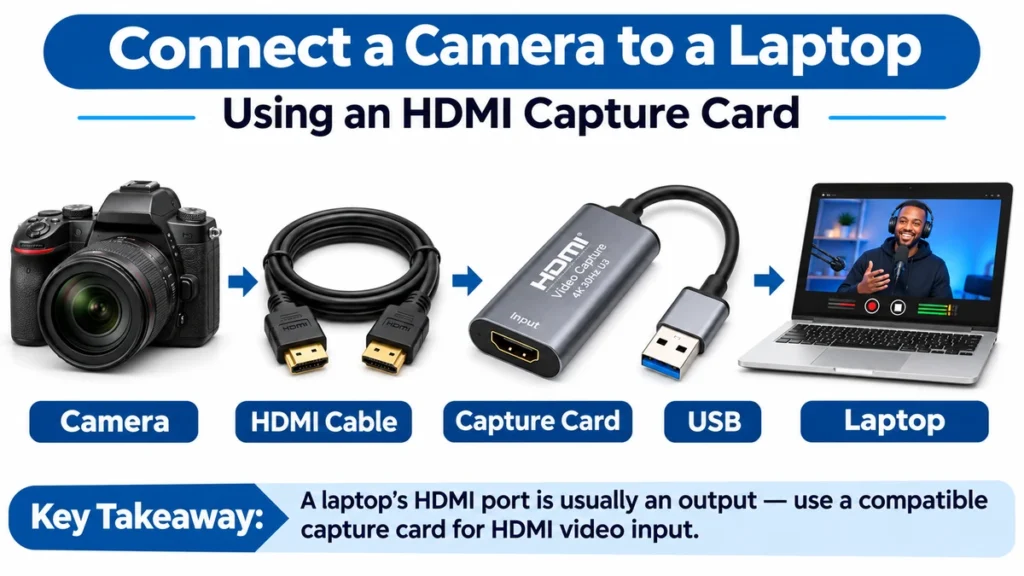
    Mistake 2: Assuming a laptop’s HDMI port accepts camera input

    Most laptop HDMI ports provide video output. A capture card is commonly needed for HDMI camera input.

    Mistake 3: Assuming 4K input means 4K recording

    Input, captured output and loop-out resolutions are separate specifications.

    Mistake 4: Buying the wrong USB connection

    Check USB-A or USB-C connector type, data capability and compatibility with the computer.

    Mistake 5: Ignoring camera HDMI output settings

    Some cameras display interface overlays or have output restrictions. Confirm the desired video signal before buying capture equipment.

    Mistake 6: Buying an ordinary HDMI switch for professional multicamera production

    Ordinary HDMI switches are not necessarily designed for live transitions, preview monitoring or other video-production controls.

    Mistake 7: Buying an additional capture card unnecessarily

    Some professional switchers have compatible computer video outputs. Check the switcher specifications before adding separate capture equipment.

    Mistake 8: Ignoring cable tension and connection distance

    Small camera HDMI ports can be vulnerable to mechanical strain. Choose suitable cable routing and compatible accessories.

    14. Buy Camera HDMI Cables, Capture Cards & Video Switchers in Kenya

    Marcnet Gadgets provides camera HDMI connectivity and video equipment for customers working with cameras, computers, monitors and livestreaming setups.

    The correct buying decision depends on the equipment you already own and the production workflow you need.

    Shop by Product Category

    Camera HDMI Cables & Adapters

    Explore Mini HDMI, Micro HDMI, camera cables and compatible adapters.

    HDMI Video Capture Cards

    Compare USB capture devices, Full HD and 4K-input options, and capture cards with HDMI loop-out.

    Professional HDMI Video Switchers

    Explore multi-input video switchers for compatible livestreaming and production requirements.

    Need Help Selecting the Right Equipment?

    Before ordering, identify:

    • Your camera model and HDMI connector type.
    • The number of cameras you want to connect.
    • The HDMI output resolution and frame rate.
    • Whether you need external monitoring.
    • Whether you want computer recording or live streaming.
    • Your computer’s available USB ports.
    • Whether professional multicamera switching is required.
    • The approximate distance between cameras and production equipment.

    These details will help narrow down the appropriate Marcnet product options.

    Frequently Asked Questions

    What is the difference between Mini HDMI and Micro HDMI?

    Mini HDMI is a Type C connector, while Micro HDMI is Type D. They have different physical sizes and require compatible cables or adapters.

    Can I connect a camera directly to a laptop using HDMI?

    Usually not through the laptop’s standard HDMI output. A compatible capture device is commonly required.

    What does an HDMI capture card do?

    It receives a compatible HDMI video signal and makes video available to a computer through a supported interface, commonly USB.

    Does a 4K HDMI capture card record in 4K?

    Not necessarily. A product may accept 4K input but capture at a lower resolution. Check the exact input and captured-output specifications.

    Is USB 3.0 better than USB 2.0 for video capture?

    USB 3.0 supports a higher interface data rate, but actual capture quality and format depend on the capture device’s design and specifications.

    What is HDMI loop-out on a capture card?

    HDMI loop-out provides an HDMI output for compatible monitoring or pass-through use while the device performs video capture.

    Can I use an HDMI capture card with livestreaming software?

    Many capture cards support compatible livestreaming and recording applications. Confirm the specific capture card’s software and operating-system requirements.

    Can I connect four cameras to a professional HDMI video switcher?

    A suitable four-input model can connect up to four compatible video sources, subject to its supported HDMI signal formats.

    Do professional video switchers replace capture cards?

    Some provide a computer-compatible USB video output and may remove the need for a separate capture card. Others may require an additional capture device.

    Is an ordinary HDMI switch suitable for livestreaming?

    An ordinary HDMI switch may select between video inputs, but it does not necessarily provide the professional controls needed for multicamera production.

    Which HDMI cable should I buy for a camera?

    Choose the cable based on the camera’s HDMI connector, the receiving equipment, supported video format and required cable length.

    Where can I buy camera HDMI cables and capture cards in Kenya?

    You can explore camera cables, USB capture cards and professional HDMI video switchers through Marcnet Gadgets and compare the relevant product specifications before ordering.


    Final buying advice: Start by identifying your camera connector and intended destination. Use a compatible HDMI cable for external monitoring, a suitable capture card for computer video input, or a professional video switcher when you need to manage multiple camera feeds during livestreaming. Check the actual device capabilities before purchasing.

  • HDMI Cable Buying Guide in Kenya: 1080p, 4K, 8K, Fiber Optic & Wireless

    HDMI Cable Buying Guide in Kenya: 1080p, 4K, 8K, Fiber Optic & Wireless

    Choosing the right HDMI cable is about more than resolution. Cable length, bandwidth, construction and installation conditions all matter.

    Whether you are connecting a laptop to a monitor, a decoder to a television, a projector across a meeting room or a display several metres away, choosing a suitable HDMI cable can help you avoid unnecessary costs and connection problems.

    At Marcnet Gadgets Kenya, customers can choose from Full HD 1080p, 4K, 8K copper and active optical fiber HDMI cables in different lengths.

    This guide explains how these options compare, which specifications matter and when wireless HDMI may be worth considering.

    Explore HDMI Cables & Accessories at Marcnet Gadgets

    1. HDMI Cable Types: 1080p vs 4K vs 8K vs Fiber Optic

    HDMI carries digital video and audio between compatible devices. However, not every cable is designed for the same bandwidth, length or application.

    Before buying, understand these four product groups.

    HDMI cable typeMain buying considerationCommon application
    1080p / Full HDStandard Full HD video connectionsTVs, laptops, monitors and projectors
    4K HDMIHigher-resolution video, with refresh rate checked separately4K TVs, monitors and presentation equipment
    8K copper HDMIHigher-bandwidth video connectionsCompatible 8K and demanding 4K equipment
    Active optical fiber HDMIVideo transmission over longer cable routesMeeting rooms, projectors and commercial installations

    Important: These categories are not completely separate technical standards.

    1080p, 4K and 8K describe video resolutions. Copper and fiber optic describe the transmission technology used inside the cable.

    A copper HDMI cable can support different resolutions depending on its construction and performance. Similarly, fiber optic HDMI cables may be designed for 4K or 8K applications.

    Does a more expensive HDMI cable give a better picture?

    Not automatically.

    If a suitable HDMI cable is already transmitting the required digital video signal reliably, buying a more expensive cable does not necessarily make the picture sharper.

    A higher-performance cable becomes valuable when your devices require additional bandwidth, higher refresh rates, supported HDMI features or a more demanding installation distance.

    Buying rule: Match the cable to the equipment and installation requirements—not just the highest resolution printed on the packaging.

    1080p, 4K and 8K HDMI cable comparison for TVs, monitors and projectors
    Compare Full HD 1080p, 4K and 8K HDMI connections to choose the right cable for your display.

    2. When Should You Buy a 1080p HDMI Cable?

    A Full HD HDMI cable is a practical choice for compatible equipment using 1080p video.

    Common applications include:

    • Connecting a laptop to a Full HD monitor.
    • Connecting a media player or decoder to a television.
    • Sending presentations to a compatible projector.
    • Connecting computers and displays in an office.
    • Setting up basic home entertainment equipment.

    The required cable length depends on the distance and actual route between your devices.

    Marcnet Gadgets 1080p HDMI Cable Options

    Cable lengthAvailable productSuggested use
    1.5mHDMI Male-to-Male Cable 1.5mNearby devices
    3m3m HDMI Male-to-Male Cable 1080pTV and computer connections
    5m5m HDMI Male-to-Male Cable 1080pWider room arrangements
    10m10m HDMI 1.4 Full HD CableExtended room connections
    15m15m Full HD 1080p HDMI CableLonger cable routes
    20m20m HDMI 1.4 Full HD CableLonger installations
    30m30m Full HD 1080p HDMI CableExtended display connections

    Which length should you choose?

    For nearby devices, a 1.5m or 3m cable may be sufficient.

    For televisions or projectors located farther away, customers may need 5m, 10m or longer cables.

    Longer HDMI cables require more attention to signal compatibility and installation conditions. A cable being available in a 20m or 30m length does not guarantee that every source and display combination will work correctly.

    Buying tip: Measure the actual route, including furniture, corners and equipment placement. Select a suitable length and confirm the signal requirements before installation.

    Shop 1080p HDMI Cables in Kenya

    3. When Should You Upgrade to a 4K HDMI Cable?

    A 4K HDMI cable is relevant when your television, monitor, projector or other display equipment supports 4K video.

    Customers commonly choose 4K HDMI cables for:

    • 4K televisions and compatible media players.
    • Computers connected to UHD monitors.
    • Office presentations using 4K displays.
    • Commercial display installations.
    • Compatible gaming and entertainment systems.

    However, not every cable advertised as 4K supports the same refresh rate or signal format.

    Understanding 4K at 30Hz and 4K at 60Hz

    The refresh rate describes how many times a display can update its image each second.

    For example:

    4K at 30Hz may be suitable for certain presentation and video applications.

    4K at 60Hz provides more frequent image updates and can be desirable for compatible computers, gaming systems and smoother motion.

    Whether a cable supports a particular format depends on its bandwidth capabilities and the requirements of the connected equipment.

    Official Premium High Speed HDMI certification is associated with performance up to 18Gbps, including supported 4K60 applications. A product must have appropriate certification evidence before it can be described as officially certified.

    Marcnet Gadgets 4K HDMI Cable Options

    Length / typeProductMain buying consideration
    1.5m1.5m 4K HDMI Cable 60HzShort 4K connections
    2–4m spiralHDMI Spiral Cable 4K 60HzCoiled, flexible installations
    3m3m 4K HDMI CableHome and office use
    5m5m 4K HDMI Cable 18GbpsWider room connections
    10m10m HDMI 2.0 Cable 4K 60HzLonger 4K connections
    15m15m 4K HDMI CableExtended installations
    20m20m 4K High Speed HDMI CableLong HDMI cable routes
    30m30m 4K High Speed HDMI CableLonger commercial connections

    All these products are classified within Marcnet’s 4K HDMI range.

    Specific refresh-rate and bandwidth capabilities vary by product.

    What makes a spiral HDMI cable different?

    A spiral HDMI cable uses a coiled design that can extend and retract when connecting devices.

    This can help manage excess cable around suitable equipment setups.

    Marcnet’s 2–4m HDMI Spiral Cable supports 4K at 60Hz, as confirmed in the product specifications.

    However, the supported 4K60 signal formats should still be considered when choosing it for a particular source and display. Resolution and refresh rate alone do not establish compatibility with every colour format or HDMI feature.

    Can longer 4K HDMI cables work reliably?

    Marcnet offers 4K HDMI cables in 15m, 20m and 30m lengths.

    These can be considered for longer installations, subject to the supported signal formats and the actual equipment being connected.

    For demanding longer-distance installations, customers should also compare active optical fiber HDMI cables.

    Browse 4K HDMI Cables at Marcnet Gadgets

    4. What Is an 8K Copper HDMI Cable?

    An 8K HDMI cable is designed for higher-bandwidth HDMI applications, depending on its specifications.

    Higher-bandwidth connections may be relevant for supported 8K video formats and demanding 4K configurations requiring higher refresh rates or additional features.

    But an 8K cable is not necessary for every television or computer.

    Marcnet Gadgets 8K Copper HDMI Cables

    Marcnet has two copper-conductor HDMI products with confirmed 48Gbps and 8K at 60Hz specifications.

    HDMI 2.1 8K Copper Cable 10m — 48Gbps, 8K60

    This 10m copper HDMI cable supports the stated 48Gbps bandwidth and 8K at 60Hz specification.

    It is intended for compatible higher-bandwidth HDMI connections where a 10m cable route is required.

    HDMI 2.1 8K Copper Cable 20m — 48Gbps, 8K60

    This 20m copper HDMI cable also supports the confirmed 48Gbps and 8K at 60Hz specification.

    It provides a longer copper-cable option for compatible installations.

    Both are copper HDMI cables, not fiber optic models.

    Does 48Gbps mean a cable is officially certified?

    Not automatically.

    A manufacturer’s stated 48Gbps specification and official Ultra High Speed HDMI certification are related but distinct claims.

    Ultra High Speed HDMI is a recognized certification category for high-bandwidth HDMI cables. Customers should look for authentic certification information if official certification is important for their installation.

    When should you choose an 8K cable?

    Consider an 8K-capable cable when:

    • Your connected equipment requires the stated higher bandwidth.
    • Your display and source support compatible 8K video.
    • Your 4K setup requires more demanding formats than a lower-bandwidth cable supports.
    • You want a connection appropriate for equipment with compatible higher-bandwidth requirements.

    Buying advice: Confirm the source, display, cable specifications and required length together.

    Shop 8K HDMI Cables in Kenya

    5. Copper vs Fiber Optic HDMI Cables: What Is the Difference?

    Copper HDMI cables and active optical fiber HDMI cables can both connect compatible HDMI devices, but they use different transmission methods.

    Copper HDMI cables

    Copper HDMI cables use electrical conductors to carry HDMI signals.

    They are common in home entertainment systems, computer setups and many office installations.

    Suitable copper cables can also serve longer connections when their design and specifications support the required signal.

    Active optical fiber HDMI cables

    Active optical fiber HDMI cables use optical transmission for supported signals, together with built-in electronic conversion components.

    They are particularly relevant for certain longer-distance installations.

    Copper vs Fiber HDMI Comparison

    FeatureCopper HDMIActive Optical HDMI
    Main transmission methodElectricalOptical with active electronics
    Typical buying considerationSignal bandwidth and cable lengthLong-distance signal requirements
    Available resolutionsModel-dependentModel-dependent
    Directional connectorsUsually noMany models are directional
    Power requirementsCable-dependentActive electronics may need power
    Installation considerationsCable route and signal compatibilityCable route, direction, power and bending

    Important: Fiber optic HDMI does not automatically mean 8K.

    A 100m fiber HDMI cable may support 4K, while a shorter 20m or 30m model may be designed for 8K.

    The actual product specification determines which video signals are supported.

    Copper HDMI versus active optical fiber HDMI cables showing source and display connectors
    Copper HDMI suits many everyday connections, while active optical HDMI offers options for longer cable runs.

    6. Fiber Optic HDMI Cables for Long-Distance Installations

    Active optical HDMI cables can be useful for installations involving projectors, meeting rooms, exhibition areas and commercial displays located farther from the source.

    Marcnet Gadgets offers active optical HDMI products in lengths from 20m to 100m.

    Marcnet Fiber Optic HDMI Cable Comparison

    LengthProductConfirmed catalogue specification
    20m20m Active Optical HDMI Cable8K, 48Gbps
    30m30m Active Optical HDMI Cable8K, 48Gbps
    40m40m Active Optical HDMI Cable8K, 48Gbps
    50m50m Active Optical HDMI Cable4K Ultra HD
    100m100m Active Optical HDMI Cable4K, 18Gbps, HDCP 2.2

    The key lesson is that greater cable length does not necessarily mean greater video capability.

    Choose the model that meets your required resolution, refresh rate and installation distance.

    Are fiber optic HDMI cables directional?

    Many active optical HDMI cables are directional.

    Their connectors may be labelled:

    SOURCE → DISPLAY

    The source connector attaches to the video-output device, while the display connector attaches to the receiving screen or compatible equipment.

    For a directional model, connecting the ends incorrectly may prevent video from displaying.

    Tips before installing a long fiber HDMI cable

    1. Identify the source and display ends.
    2. Check the required resolution and refresh rate.
    3. Confirm whether the cable requires additional power.
    4. Test it with the actual devices before installation.
    5. Avoid sharp bends, excessive pulling and connector strain.
    6. Allow adequate clearance when routing through conduits or ceilings.

    Testing before permanent installation can prevent expensive corrections later.

    Explore Fiber Optic HDMI Cables

    7. How to Choose the Correct HDMI Cable Length

    Choosing HDMI cable length involves more than measuring the shortest distance between devices.

    Consider the actual installation route.

    For example, a television might be only three metres from a decoder, but the cable may need to travel behind furniture or around the room.

    Practical Buying Comparison

    InstallationWhat to consider
    Laptop beside a monitorSuitable short HDMI cable
    Television and decoderResolution and required cable route
    Computer connected to a 4K displaySupported 4K format and refresh rate
    Projector across a meeting roomLength and high-bandwidth requirements
    Long commercial display connectionConventional versus active optical HDMI
    Difficult cable routeFiber or a compatible wireless HDMI alternative

    Is there a maximum distance for HDMI?

    There is no single guaranteed maximum cable length that applies to every HDMI format and product.

    Supported distance depends on cable construction, video bandwidth, the source, the display and other installation conditions.

    This is why a 30m Full HD cable, a 30m 4K cable and a 30m 8K active optical cable should not be treated as interchangeable products.

    Buying tip: Choose the cable by the combination of supported signal format and required installation length.

    8. Choosing HDMI Cables for Different Applications

    Home TVs and Entertainment Systems

    A suitable Full HD or 4K HDMI cable may be enough for connecting televisions, decoders and media players.

    Check the source and television specifications before selecting the cable.

    Computers and Monitors

    For a compatible computer and 4K monitor, pay particular attention to resolution, refresh rate and the relevant output capabilities.

    Not all computers and monitors support the same HDMI formats.

    Projectors and Conference Rooms

    Projector installations often require longer cable routes.

    Where a long conventional HDMI cable is unsuitable for the required signal, compare an active optical fiber HDMI model.

    Business and Commercial Displays

    For commercial installations, consider equipment location, cable access, installation distance and maintenance requirements.

    If several displays need to show the same content or different video sources, an HDMI splitter, switch or matrix may be required in addition to the cables.

    Marcnet also provides HDMI distribution equipment for these applications.

    What about camera HDMI cables?

    Some cameras use Mini HDMI or Micro HDMI rather than full-size HDMI connectors.

    Those connections require different cable or adapter choices, particularly when connecting cameras to capture cards and livestreaming equipment.

    Camera HDMI connectors, specialized camera cables and capture cards will be covered in a separate Marcnet Gadgets buying guide to keep this article focused on general HDMI cable selection.

    9. When Should You Consider Wireless HDMI Instead of a Cable?

    Wireless HDMI offers an alternative for situations where running a long physical HDMI cable is inconvenient.

    A wireless system typically includes a transmitter connected to the HDMI source and a receiver connected to a compatible display.

    Potential applications include:

    • Temporary presentation setups.
    • Meeting rooms where cable routing is difficult.
    • Selected home entertainment installations.
    • Event and exhibition displays.
    • Compatible multi-receiver display arrangements.

    However, wireless HDMI is not automatically an upgrade in picture quality or performance.

    Customers should compare supported resolution, operating range, latency, obstacles and receiver configuration.

    Marcnet Gadgets Wireless HDMI Options

    ProductAdvertised configuration
    30m Wireless HDMI Extender30m wireless connection
    50m Wireless HDMI Extender — USB-C Powered50m, USB-C powered
    50m Wireless HDMI 1TX to 4RXFull HD 1080p multi-receiver configuration
    150m 4K Wireless HDMI ExtenderAdvertised 150m and 4K
    200m Wireless HDMI ExtenderAdvertised 200m, dual antenna

    Advertised wireless distances should not be treated as guaranteed indoor operating ranges. Actual performance depends on the installation environment.

    The number of receivers supported by a system should also be distinguished from the number included in a particular product package.

    What Is a 1TX-to-2RX Wireless HDMI System?

    A 1TX-to-2RX wireless HDMI system uses one transmitter and two compatible receivers.

    In a typical configuration:

    One HDMI source → One wireless transmitter → Two receivers → Two displays

    Both displays can receive the same transmitted video source, subject to the system’s supported operation.

    This may be useful when:

    • One laptop presentation needs to appear on two displays.
    • A shop needs to show the same source on separate screens.
    • An installation would otherwise require two long cable routes.

    New product information: Marcnet Gadgets is considering a 1TX-to-2RX wireless HDMI product that has not yet been added to the website. This explanation is educational and does not represent a current online product offer.

    The specific model’s resolution, wireless range, price and availability will be provided once its product listing is prepared.

    For currently listed wireless options, visit:

    Wireless HDMI Transmitters & Receivers at Marcnet Gadgets

    Wireless HDMI 1TX to 2RX diagram showing one source connected to two displays
    A 1TX-to-2RX wireless HDMI system sends one video source to two compatible receiving displays.

    10. Common HDMI Cable Buying Mistakes to Avoid

    Mistake 1: Choosing a cable based only on the 4K or 8K label

    Resolution is important, but supported refresh rate, bandwidth and length also matter.

    Mistake 2: Assuming all 4K cables support every 4K format

    Some HDMI signals require more bandwidth than others. Confirm the required format and the specific product capabilities.

    Mistake 3: Buying an unnecessarily long cable

    Longer cables can introduce additional installation and signal considerations. Measure the intended route and select a suitable length.

    Mistake 4: Assuming every fiber optic HDMI cable supports 8K

    Fiber optic cables can be designed for different resolutions and bandwidths. Confirm the exact model specifications.

    Mistake 5: Connecting a directional optical HDMI cable backwards

    Check the SOURCE and DISPLAY markings before installation.

    Mistake 6: Expecting wireless HDMI to perform identically to a cable

    Wireless performance depends on the equipment, environment and operating conditions.

    Mistake 7: Buying a cable when a distribution device is needed

    A regular HDMI cable connects devices. If you need to duplicate a signal, select between multiple sources or route sources to different displays, additional equipment may be required.

    11. Buy HDMI Cables in Kenya at Marcnet Gadgets

    Marcnet Gadgets offers HDMI connectivity products for home entertainment, offices, projectors, computer displays and commercial installations.

    The best cable is not necessarily the longest or highest-resolution model.

    Choose according to your equipment, the signal you want to transmit and the distance involved.

    Shop HDMI Products by Category

    Need Help Selecting the Right HDMI Connection?

    Before contacting Marcnet Gadgets, identify:

    1. Your source device, such as a laptop, decoder or media player.
    2. Your display, such as a TV, monitor or projector.
    3. The required resolution and refresh rate.
    4. The approximate distance between the connected devices.
    5. Whether the installation will be temporary or permanent.

    These details help narrow down the most suitable options.

    Shop All HDMI Cables & Accessories at Marcnet Gadgets

    Frequently Asked Questions

    What is the difference between 1080p, 4K and 8K HDMI cables?

    These labels refer to video resolutions associated with the cables’ advertised capabilities. The actual support also depends on refresh rate, bandwidth, length and cable design.

    Do I need an 8K HDMI cable for a 4K television?

    Not necessarily. Choose a cable that supports the actual video format and features required by your connected devices.

    Can a 4K HDMI cable work with a 1080p monitor?

    Generally, yes, when the cable and connected devices support compatible HDMI signals.

    What does 4K at 60Hz mean?

    It refers to a 4K video signal with a refresh rate of 60Hz. Compatibility also depends on bandwidth and signal-format requirements.

    Does Marcnet Gadgets have long 4K HDMI cables?

    Yes. Marcnet’s 4K HDMI selection includes 15m, 20m and 30m cable options, among other lengths.

    Are Marcnet’s 10m and 20m 8K HDMI cables copper or fiber optic?

    Both are copper-conductor HDMI cables, with confirmed stated specifications of 48Gbps and 8K at 60Hz.

    Is fiber optic HDMI better than copper HDMI?

    Neither is universally better. Fiber optic HDMI can be advantageous for certain long-distance installations, while suitable copper HDMI cables remain practical for many other connections.

    Why does the 100m fiber HDMI cable support 4K while some shorter models support 8K?

    Cable length and supported resolution are separate specifications. Different active optical models have different transmission capabilities.

    Are fiber optic HDMI cables directional?

    Many active optical HDMI cables are directional. Check the SOURCE and DISPLAY markings on the product.

    Can wireless HDMI replace a physical HDMI cable?

    Yes, in suitable installations using compatible equipment. Consider signal range, latency, supported resolution and interference.

    Can one wireless HDMI transmitter connect to two TVs?

    Some 1TX-to-2RX wireless HDMI systems can send one source to two compatible receivers. The exact model’s capabilities must be checked.

    Where can I buy HDMI cables in Nairobi, Kenya?

    You can browse Full HD, 4K, 8K, fiber optic and wireless HDMI products at Marcnet Gadgets and compare their listed specifications.


    Final buying advice: Start with your required video resolution and refresh rate, then measure the connection distance. Choose a suitable copper HDMI cable for compatible connections, consider active optical HDMI for demanding longer runs, and explore wireless HDMI when avoiding cable installation is a priority.

  • HDMI Splitter vs HDMI Switch vs HDMI Matrix: Which Should You Buy in Kenya?

    HDMI Splitter vs HDMI Switch vs HDMI Matrix: Which Should You Buy in Kenya?

    Choosing the right HDMI device can save you money, simplify your connections and prevent common display problems.

    Whether you want to connect one laptop to several TVs, switch between a decoder and gaming console, or control different video sources across multiple screens, understanding the difference between an HDMI splitter, HDMI switch and HDMI matrix is important.

    These devices may look similar, but they perform different functions.

    At Marcnet Gadgets Kenya, customers can explore HDMI distribution and control equipment for homes, offices, meeting rooms, businesses and commercial AV installations.

    This buying guide explains how each device works, compares common configurations and helps you find the right equipment for your setup.

    1. What Is an HDMI Splitter?

    An HDMI splitter takes the signal from one HDMI source and distributes it to two or more compatible displays.

    For example, you may want one laptop presentation to appear on two televisions at the same time.

    A typical configuration is:

    1 HDMI input → 2 HDMI outputs

    This is called a 1×2 HDMI splitter.

    Larger splitters can distribute the same source signal to four or eight displays, depending on their available outputs.

    HDMI 1×4 splitter connection diagram showing one laptop sending identical video to four displays.
    How an HDMI splitter distributes one source to multiple screens showing the same content.

    When should you buy an HDMI splitter?

    An HDMI splitter is useful when you want to:

    • Show the same presentation on multiple screens.
    • Display one media player on two compatible televisions.
    • Distribute identical content around a shop or office.
    • Connect one HDMI source to several compatible monitors.

    Important: An ordinary HDMI splitter mirrors the source signal. It does not create an extended desktop where each monitor displays independent content.

    HDMI Splitters Available at Marcnet Gadgets

    4K HDMI Splitter 1×2 – 2 Way

    Designed for setups requiring one HDMI source to be connected to two compatible displays showing the same content.

    4K HDMI Splitter 1×4 – 4 Way

    An option for distributing one HDMI source to four compatible displays in an office, meeting room or commercial setup.

    4K HDMI Splitter 1×8 – 8 Way

    Consider this configuration when an installation requires up to eight HDMI display outputs showing the same source.

    Before purchasing, compare supported resolutions, power requirements, HDMI compatibility and cable distances.

    Browse HDMI Splitters & Switchers at Marcnet Gadgets

    2. What Is an HDMI Switch?

    An HDMI switch connects multiple HDMI source devices to one display.

    Imagine a TV with only one available HDMI input, but you want to connect a laptop, gaming console and television decoder.

    Instead of repeatedly unplugging cables, an HDMI switch lets you select which source appears on the screen.

    A typical configuration is:

    3 HDMI inputs → 1 HDMI output

    This is called a 3×1 HDMI switch.

    HDMI 3×1 switch connection diagram showing a laptop, gaming console and TV decoder connected to one television.
    How an HDMI switch lets you select between three HDMI devices using one television.

    When should you buy an HDMI switch?

    Choose an HDMI switch when you need to:

    • Connect multiple devices to one television.
    • Change between computers or presentation sources.
    • Use several media players with one projector.
    • Reduce repeated HDMI cable disconnection.
    • Select between different HDMI devices at a workstation.

    Some models provide remote-control or automatic switching options, but available controls vary by product.

    HDMI Switches Available at Marcnet Gadgets

    3-Port HDMI Switches

    These options are suitable when you need to connect up to three compatible HDMI source devices to one screen.

    5-Port HDMI Switches

    Consider these when you have more HDMI devices than a typical three-input setup can accommodate.

    7-Port HDMI Switch

    For installations requiring additional source connections, Marcnet also lists a higher-input configuration:

    Always check the individual product specifications to confirm supported resolution, refresh rate, control functions and device compatibility.

    Explore All 4K HDMI Switchers

    3. What Is an HDMI Matrix Switch?

    An HDMI matrix switch provides flexible routing between multiple HDMI source devices and multiple displays.

    Unlike an ordinary HDMI splitter, a suitable matrix allows different connected displays to select different source signals.

    For example, an office could connect several laptops and media players to a matrix, then choose which source appears on each screen.

    A typical configuration is:

    4 HDMI inputs → 2 HDMI outputs

    This is known as a 4×2 HDMI matrix.

    One display could show a laptop while another displays a media player, depending on the model and its routing capabilities.

    HDMI 4×4 matrix connection diagram showing four HDMI sources routed independently to four displays.
    How an HDMI matrix routes multiple video sources to different displays independently.

    When should you buy an HDMI matrix?

    An HDMI matrix is useful for:

    • Conference rooms with several video sources.
    • Offices requiring independent display selection.
    • Meeting rooms with multiple presentation devices.
    • Commercial AV installations.
    • Businesses needing flexible source-to-screen routing.

    HDMI Matrix Options at Marcnet Gadgets

    4×4 HDMI Matrix Switch

    A configuration to consider when your installation requires multiple HDMI sources and several independently selectable display outputs.

    6×2 HDMI Matrix

    An option for installations with up to six HDMI sources and two display outputs, subject to the exact product’s routing specifications.

    4×2 HDMI Matrix Switch

    A potential choice for meeting rooms or AV systems requiring several source inputs and two display connections.

    When selecting a matrix, confirm its actual input/output configuration, resolution limits, audio capabilities, HDCP support and available control methods.

    Browse HDMI Matrix Switches at Marcnet Gadgets

    4. HDMI Splitter vs Switch vs Matrix: Key Differences

    FeatureHDMI SplitterHDMI SwitchHDMI Matrix
    Main purposeDuplicate one sourceChoose between sourcesRoute sources to displays
    Typical inputsOneMultipleMultiple
    Typical outputsMultipleOneMultiple
    Same content on multiple screensYesNot usuallyPossible on suitable models
    Different sources on different screensNoNoYes, on suitable models
    Typical useTV distributionHome entertainmentOffices and AV systems

    Quick buying decision

    Choose an HDMI splitter if you have one source and want the same picture displayed on several screens.

    Choose an HDMI switch if you have multiple sources but only one display.

    Choose an HDMI matrix if you need to route several sources to multiple displays with independent source selection.

    5. HDMI Matrix vs HDMI Quad Multiviewer

    An HDMI matrix and an HDMI multiviewer are not the same device.

    An HDMI matrix routes selected source signals to separate outputs.

    An HDMI quad multiviewer, by contrast, is designed to combine or arrange multiple video sources within a single display output, depending on its supported viewing modes.

    For example, a multiviewer may be useful when an operator needs to monitor several connected video sources on one screen.

    HDMI quad multiviewer diagram showing four HDMI sources displayed simultaneously in a 2×2 layout on one monitor.
    How an HDMI quad multiviewer combines four video sources into one screen divided into four viewing sections.

    Related Marcnet Product

    4×1 HDMI Quad Multiviewer 4K

    Consider this product family when your requirement is to view multiple HDMI sources through one display rather than route them to several independent screens.

    Confirm the available layouts, supported input/output formats and viewing modes before purchasing.

    6. HDMI Matrix vs Video Wall Controller

    A video wall controller is another specialized type of display equipment.

    An ordinary HDMI matrix focuses on routing video sources.

    A video wall controller may provide video processing functions designed to divide, scale or arrange images across a multi-screen display installation.

    These capabilities are not necessarily available in a conventional HDMI matrix.

    If your goal is to build a large display wall from several monitors, evaluate the video wall controller specifications rather than assuming an HDMI splitter or matrix will perform the same function.

    Explore HDMI Video Wall Controllers

    7. Do HDMI Splitters and Switches Support 4K?

    Some HDMI distribution devices support 4K resolutions, but the available formats vary between products.

    A device labelled 4K does not automatically support every 4K refresh rate or display setup.

    Before ordering, check:

    • Maximum supported resolution.
    • Refresh rate, including whether 4K at 60Hz is supported.
    • HDMI version and available bandwidth.
    • HDCP compatibility for protected video content.
    • Supported audio formats.
    • Power supply requirements.
    • Connected display capabilities.
    • Cable specifications and connection length.

    If you connect devices with different resolution capabilities, confirm how the HDMI equipment handles display compatibility and signal negotiation.

    Related buying categories:

    8. HDMI Splitter vs HDMI Extender

    Although both are used in HDMI installations, these devices solve different problems.

    An HDMI splitter distributes one source to multiple displays.

    An HDMI extender is designed to carry compatible HDMI signals across longer distances using an appropriate transmission system.

    For example, a customer may need a splitter to duplicate a presentation and an HDMI extender to carry one output to a distant screen.

    The required configuration depends on distance, cable type and supported video resolution.

    Explore HDMI Extenders Over CAT6

    9. Which HDMI Device Is Best for Your Setup?

    Home Entertainment

    If you have a television with limited HDMI inputs but several devices, an HDMI switch is usually the more suitable choice.

    If you want one compatible media source displayed on two televisions, consider an HDMI splitter.

    Office Presentations

    For one laptop presenting identical content on several displays, consider a splitter.

    For several laptops and multiple displays requiring independent source selection, consider an HDMI matrix.

    Shops and Commercial Displays

    A splitter can be useful when all displays need identical content.

    A matrix provides more flexible source selection where compatible models support the required routing.

    A video wall controller may be more appropriate for a display wall requiring specialized screen layouts.

    Camera Monitoring and Livestreaming

    For monitoring multiple compatible HDMI camera feeds on one screen, investigate an HDMI multiviewer.

    For selecting camera feeds during a live production, specialist video switchers may be required.

    For recording or livestreaming an HDMI camera signal to a computer, check whether a compatible capture device is necessary.

    A standard HDMI switch or matrix does not automatically provide computer video capture functionality.

    Explore HDMI Video Capture Cards

    10. Common HDMI Buying Mistakes to Avoid

    Mistake 1: Buying a splitter when you need a switch.

    A splitter duplicates one source. A switch selects between multiple sources.

    Mistake 2: Assuming every 4K device supports 4K at 60Hz.

    Check the exact specifications rather than relying on the term 4K alone.

    Mistake 3: Expecting a splitter to extend your desktop.

    An ordinary splitter mirrors the source signal rather than producing independent monitor content.

    Mistake 4: Confusing a matrix with a multiviewer.

    A matrix routes video signals. A multiviewer is intended for viewing multiple signals within a supported output layout.

    Mistake 5: Ignoring the number of HDMI ports.

    Count your source devices and display outputs before deciding between 3×1, 5×1, 4×2 or other configurations.

    Mistake 6: Overlooking cable distance.

    Longer installations may require compatible active HDMI cables, fiber optic HDMI cables or HDMI extenders.

    Mistake 7: Ignoring content-protection compatibility.

    Protected content may not display correctly when connected equipment does not support the necessary HDCP requirements.

    11. Buy HDMI Splitters, Switches and Matrix Devices in Kenya

    Marcnet Gadgets offers HDMI connectivity and distribution equipment for customers in Nairobi and across Kenya.

    Whether you need to connect one source to multiple televisions, switch between several devices or build a flexible office AV setup, the right choice depends on how many HDMI sources and displays you want to connect.

    Shop by Equipment Type

    Need help choosing?

    Before contacting Marcnet Gadgets, identify:

    1. How many HDMI source devices you have.
    2. How many displays you want to connect.
    3. Whether the screens should show the same or different content.
    4. The required resolution and refresh rate.
    5. The approximate distance between devices and displays.

    Providing these details makes it easier to identify the equipment that best matches your installation.

    Frequently Asked Questions

    What is the difference between an HDMI splitter and HDMI switch?

    An HDMI splitter distributes one source to multiple displays. An HDMI switch selects one of several sources for a single output.

    Can an HDMI splitter show different content on two TVs?

    An ordinary HDMI splitter cannot. It generally duplicates the same video signal to both displays.

    Is an HDMI matrix better than an HDMI splitter?

    Not necessarily. A matrix provides more flexible routing, but a splitter is usually sufficient when several displays need identical content.

    Can an HDMI switch connect three devices to one TV?

    Yes. A compatible 3×1 HDMI switch is designed to select between three HDMI source inputs for one display output.

    What is a 4×2 HDMI matrix?

    A 4×2 HDMI matrix typically offers four source inputs and two outputs, allowing flexible routing according to the model’s capabilities.

    What is the difference between a matrix and a quad multiviewer?

    A matrix routes video sources to display outputs. A quad multiviewer is designed for viewing multiple source signals within a supported display layout.

    Can an HDMI splitter support 4K video?

    Some can. Confirm the maximum supported resolution and refresh rate on the exact product listing.

    Do HDMI splitters require external power?

    Some models require external power. Check the individual product’s power requirements before buying.
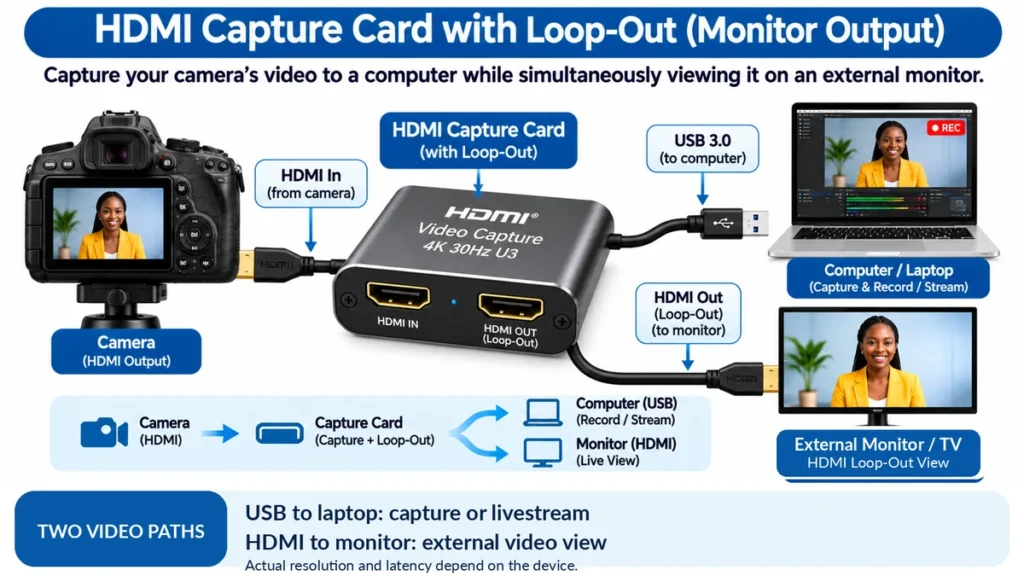
    Can an HDMI switch work with a projector?

    Yes, where the switch, projector, source device and cables support compatible HDMI formats.

    Where can I buy HDMI splitters, switches and matrices in Kenya?

    Browse the HDMI equipment categories at Marcnet Gadgets to compare listed products and specifications before placing an order.


    Final buying advice: Choose an HDMI splitter for identical content on multiple screens, an HDMI switch for selecting between source devices, or an HDMI matrix when you need flexible routing across several displays. For multi-source monitoring or video wall layouts, compare specialist multiviewers and video wall controllers instead.