
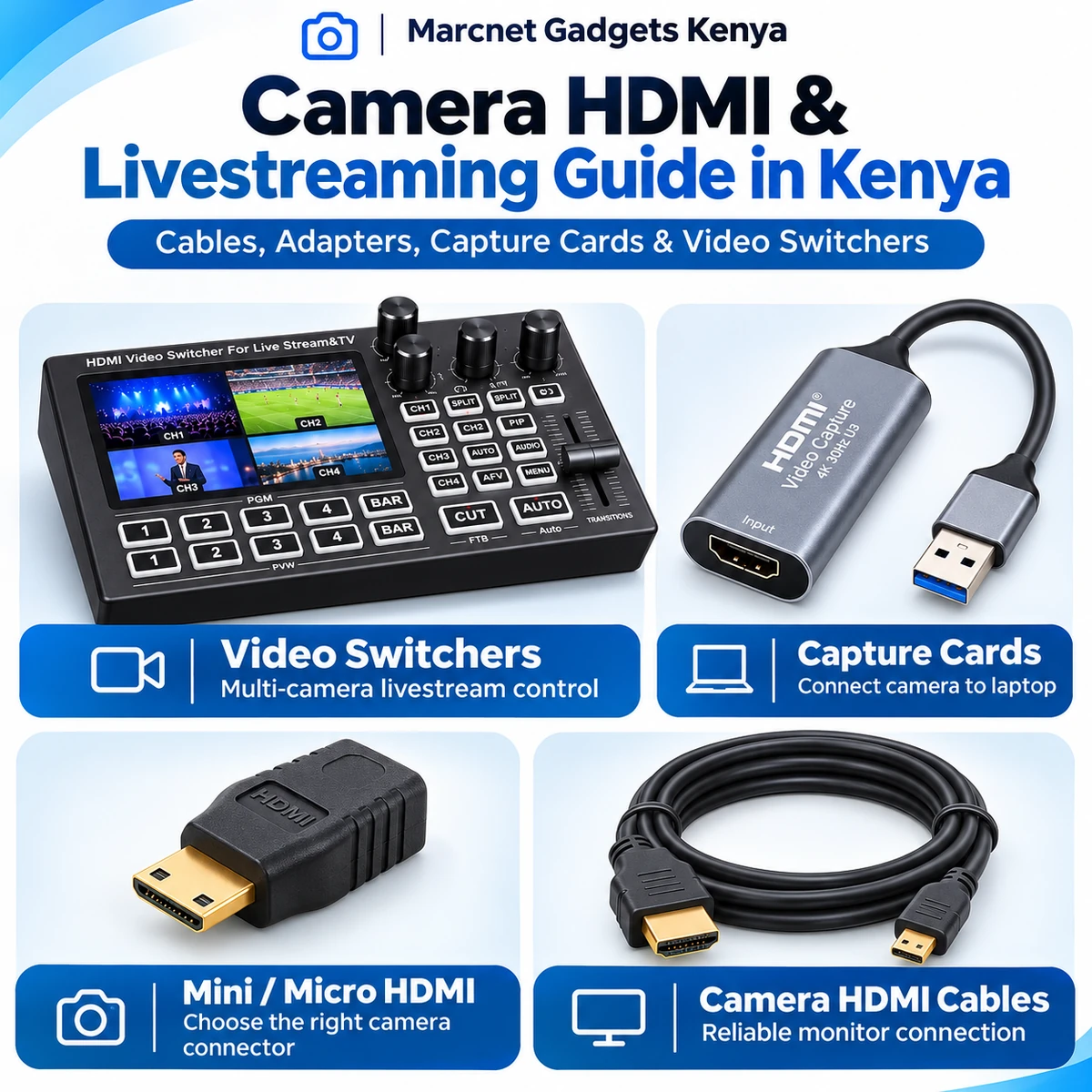
Connecting a camera to a monitor, laptop or professional livestreaming system requires more than choosing an HDMI cable. The camera connector, cable type, capture equipment and video-switching requirements must all be compatible.
Whether you are recording interviews, livestreaming a church service, producing an event, teaching online or connecting a camera to an external display, selecting the correct equipment can help you avoid connection problems and unnecessary purchases.
At Marcnet Gadgets Kenya, customers can explore camera HDMI cables, Mini HDMI and Micro HDMI adapters, USB video capture cards and professional HDMI video switchers.
This guide explains how the equipment works, how different devices connect and what to consider before buying.
The main questions are:
- Does your camera have full-size HDMI, Mini HDMI or Micro HDMI?
- Do you want to view the camera on a screen or capture video on a computer?
- Do you need to connect one camera or switch between several cameras?
- What resolution, frame rate and monitoring features does your setup require?
1. Understanding Camera HDMI Connectors
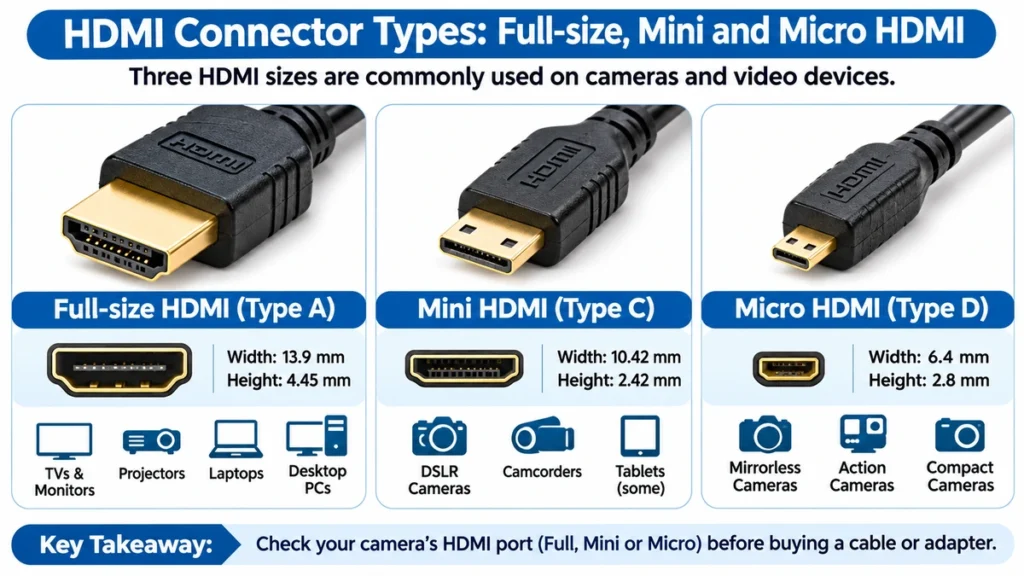
Not all cameras have the same HDMI connector.
Some cameras provide a full-size HDMI output, while others use smaller Mini HDMI or Micro HDMI ports to save space.
The three connector types commonly encountered are:
| HDMI connector | Technical designation | Common application |
|---|---|---|
| Full-size HDMI | Type A | TVs, monitors, capture cards and some cameras |
| Mini HDMI | Type C | Selected cameras and compact video equipment |
| Micro HDMI | Type D | Selected compact cameras and other small devices |
A smaller HDMI connector does not necessarily mean lower video quality. The supported output depends on the camera, cable and connected equipment.
How do you identify your camera’s HDMI connector?
Check the camera’s official specifications, user manual or labelled output port.
Compare the physical connector carefully before purchasing.
Do not force an HDMI connector into a port that has a different shape or size.
Buying tip: If the camera has Mini HDMI, select a compatible Mini HDMI cable or adapter. If it has Micro HDMI, select a compatible Micro HDMI connection instead.
Explore Camera HDMI Cables at Marcnet Gadgets
2. Mini HDMI Cables for Camera Connections
A Mini HDMI-to-HDMI cable connects a compatible Mini HDMI output to equipment with a standard HDMI input.
For example:
Camera Mini HDMI output → Mini HDMI-to-HDMI cable → HDMI monitor
This is useful when a camera needs to send a supported video signal to an external display, compatible capture card or video switcher.
Mini HDMI Cable Options at Marcnet Gadgets
| Product | Length | Buying application |
|---|---|---|
| HDMI to Mini HDMI Cable | 5m | Camera-to-display or capture equipment |
| Mini HDMI Cable | 10m | Longer camera connections |
| Mini HDMI to HDMI Cable | 20m | Extended installation routes |
| Mini HDMI to HDMI Spiral Cable | 2–4m | Flexible camera-rig arrangements |
When is a spiral Mini HDMI cable useful?
A spiral cable uses a coiled arrangement that can extend when needed and reduce loose cable around suitable equipment.
It may be useful for camera rigs, mounted monitors and setups where the equipment moves within the cable’s supported range.
However, a coiled cable does not automatically protect a camera’s HDMI port from pulling or strain.
For longer cables, check the supported signal format and whether the camera, receiving equipment and installation conditions are compatible.
3. Micro HDMI Cables for Cameras
Micro HDMI is smaller than both full-size HDMI and Mini HDMI.
Selected compact cameras and other video devices use Micro HDMI to provide video output without requiring a full-size connector.
A typical connection is:
Camera Micro HDMI output → Micro HDMI-to-HDMI cable → External monitor
If you want to connect the camera to a computer for video capture, you may also need a compatible HDMI capture device.
Micro HDMI Cable Options at Marcnet Gadgets
| Product | Length or type | Suggested application |
|---|---|---|
| Micro HDMI to HDMI Cable | 1.5m | Nearby monitor or capture card |
| Micro HDMI to HDMI Cable | 5m | Camera-to-monitor connection |
| Micro HDMI to HDMI Cable | 10m | Extended camera connection |
| Micro HDMI to HDMI Spiral Cable | Coiled | Flexible camera-rig connection |
Which length should you choose?
For cameras mounted near a computer or monitor, a shorter cable may be more practical.
For cameras positioned farther away, check the full cable route and the supported signal format.
Avoid excessive cable tension, tight bends and unnecessary mechanical stress on the camera connector.
Important: A camera’s Micro HDMI output must be compatible with the receiving device. The presence of a physical HDMI connector alone does not establish support for every resolution or frame rate.
4. Camera HDMI Adapters: Mini vs Micro HDMI
An HDMI adapter can be useful when the camera’s connector differs from the connector on an existing HDMI cable.
However, adapters must be selected carefully.
Camera HDMI Adapter Options
For compatible Micro HDMI connections requiring adaptation to standard HDMI equipment.
2-in-1 Mini/Micro HDMI Adapter
An option for customers who work with different camera HDMI connector types. Check the product’s exact connector arrangement before purchasing.
For compatible Mini HDMI connections where the adapter’s stated video capabilities meet the equipment requirements.
Another listed Micro HDMI accessory. Verify its male/female connector arrangement and intended application on the product page before ordering.
When should you choose a cable instead of an adapter?
A direct cable with the correct connectors can reduce the need for additional adapter joints.
An adapter is useful when you already own a compatible cable or need a particular connection arrangement.
Neither option is automatically better in every situation.
Short Standard HDMI Connections
For compatible full-size HDMI ports, Marcnet also lists:
These may be useful between nearby HDMI devices where the connector types and technical specifications match.
Buying tip: Check the connector on both ends before ordering. A cable that physically fits at one end is not necessarily the correct cable for the entire connection.
5. How to Connect a Camera to an External Monitor
An external monitor can make it easier to view the camera’s HDMI output on a larger screen.
A basic connection usually follows this arrangement:
Camera HDMI output → Compatible HDMI cable → Monitor HDMI input
Connection steps
- Identify the camera’s HDMI output connector.
- Select a cable with the correct camera-side connector.
- Connect the other end to a compatible HDMI monitor.
- Configure the camera’s external HDMI output settings, where necessary.
- Select the monitor’s correct HDMI input.
- Confirm that the output resolution and refresh rate are supported.
Some cameras provide options to display camera interface information or send a cleaner video output.
The available output settings depend on the camera model.
Does every camera provide clean HDMI output?
No.
Some cameras display recording icons, focus indicators or other interface information through HDMI.
Other cameras provide an option to remove these overlays.
For professional livestreaming, check whether the camera supports the desired clean HDMI output.
Also confirm whether HDMI output remains active for the required operating period and whether the camera is suitable for extended operation.
6. How to Connect an HDMI Camera to a Laptop
This is one of the most important distinctions when choosing capture equipment.
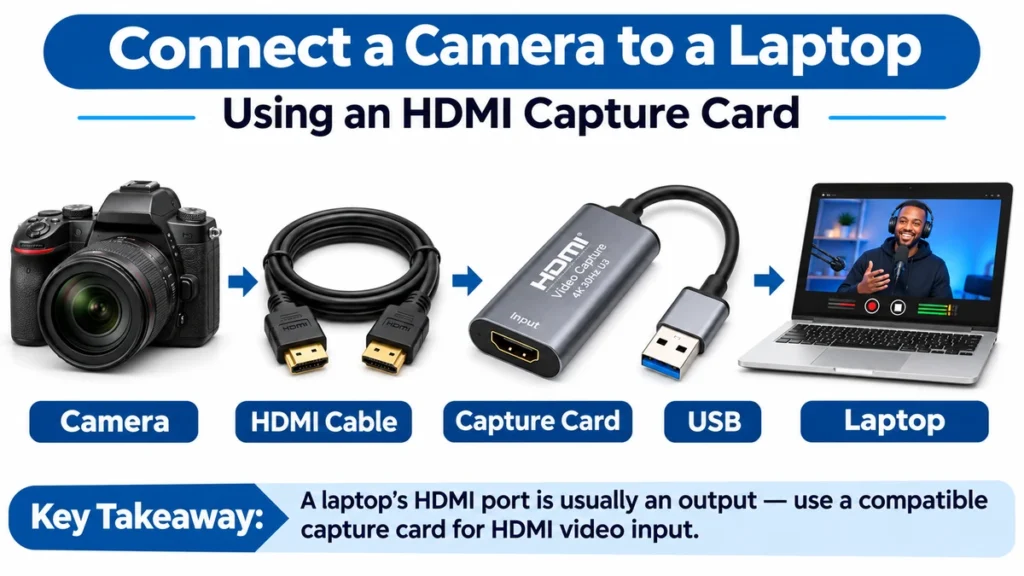
Most laptop HDMI ports are outputs, not inputs.
A laptop HDMI output is generally intended to send a signal to a television, monitor or projector.
It normally cannot receive video directly from a camera through an ordinary HDMI cable.
To bring an HDMI camera signal into a computer, customers commonly use an HDMI capture card or other compatible video capture device.
Typical Camera-to-Laptop Connection
Camera → HDMI cable → HDMI capture card → USB connection → Laptop
The capture card receives the compatible HDMI signal and makes the video available to supported computer software.
The exact workflow depends on the capture card, computer operating system and software.
What can you do with a capture card?
Depending on the equipment and software, a capture card can help with:
- Camera livestreaming.
- Video recording on a computer.
- Online presentations using compatible camera feeds.
- Demonstrations and training sessions.
- Camera video monitoring through supported applications.
- Video production workflows.
Browse HDMI Video Capture Cards at Marcnet Gadgets
7. HDMI Capture Cards: USB 2.0 vs USB 3.0 vs USB-C
Capture cards differ in the connections they offer, the signal formats they accept and the video formats they send to the computer.
USB connection type is one consideration, but it is not the only specification that matters.
HDMI Capture Card Comparison
| Capture card type | What to check | Typical buying need |
|---|---|---|
| USB 2.0 capture card | Supported capture resolution and frame rate | Basic compatible video capture |
| USB 3.0 capture card | Actual capture format, USB requirements and software support | Higher-data-rate capture applications |
| USB-C / USB-A capture device | Connector type and USB data capabilities | Connecting to compatible computers |
| Capture card with HDMI loop-out | Capture format and HDMI monitoring output | Recording or streaming with external monitoring |
A USB-C connector does not automatically mean USB 3.0 performance. Confirm the device’s underlying USB specification and computer compatibility.
Video Capture Card Products at Marcnet Gadgets
An option for compatible HDMI-to-computer video capture. Check the supported input format, captured output resolution and frame rate.
A USB 3.0 capture option for compatible computer video workflows. Verify supported capture formats rather than assuming USB 3.0 alone guarantees 4K recording.
A Full HD capture option to consider for compatible 1080p60 applications. Confirm its actual computer-side capture output and requirements.
A product marketed with 4K HDMI capability. Check separately whether 4K refers to its supported HDMI input, pass-through output or actual captured video resolution.
Does 4K HDMI input mean 4K recording?
No.
A capture card may accept a 4K signal while recording or transmitting a lower-resolution video stream to the computer.
For example, 4K HDMI input support and 1080p computer capture can exist on the same device.
This is why customers should look for separate specifications covering:
- Maximum HDMI input resolution.
- Maximum computer capture resolution.
- Supported capture frame rate.
- Supported USB connection.
- Audio capture capabilities.
- Software and operating-system compatibility.
Do not assume that the largest resolution printed on a product package describes the actual recording resolution.
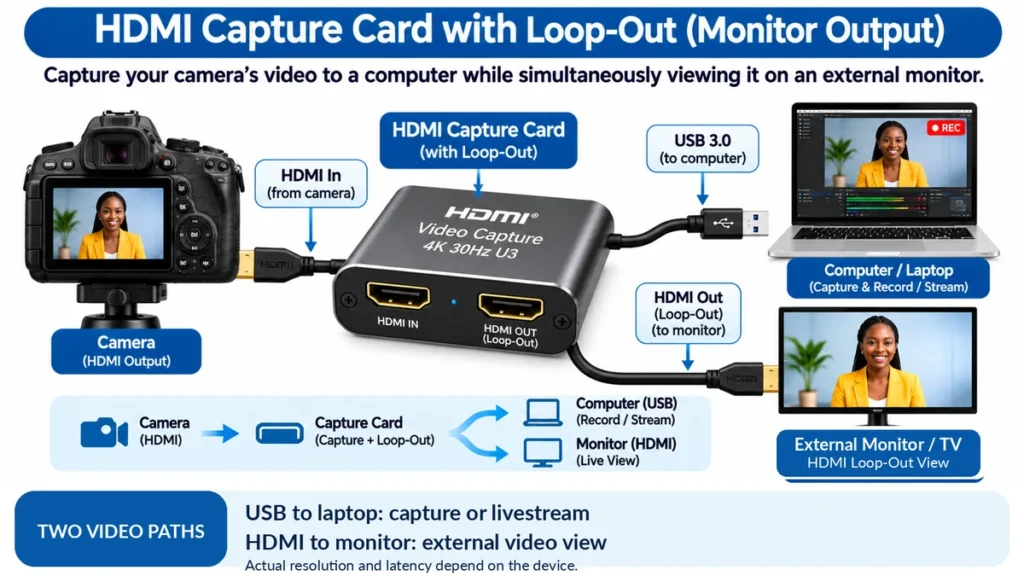
8. What Is an HDMI Capture Card with Loop-Out?
A capture card with HDMI loop-out offers an additional HDMI output designed for external monitoring or compatible pass-through use.
A typical workflow is:
Camera → Capture card → USB connection to computer
At the same time:
Capture card HDMI loop-out → External monitor
This arrangement may allow the operator to monitor the incoming HDMI signal through a separate display while the computer receives the captured video.
The exact output resolution and monitoring behaviour depend on the device.
Marcnet Capture Cards with Loop-Out
HDMI Capture Card with Loop-Out — Product Option 1
A capture and monitoring option for customers who need an HDMI output alongside computer capture.
HDMI Capture Card with Loop-Out — Product Option 2
Another loop-out capture-card listing for compatible video workflows.
Compare the two devices using their listed input resolution, capture format, frame rate, USB connection, audio functions and HDMI output specifications.
When is loop-out useful?
HDMI loop-out may be helpful for:
- Camera livestreaming with an external monitor.
- Video recording where a separate display is required.
- Compatible gaming or demonstration capture.
- Selected presentation and production setups.
Important: HDMI loop-out should not automatically be described as a second independently selectable video output. It normally serves a monitoring or pass-through function according to the device’s design.
9. What Is a Professional HDMI Video Switcher?
A professional HDMI video switcher is used to select and manage multiple compatible video sources during a live production.
For example, a church service may use several cameras:
- Camera 1 covering the speaker.
- Camera 2 showing a wider stage view.
- Camera 3 covering the audience.
- Camera 4 providing another compatible video source.
A professional switcher allows the operator to choose which source appears in the programme output.
Depending on the model, it may also provide preview monitoring, transitions, audio controls and other production functions.
How is a professional video switcher different from an ordinary HDMI switch?
An ordinary HDMI switch primarily selects between sources for a display.
A professional video switcher is designed around the needs of live video production.
| Feature | Ordinary HDMI switch | Professional video switcher |
|---|---|---|
| Main purpose | Select an HDMI source | Manage sources for video production |
| Multiple inputs | Often available | Common in multicamera models |
| Camera production workflow | Not necessarily supported | Primary intended application |
| Production transitions | Not generally a standard feature | Model-dependent |
| Preview monitoring | Not generally a standard feature | Model-dependent |
| Audio mixing or control | Model-dependent, often limited | Model-dependent |
| USB capture or direct streaming | Not implied | Depends on switcher capabilities |
Buying advice: Do not purchase a standard HDMI source-selection switch when you specifically need professional live camera-switching controls.
10. Professional HDMI Video Switchers at Marcnet Gadgets
Marcnet Gadgets lists video switchers suitable for customers exploring multicamera livestreaming and video production.
4-Port HDMI Video Switcher
Explore the 4-Port HDMI Video Switcher
A four-port HDMI video switcher for compatible multiple-source video production setups.
It is relevant when an operator needs to work with several HDMI camera feeds and select sources during production.
Before purchasing, confirm the supported input formats, programme outputs, transition controls and other available functions.
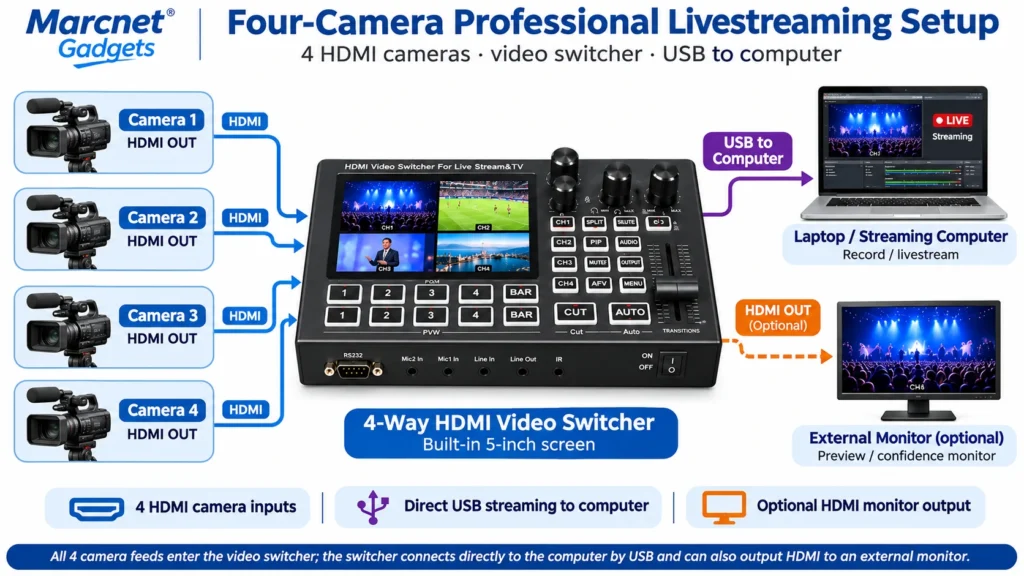
4-Way HDMI Video Switcher with 5-Inch Screen
Explore the 4-Way HDMI Video Switcher with 5-Inch Screen
This product includes an integrated 5-inch screen according to its listing title.
It is an option for customers seeking a multicamera production switcher with an integrated display.
The specific screen functions, multiview modes, transitions, audio control, capture functionality and livestreaming outputs should be checked against the actual product specifications.
Which professional video switcher should you buy?
Begin by checking:
- How many cameras or source devices must be connected?
- Which video resolutions and frame rates do the cameras output?
- Do you need a preview or multiview screen?
- Will you use a separate computer capture card?
- Does the switcher provide a compatible USB video output?
- Do you need professional transitions or audio features?
- What type of programme output is required?
Shop Professional HDMI Video Switchers
11. How to Connect Multiple Cameras for Livestreaming
A professional multicamera livestreaming setup commonly connects several compatible cameras to a video switcher.
A simplified connection path is:
Camera 1 + Camera 2 + Camera 3 + Camera 4 → HDMI Video Switcher
The selected programme feed is then sent to a compatible recording or livestreaming destination.
The connection from the switcher to the computer depends on the switcher’s actual capabilities.
Option A: Switcher with Compatible USB Video Output
Where supported:
Cameras → Video Switcher → USB Video Output → Computer → Livestreaming Software
A separate HDMI capture card may not be necessary if the switcher already provides a suitable computer-compatible video output.
Option B: Switcher with HDMI Programme Output
Where the switcher outputs HDMI and the computer requires USB capture:
Cameras → Video Switcher → HDMI Capture Card → Computer → Livestreaming Software
The capture card converts the compatible HDMI programme output into a format the computer can receive.
Why the difference matters
Customers should not automatically buy an additional capture card before checking the switcher’s output capabilities.
Likewise, an HDMI output on the switcher does not automatically function as a USB webcam connection.
The correct equipment depends on the actual interfaces and supported operating modes.
12. Choosing Equipment for Different Livestreaming Applications
Church Services and Worship Livestreams
A church may use multiple cameras to capture speakers, musicians and wide views of the venue.
A professional video switcher can help an operator select between supported camera feeds.
Important considerations include the number of cameras, HDMI cable distance, audio integration, video formats and the method used to connect the programme output to the livestreaming computer.
Conferences and Corporate Events
Conference video production may involve cameras, presentation sources and a central operator position.
Choose equipment that supports the required source formats and programme outputs.
For cameras positioned farther from the production desk, investigate suitable signal transmission methods.
Training and Educational Livestreams
A training setup may combine a camera, presentation source and computer.
A single HDMI capture card may be sufficient for one camera. A professional switcher becomes more relevant when multiple sources must be actively managed during production.
Interviews and Content Creation
For a simple single-camera interview, a compatible HDMI capture card may be adequate.
For multi-angle interviews, compare professional video switchers and their supported input and output configurations.
Events and Live Productions
More complex events may require several cameras, operator monitoring and reliable programme output.
The production requirements should determine the equipment rather than purchasing solely by the number of HDMI ports.
13. Common Camera HDMI and Capture Card Buying Mistakes
Mistake 1: Confusing Mini HDMI and Micro HDMI
These are different physical connectors. Check the camera’s port before buying.
Mistake 2: Assuming a laptop’s HDMI port accepts camera input
Most laptop HDMI ports provide video output. A capture card is commonly needed for HDMI camera input.
Mistake 3: Assuming 4K input means 4K recording
Input, captured output and loop-out resolutions are separate specifications.
Mistake 4: Buying the wrong USB connection
Check USB-A or USB-C connector type, data capability and compatibility with the computer.
Mistake 5: Ignoring camera HDMI output settings
Some cameras display interface overlays or have output restrictions. Confirm the desired video signal before buying capture equipment.
Mistake 6: Buying an ordinary HDMI switch for professional multicamera production
Ordinary HDMI switches are not necessarily designed for live transitions, preview monitoring or other video-production controls.
Mistake 7: Buying an additional capture card unnecessarily
Some professional switchers have compatible computer video outputs. Check the switcher specifications before adding separate capture equipment.
Mistake 8: Ignoring cable tension and connection distance
Small camera HDMI ports can be vulnerable to mechanical strain. Choose suitable cable routing and compatible accessories.
14. Buy Camera HDMI Cables, Capture Cards & Video Switchers in Kenya
Marcnet Gadgets provides camera HDMI connectivity and video equipment for customers working with cameras, computers, monitors and livestreaming setups.
The correct buying decision depends on the equipment you already own and the production workflow you need.
Shop by Product Category
Explore Mini HDMI, Micro HDMI, camera cables and compatible adapters.
Compare USB capture devices, Full HD and 4K-input options, and capture cards with HDMI loop-out.
Professional HDMI Video Switchers
Explore multi-input video switchers for compatible livestreaming and production requirements.
Need Help Selecting the Right Equipment?
Before ordering, identify:
- Your camera model and HDMI connector type.
- The number of cameras you want to connect.
- The HDMI output resolution and frame rate.
- Whether you need external monitoring.
- Whether you want computer recording or live streaming.
- Your computer’s available USB ports.
- Whether professional multicamera switching is required.
- The approximate distance between cameras and production equipment.
These details will help narrow down the appropriate Marcnet product options.
Frequently Asked Questions
What is the difference between Mini HDMI and Micro HDMI?
Mini HDMI is a Type C connector, while Micro HDMI is Type D. They have different physical sizes and require compatible cables or adapters.
Can I connect a camera directly to a laptop using HDMI?
Usually not through the laptop’s standard HDMI output. A compatible capture device is commonly required.
What does an HDMI capture card do?
It receives a compatible HDMI video signal and makes video available to a computer through a supported interface, commonly USB.
Does a 4K HDMI capture card record in 4K?
Not necessarily. A product may accept 4K input but capture at a lower resolution. Check the exact input and captured-output specifications.
Is USB 3.0 better than USB 2.0 for video capture?
USB 3.0 supports a higher interface data rate, but actual capture quality and format depend on the capture device’s design and specifications.
What is HDMI loop-out on a capture card?
HDMI loop-out provides an HDMI output for compatible monitoring or pass-through use while the device performs video capture.
Can I use an HDMI capture card with livestreaming software?
Many capture cards support compatible livestreaming and recording applications. Confirm the specific capture card’s software and operating-system requirements.
Can I connect four cameras to a professional HDMI video switcher?
A suitable four-input model can connect up to four compatible video sources, subject to its supported HDMI signal formats.
Do professional video switchers replace capture cards?
Some provide a computer-compatible USB video output and may remove the need for a separate capture card. Others may require an additional capture device.
Is an ordinary HDMI switch suitable for livestreaming?
An ordinary HDMI switch may select between video inputs, but it does not necessarily provide the professional controls needed for multicamera production.
Which HDMI cable should I buy for a camera?
Choose the cable based on the camera’s HDMI connector, the receiving equipment, supported video format and required cable length.
Where can I buy camera HDMI cables and capture cards in Kenya?
You can explore camera cables, USB capture cards and professional HDMI video switchers through Marcnet Gadgets and compare the relevant product specifications before ordering.
Final buying advice: Start by identifying your camera connector and intended destination. Use a compatible HDMI cable for external monitoring, a suitable capture card for computer video input, or a professional video switcher when you need to manage multiple camera feeds during livestreaming. Check the actual device capabilities before purchasing.
Leave a Reply